🚀 Inheriti® Go
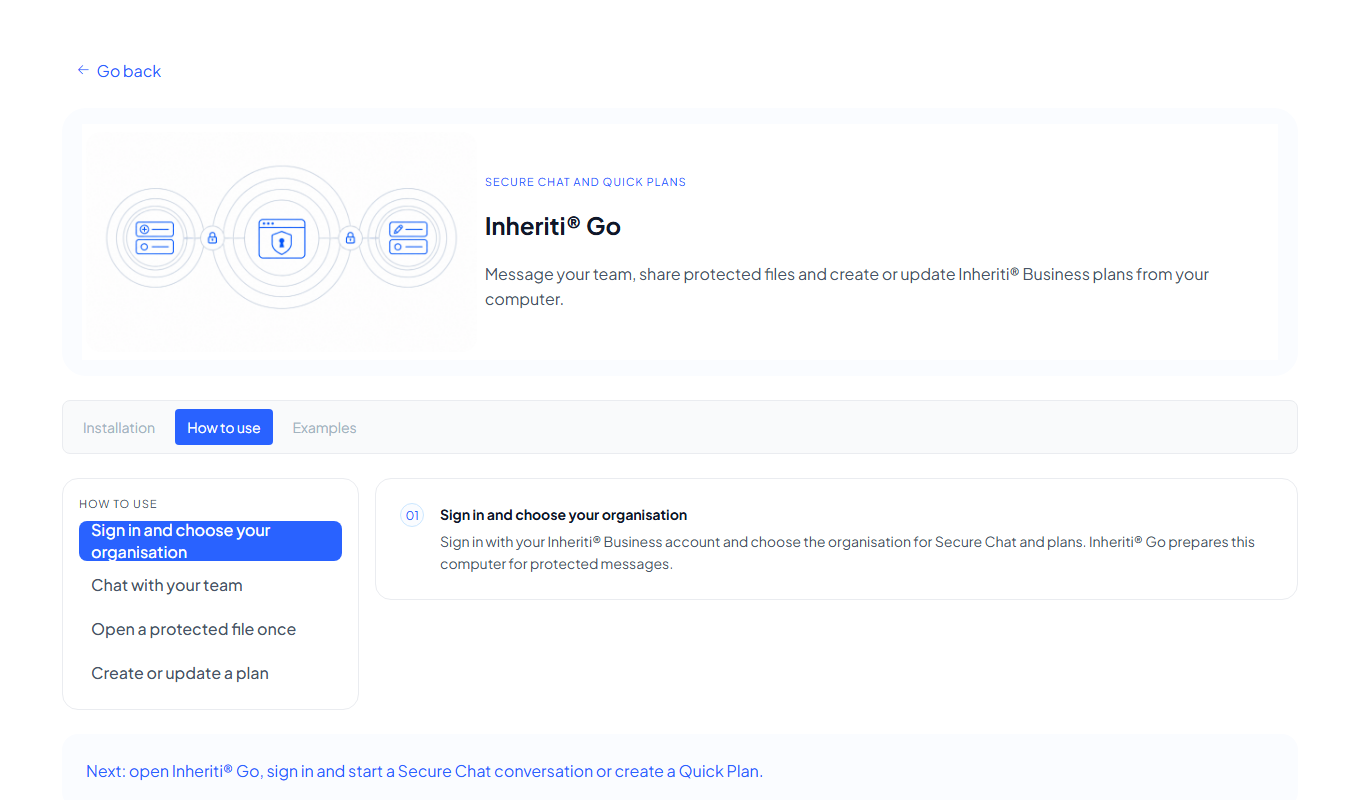
Inheriti® Go lives in your computer's menu bar or system tray. It does two things: Secure Chat, to message your team and share secrets and files safely, and Quick Plans, to create a plan or add to one without opening the Business app.
Install and sign in
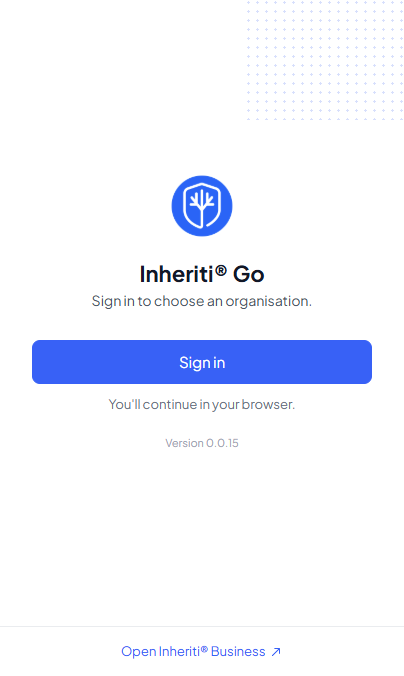
Download and install the Windows installer, the Linux AppImage or the macOS .dmg. Open Go, select Sign in and sign in with your Inheriti® Business account in the browser. Then choose your organisation. Go prepares your computer for protected messages.
Go keeps running in the background. Select its icon to open the launcher, or use the keyboard shortcut Ctrl + Alt + Shift + I (⌘ + ⌥ + ⇧ + I on a Mac). The menu offers:
- Open Secure Chat
- Create new private plan
- Share new plan with a team
- Add or edit an asset from a plan
- Quit
Secure Chat
Chat with the members of your organisation, with extra protection for what should not stay readable.
- Normal messages: send text as you would anywhere.
- Protect selected words: mark part of a message as a one-time secret. Everyone sees the message, but the protected words stay sealed until a recipient chooses to open them.
- Protected messages and files: send a message or a file that each member can open once. Files can be up to 10 MB.
- Read status: you can see when a message was read, and unread counts clear when you open a conversation.
- Notifications: desktop notifications tell you about new messages while Go is running, even when its window is closed.
Opening a protected file
Opening a protected file is a one-time action, so decide what to do with it first. Choose where to save the file on your computer, or select Save as a plan to place it directly in a Quick Plan.
Quick Plans
A Quick Plan is a protection plan created in two short steps: 1 · Details and 2 · Review & protect.
- Choose Create new private plan, or Share new plan with a team and pick the team.
- Give the plan a title and choose an asset type: plain text, account and password, recovery code, PIN code, API key, private key, seed phrase, credit card, debit card, document, image or video. Fill in its fields and, if you like, add notes. Files can be up to 10 MB.
- Review the plan. Go shows the audience (Private or the team you picked).
- Select Create a plan. Go asks you to open SafeKey Mobile and confirm the release of your Organisation Key, then protects the plan step by step: it saves it, encrypts it, spreads the shares over your storage layers and verifies the result.
- When you see "Your plan is protected", you can View in Inheriti® Business or Save another.
If your organisation has reached its plan capacity, or a storage layer is unavailable, Go says so and does not create the plan.
Add to an existing plan
Choose Add or edit an asset from a plan, then a plan you are allowed to edit. Go runs the plan's access flow: Organisation Key release, authentication and moderator approvals, with a progress list. When it is done you can:
- add an asset, for example an API key for a service you already protect, or
- edit an existing asset, for example to enter a changed password. The plan keeps its other assets.
After a change, save the new plan share to your custodian device the next time you open the plan.
If you do not see a plan, you do not have permission to edit it, or none is ready: "Plans you can edit will appear here."
If something goes wrong
- "Organisation Key not claimed yet": claim it in SafeKey Mobile first.
- Authentication or moderation denied or expired: Go shows which step failed. Select Request access again.
- "Another edit is active or this plan changed": refresh, or open the plan in Inheriti® Business.
- An unfinished edit: Go saves it so you can Recover update or Discard edit.
Next: Inheriti® Guard.