📥 Inheriti® Database Importer
Already keep secrets somewhere else? The Inheriti® Database Importer is a desktop app that reads an export, lets you review and correct it, and stages what you want to keep. The file is read on your own computer. Nothing leaves it until you choose Encrypt and stage, and nothing becomes a protection plan until you finish the job in Inheriti® Business.
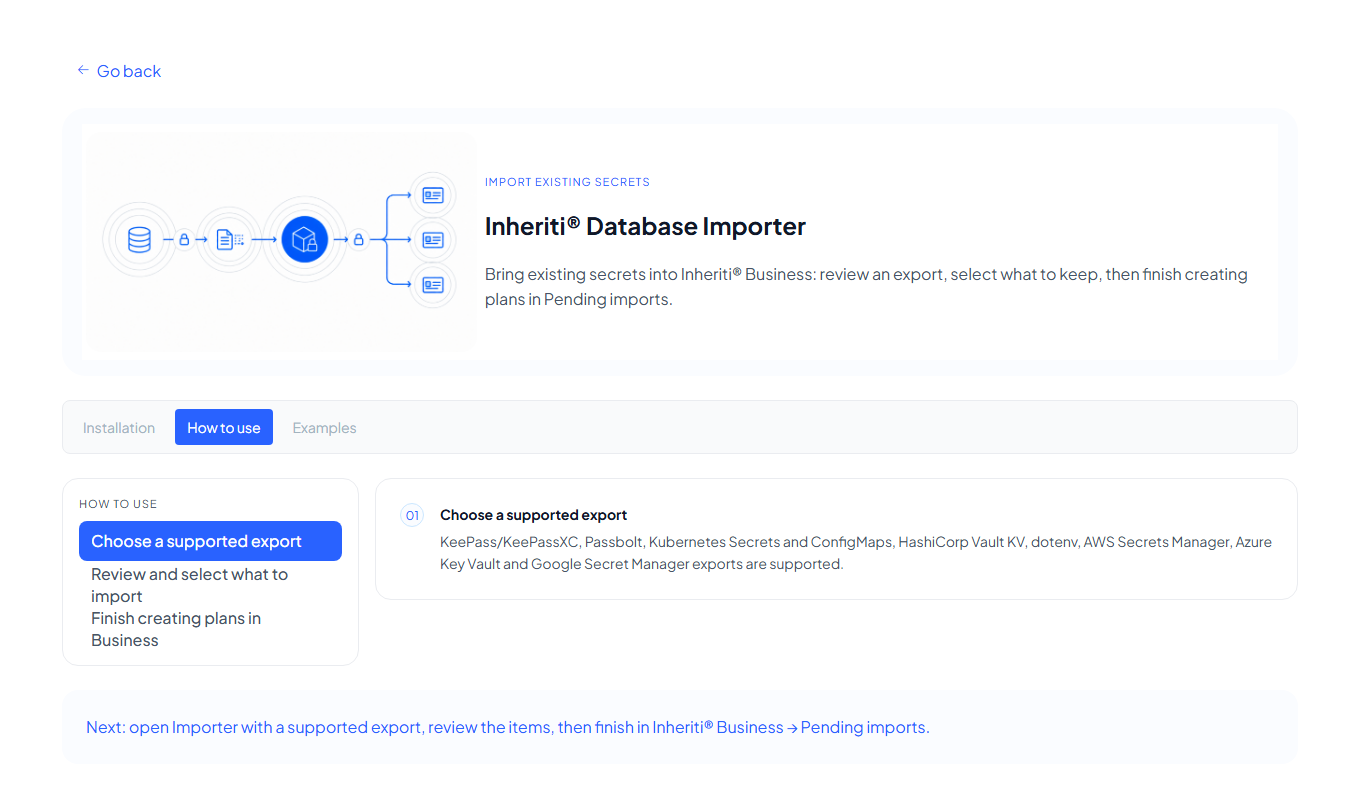
Install
Download and install the Windows .exe, the Linux AppImage or the macOS .dmg, open the app and sign in with your Inheriti® Business account.
Sign in
Open the app and select Sign in with SafeID. Your browser opens so you can sign in with your Inheriti® Business account, then you return to the app and choose your organisation.

Import in four steps
The steps are listed on the left, and the app tells you which one you are on.
1. Import sources
Drop a file onto the window, or select Choose files. The app recognises the format from the file's contents, not only its extension, and shows how many entries it found.
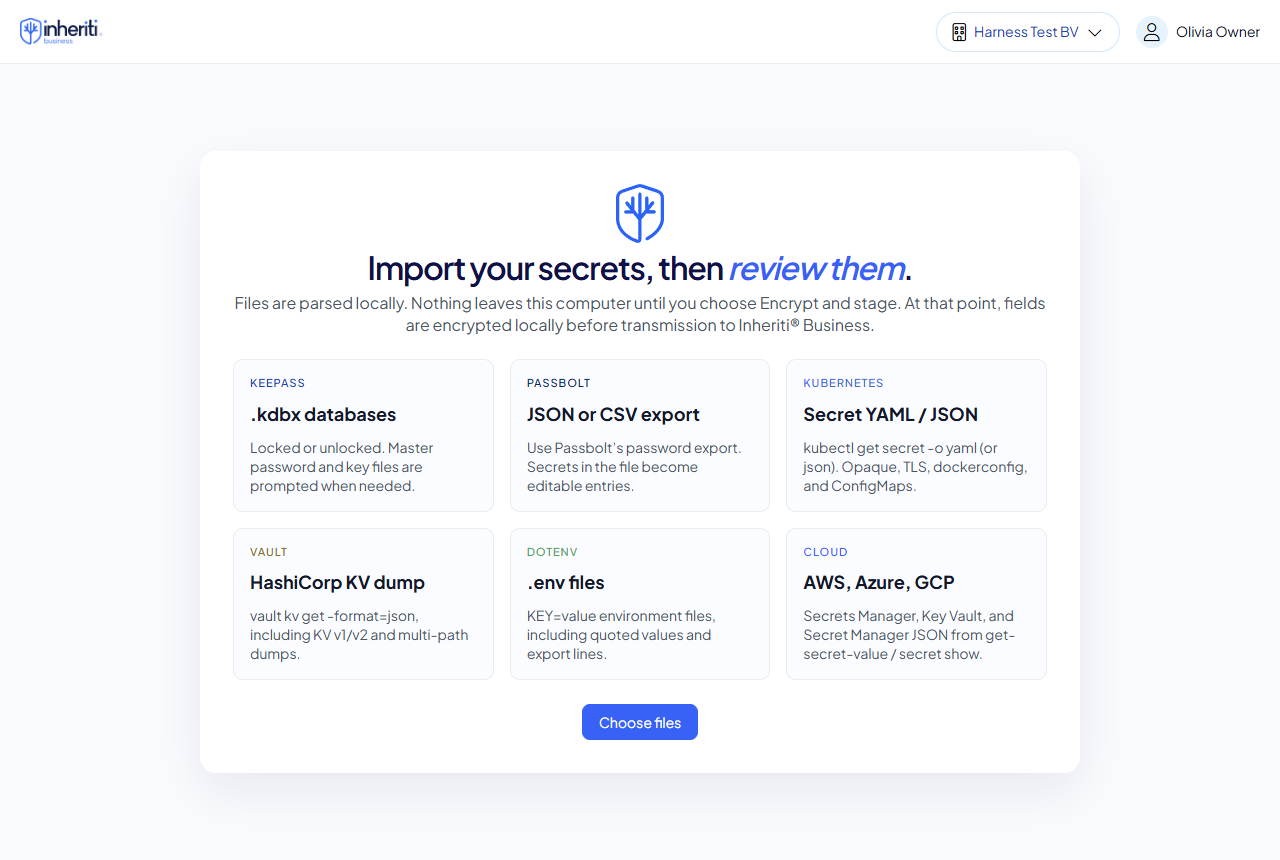
Files are parsed on your computer. Nothing leaves it until the last step.
2. Review assets
Every detected entry is an asset. For each one, choose Accept or Exclude. The keyboard is quick: A accepts, X excludes and the arrow keys move. Values stay hidden behind dots until you select Reveal plain text. Entries that match no known type, such as a plain environment variable, are imported as Plain Text.
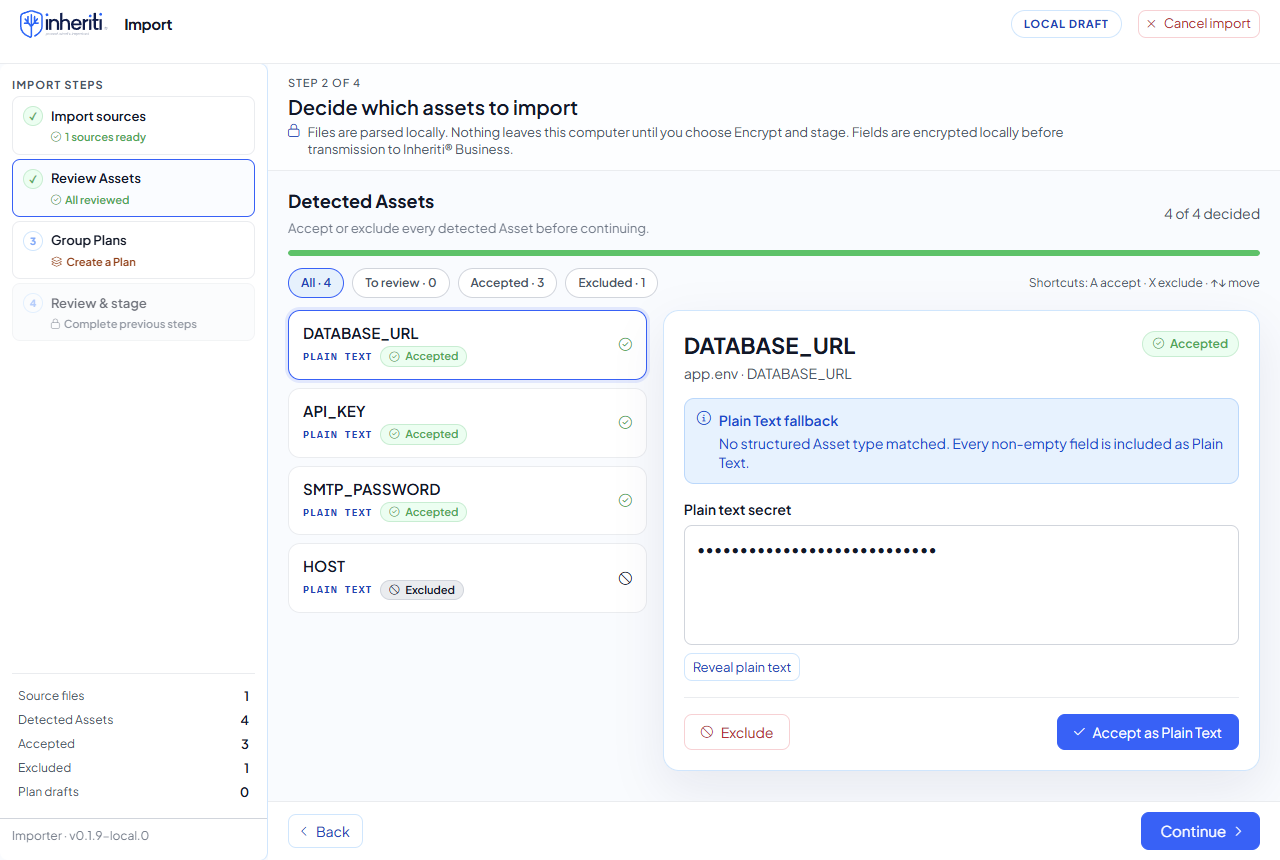
You can correct details before you accept. The step is done when every asset has been decided ("4 of 4 decided").
3. Group plans
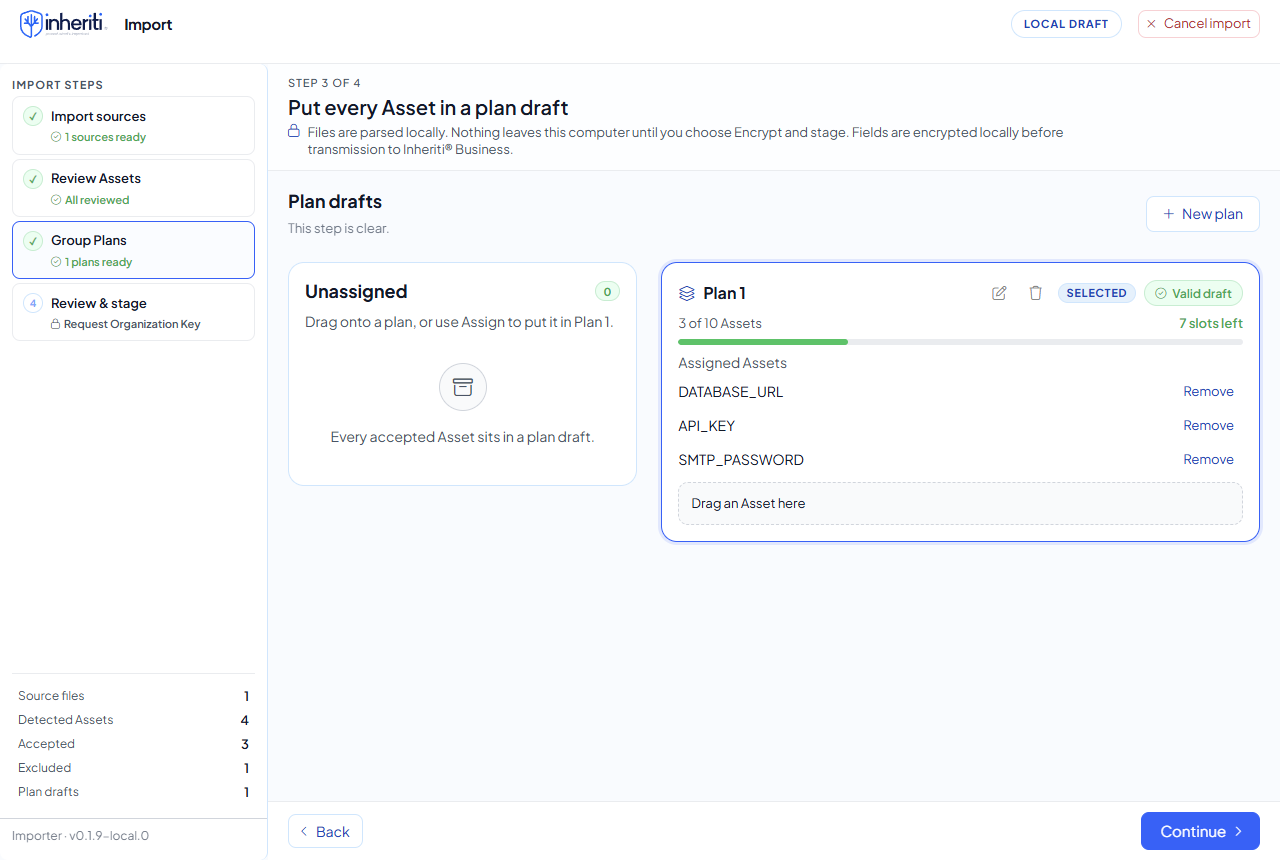
Accepted assets are placed in plan drafts. Select New plan, then Assign each asset to it, or drag it onto the plan. A plan holds up to 10 assets, and the app tells you when a draft is valid.
4. Review and stage
The last step checks that everything is ready, then asks for your Organisation Key: select Request via SafeKey Mobile and confirm the release on your phone. The key encrypts every field on your computer before anything is sent. Select Encrypt and stage.
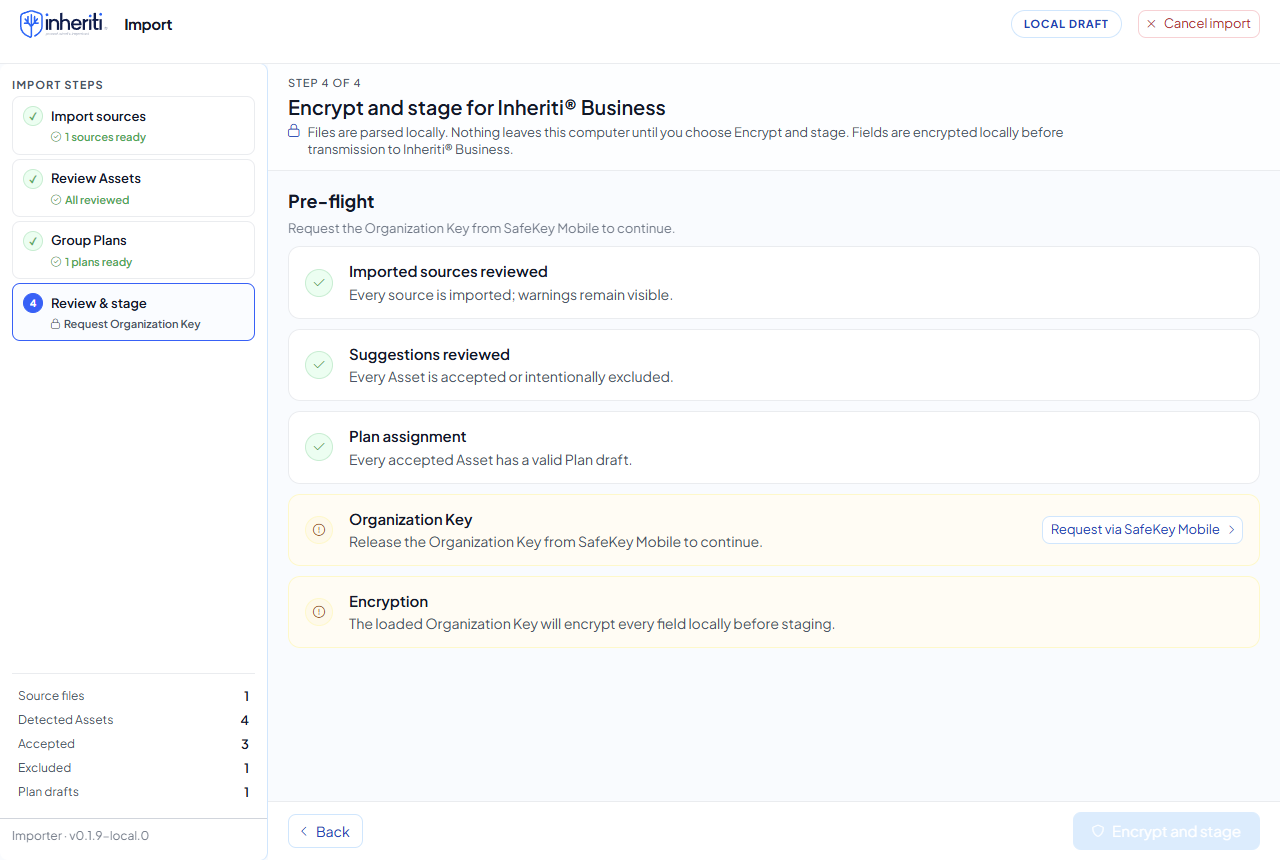
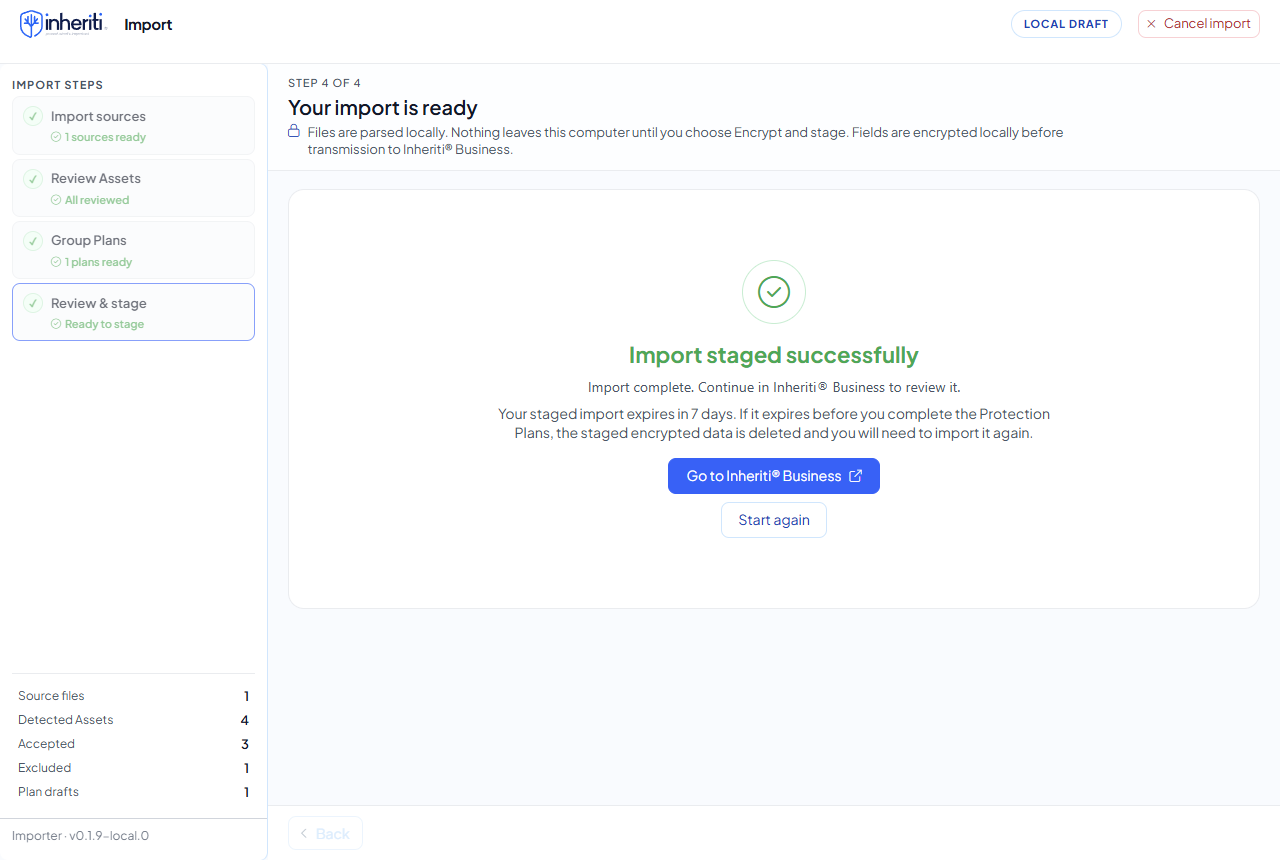
When the key is loaded, every check is green ("Nothing blocking. Encryption runs locally before transmission."). After Encrypt and stage the Importer says Import staged successfully. The staged import expires in 7 days: "If it expires before you complete the Protection Plans, the staged encrypted data is deleted and you will need to import it again." Select Go to Inheriti® Business to continue, or Start again for a new import.
Finish in Business
Staging prepares the items; it does not create protected plans. Open Pending imports in Inheriti® Business, select the items to create and complete plan creation. Only members with access can see the staged items.
What you can import
| Source | Typical files | Notes |
|---|---|---|
| KeePass / KeePassXC | .kdbx | Use the database file itself. If it is locked, enter the master password, and the key file if it uses one. Entries in the recycle bin are skipped |
| Passbolt | .json, .csv | Export from Passbolt with secrets included. If passwords are missing after import, export again with secrets |
| Kubernetes | .yaml, .yml, .json | Secrets and ConfigMaps, single or lists. Encoded values are decoded for you. SealedSecrets are still encrypted: unseal them first |
| HashiCorp Vault | .json, .yaml | vault kv get output for KV v1 and v2, and files that combine several paths |
| dotenv | .env, *.env | KEY=value files. Each variable becomes its own entry |
| Cloud secret stores | .json | AWS Secrets Manager, Azure Key Vault and Google Secret Manager. The export must include the secret value |
Fields such as username, password and url are mapped onto the standard entry fields. Other keys become extra fields.
How to export
The commands you need, in short. Replace the names with your own:
# Kubernetes: one secret, or every secret in a namespace
kubectl get secret db-credentials -n production -o yaml > db-credentials.yaml
kubectl get secrets -n production -o yaml > secrets.yaml

# HashiCorp Vault (KV)
vault kv get -format=json secret/myapp > myapp.json

# AWS Secrets Manager
aws secretsmanager get-secret-value --secret-id prod/db --output json > aws-secret.json

# Azure Key Vault
az keyvault secret show --vault-name ops-vault --name smtp --output json > azure-secret.json

# Google Secret Manager
gcloud secrets versions access latest --secret=api-key --project=my-project --format=json > gcp-secret.json
For Passbolt, use Export in the password workspace, choose JSON or CSV, and include the secrets. Listing commands such as list-secrets or vault kv list only return names, so they cannot be imported.
macOS file dialogs often hide files that start with a dot. Drag the .env file onto the window, or rename a copy to app.env.
Good to know
- Treat the export file like the secrets themselves: delete it when you have staged what you need.
- You can stage only part of an export, and exclude local-only settings such as development URLs.
Next: Inheriti® CLI.