💻 Inheriti® IDE
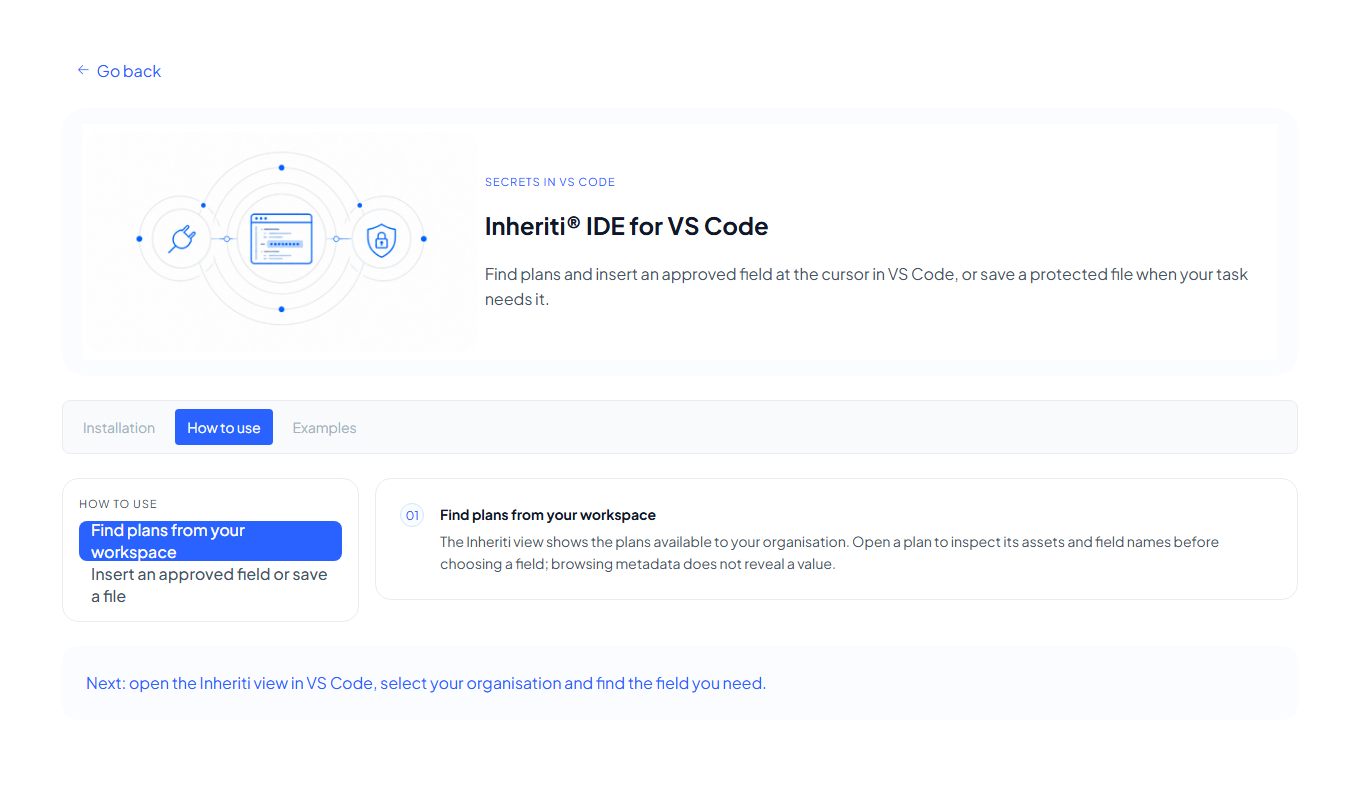
Inheriti® IDE is an extension for Visual Studio Code. It shows the plans of your organisation next to your code, so you can find the field you need and insert an approved value at the cursor without leaving the editor.
Install
Download the .vsix file. In VS Code open Extensions, select the … menu, choose Install from VSIX and pick the file. From a terminal you can run code --install-extension followed by the file name.
Then use the Inheriti icon in VS Code's side bar, run Inheriti: Sign In and sign in with your Inheriti® Business account. Inheriti: Select Business Organization chooses the organisation.
Find a plan
The Plans view lists the plans available to your organisation. Open a plan to inspect its assets and field names. Browsing metadata never reveals a value. Use Inheriti: Refresh Plans after something changed.
Insert a value or save a file
- Select a field and run Inheriti: Insert Protected Field, or choose Inheriti: Reveal Plan for the plan as a whole.
- Complete the plan's access flow: Organisation Key release in SafeKey Mobile, authentication and moderation as the plan requires.
- The approved value is inserted at the cursor.
- For a file (a document, image or video), run Inheriti: Download Asset to save the approved media to a local file.
Check the destination first. A value you insert is plain text in your file. Do not save it into a file that goes into source control, and check the file before you save.
Commands
All commands start with Inheriti: in the Command Palette.
| Command | What it does |
|---|---|
| Sign In / Sign Out | Sign in with your Inheriti® Business account, or end the session |
| Select Business Organization | Choose the organisation to work in |
| Show Plans / Refresh Plans | Open the Plans view, or reload it |
| Open Plan | Inspect a plan's assets and fields |
| Reveal Plan | Run the plan's access flow |
| Insert Protected Field | Insert an approved field at the cursor |
| Download Asset | Save an approved file to disk |
| Abort Plan Access | End an unfinished access request |
| Forget Held Key | Make the editor forget the Organisation Key it is holding |
| Check for Updates / Show Version | Update information |
If something goes wrong
- The field does not appear: check that the right organisation is selected and refresh the plans.
- Access is waiting: the request needs an approval. Open SafeKey Mobile, or ask the moderators. Abort Plan Access ends it, and you can start again.
Next: Automation.