🧠 Inheriti® MCP
Inheriti® MCP connects Inheriti® Business to an AI assistant that supports the Model Context Protocol (MCP): Codex, Claude Code, Cursor, Claude Desktop and others. The assistant can find the right plans and fields. When a value is needed, it opens on a one-time page in your own browser, and the assistant only learns that it was delivered, never what it was.
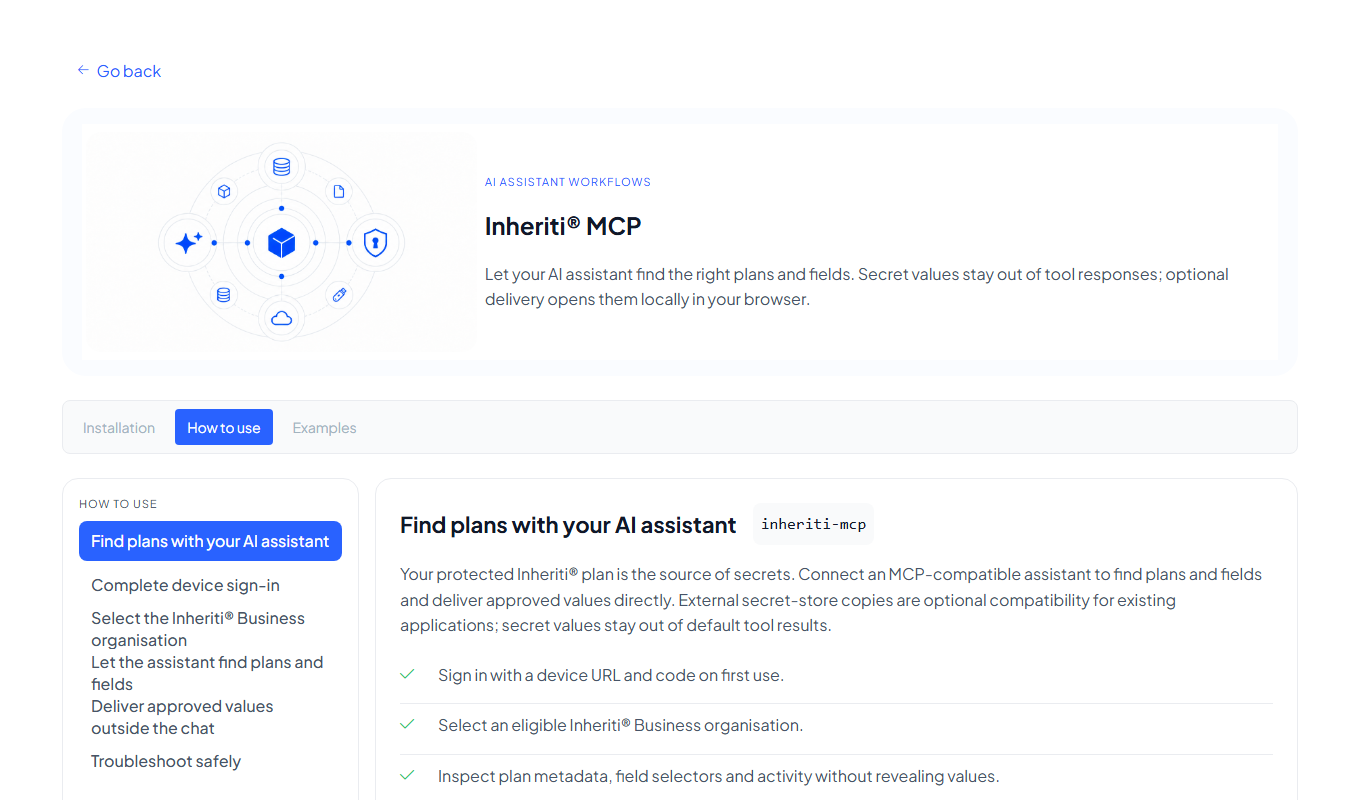
Your assistant starts inheriti-mcp on your computer as a local program and talks to it directly. Running it by hand in a terminal does nothing useful: it waits for messages from the assistant.
Install
- Install Node.js 22 or later (it includes npm).
- Download the MCP build for your system. A
.tgzdownload does not install the command by itself: choose Installation instructions next to the download and run the command shown, from the folder that holds the file. On Windows that is a PowerShell command, and afterwardsinheriti-mcp --versionshould print a version. - Connect your assistant. Add Inheriti® MCP as a local server to your client:
| Client | What to do |
|---|---|
| Codex | codex mcp add inheriti -- inheriti-mcp |
| Claude Code | claude mcp add --transport stdio --scope user inheriti -- inheriti-mcp |
| Cursor | Add the entry below to .cursor/mcp.json (one project) or ~/.cursor/mcp.json (all projects) |
| Claude Desktop | Settings → Developer → Edit Config, add the entry below to claude_desktop_config.json, then restart Claude Desktop fully |
{
  "mcpServers": {
    "inheriti": { "command": "inheriti-mcp" }
  }
}
If your client cannot find inheriti-mcp, use the full path to the program instead. On Windows, where.exe inheriti-mcp shows it.
Sign in and first request
Restart or reconnect your client, open a new conversation and ask: "List my Inheriti Business organisations." The first request returns a sign-in link and a code. Open the link, enter the code, then ask again. Then ask the assistant to select your organisation; the choice is remembered.
The session is held by the running program. If you restart the assistant's server, you sign in again.
What the assistant can do
| Task | Tools | Reveals a value? |
|---|---|---|
| Sign in and organisations | list_organizations, select_organization, logout | No |
| Find plans and fields | list_backup_plans, get_backup_plan, list_backup_plan_logs | No: names, asset codes, field names and safe activity only |
| Create a plan | create_plan_with_assistant, check_plan_creation_status | You enter the values in a window on your computer |
| Open a value or a file | reveal_plan_secret, download_plan_asset, check_reveal_status | Yes, but only on a one-time local browser page. The assistant receives status only |
| Recover | abort_plan_access, check_update | No |
Ask in plain language, for example "Which plan holds our Stripe key?" or "Open the API key from the Marketing plan." The assistant picks the tools.
How a value is delivered
- The assistant asks for a field with
reveal_plan_secret. - The plan's access flow runs: Organisation Key release in SafeKey Mobile, authentication, moderator approvals and custodian steps, only as far as the plan requires.
- When approved, a one-time page opens in your browser with the value. Secret values, file bytes and download links never appear in the conversation.
- The assistant can check or cancel the delivery with
check_reveal_status.
Good to know
- Check what the assistant is about to run. Read the request before you approve it, as with any tool.
- Metadata is safe to browse. Searching and inspecting plans needs no approval.
- Automation setup: MCP can also help you set up automation connections. See Automation.
- Something stuck? Ask the assistant to cancel the delivery, or to abort plan access for the plan. If a SafeKey Mobile release cannot be cancelled, wait for the request to expire.
Next: Inheriti® IDE.