🙋 Access a backup plan
Who can do this: Members of a team the plan is shared with.
Request access to a backup plan, pass the plan's governance gates and reveal the data on your own computer. No Dead Man Switch here: that is the continuity plan's extra step.
Before you start
You can only request access once:
- you have claimed the Organisation Key
- the plan is finished: a plan that is still a draft cannot be opened
- the storage layers behind the plan are healthy
When the Get access button is switched off, hover over it: it tells you what is missing, for example "Wait for your administrator to distribute the Organisation Key before accessing this plan", "Claim the Organisation Key in SafeKey Mobile before accessing this plan" or that a storage layer has an issue, in which case your team admin or an organisation manager can help. If SafeKey Mobile has no key to release, the first step tells you: "You haven't claimed the Organisation Key on a SafeKey Mobile device yet, so there is nothing to release. Complete the claim on SafeKey Mobile first, then try again."
Start the request
Open the plan and select Get access. What you see first depends on the plan's properties:
| The plan requires | You start with |
|---|---|
| Authentication only (direct access, or a private plan) | Start authentication |
| Moderation only | Send approval request |
| Authentication and moderation | Start authentication; moderation follows once you are confirmed |
While a request is running, the button reads Access pending.
Step 1: release the Organisation Key
Before any governance check, SafeKey Mobile is asked to release the Organisation Key into your browser. Confirm it on your phone. If your browser already holds the key from earlier in the session, this step is skipped.
Step 2: confirm it is you
If the plan requires authentication, a request is sent to the plan's methods and you confirm it with the one you use:
- SafeKey Mobile: approve the request in the app
- Link via email: click the link you receive
In SafeKey Mobile the request is an Authentication request under Pending actions: "You requested to access [plan name]." It shows a countdown, your name and two buttons, Deny and Approve. Both ask for your PIN.
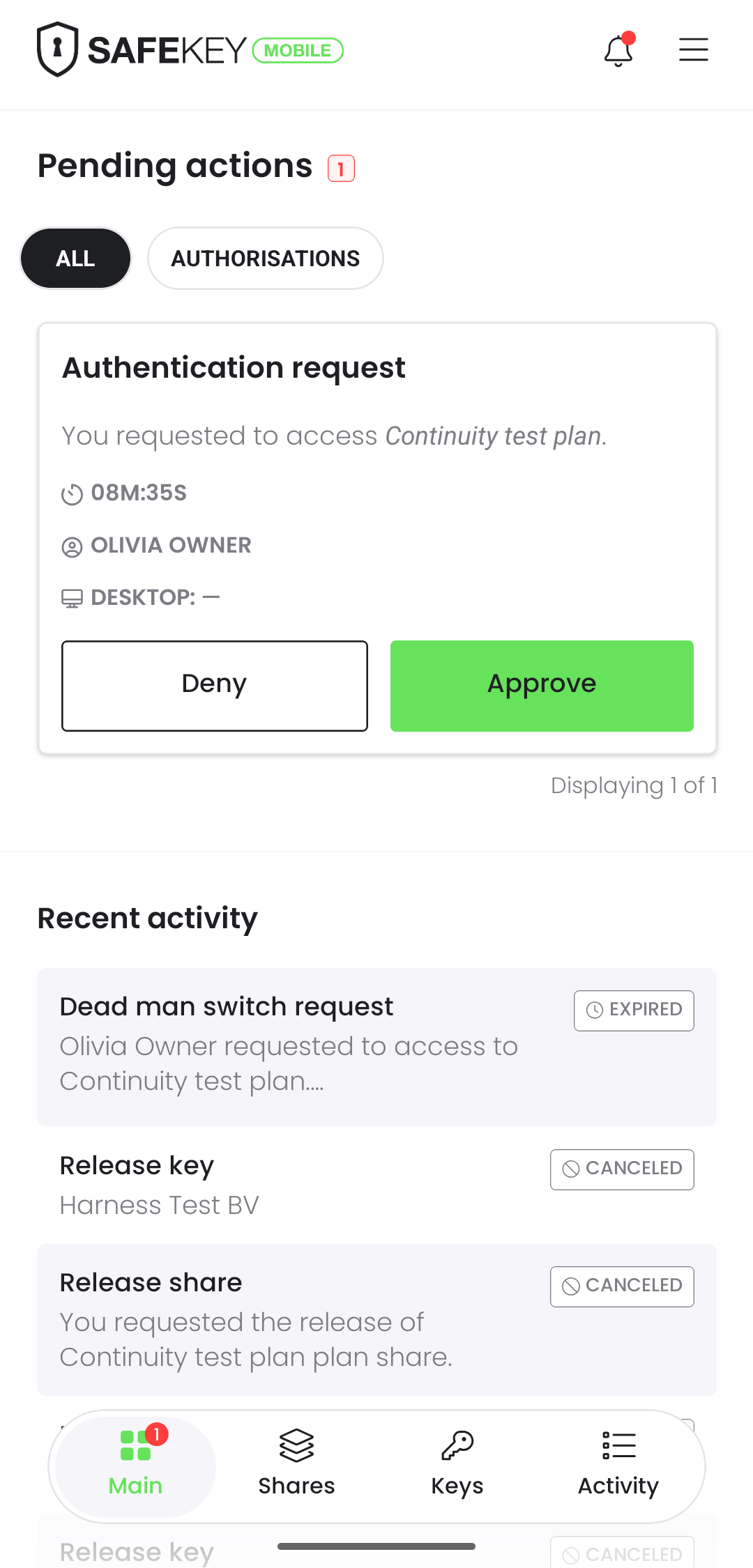
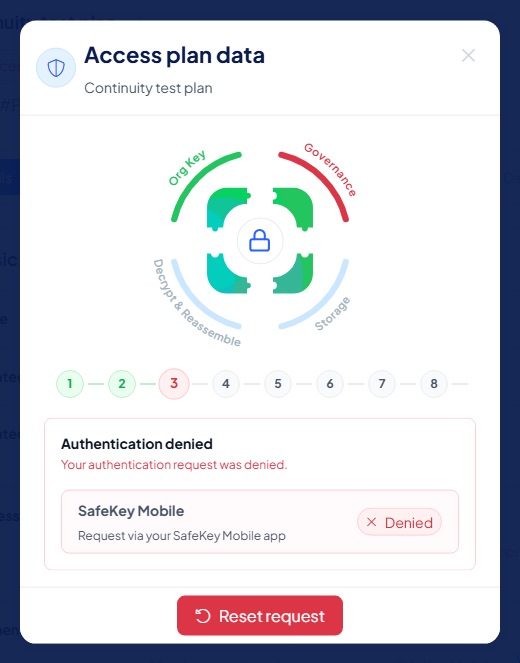
If the request expires, is denied or is cancelled, the dialog says so (for example Authentication denied: "Your authentication request was denied.") and offers Reset request to start again. In SafeKey Mobile the request then shows as Denied, Expired or Canceled under Recent activity.
Step 3: wait for the moderators
If the plan is moderated, all plan moderators are notified in SafeKey Mobile. As soon as the required number of approvals is reached, the remaining moderators do not need to act. You can see who has approved while you wait. Moderators answer from their phone.
Step 4: the plan opens
Once every gate has approved, your browser takes over. A progress screen shows:
- Preparing secure access window
- Collecting validator shares from InheritiChain
- Collecting encrypted data shares from your storage layers
- Collecting custodian share: released from the device that holds it
- Reconstructing and decrypting shares
- Revealing the data
The custodian share
Every plan has a custodian share, kept on a device you choose.
- The first time you open a plan, you are asked to set it up: choose SafeKey Pro (write the share directly to your connected hardware device, with its PIN) or SafeKey Mobile (a claim request arrives on your phone; confirm it to save the share).
- Every later time, you release it: a request arrives in SafeKey Mobile, or you connect your SafeKey Pro and enter its PIN. Keep the device connected until it is done.
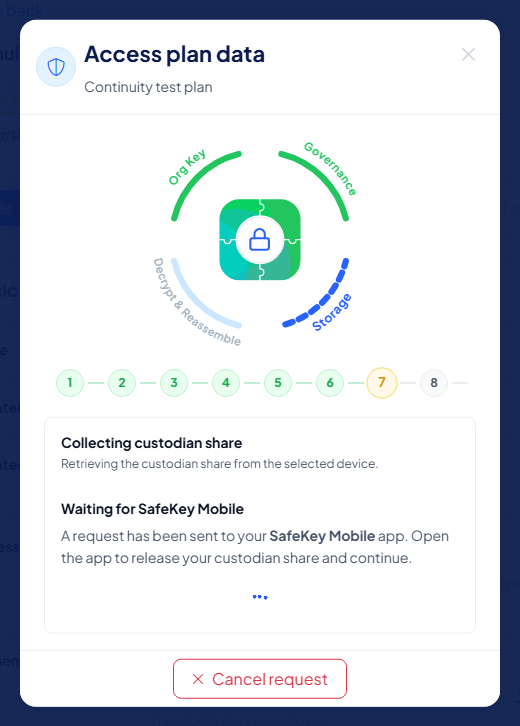
In SafeKey Mobile the request is a Release share card under Pending actions: "You requested the release of [plan name] plan share." Select Release and enter your PIN. Be quick: the request is sent a few times over a short window (about 15 seconds in total), so open SafeKey Mobile before you start, or select Retry if it ran out.
If the release is not confirmed in time, the step stops with "Custodian share release timed out. Check SafeKey Mobile and try again."; select Retry, or Cancel request to stop.
View the data
The data opens in a secure access window, visible only on your computer. The window closes automatically after the access time your organisation has set, and you can close it yourself earlier. After that, a new request is needed.
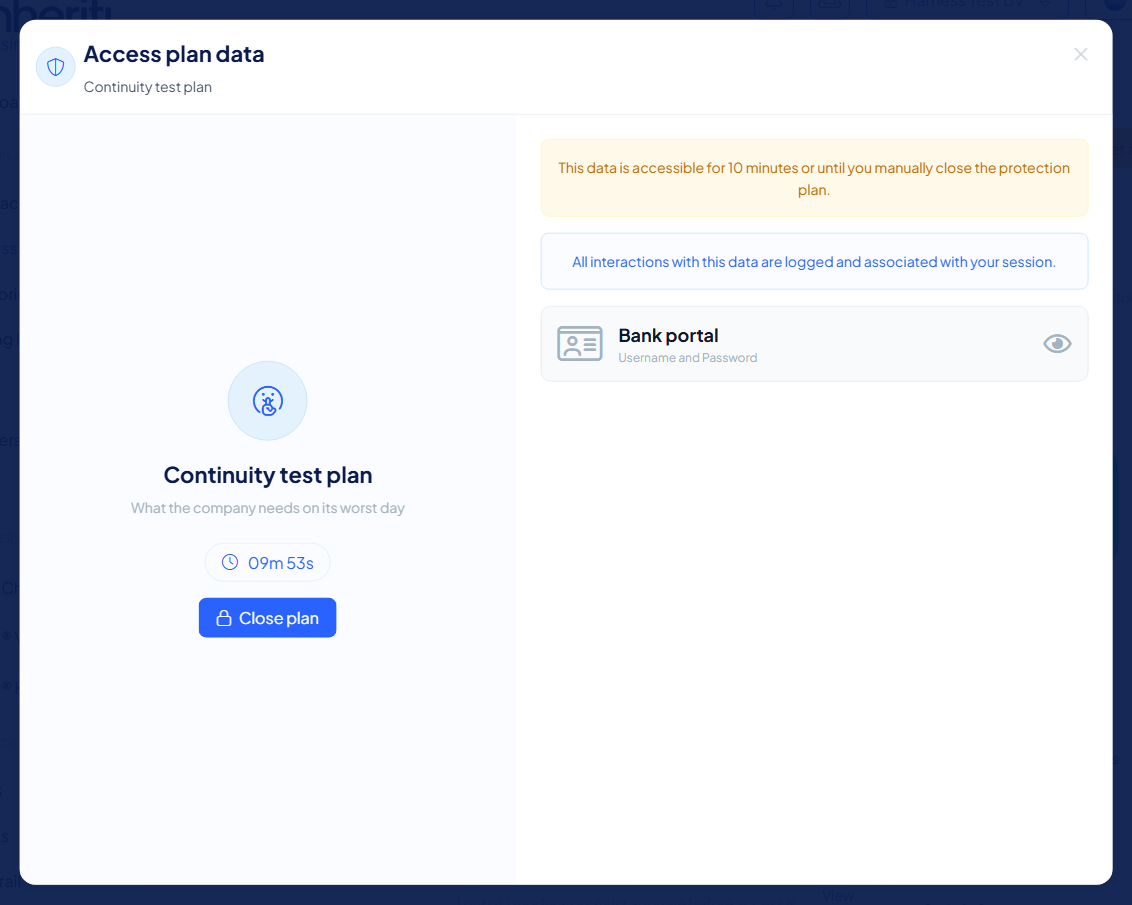
The window says "This data is accessible for 10 minutes or until you manually close the protection plan." and shows the time left, a Close plan button and each asset, which you open with the eye icon.
If something goes wrong, the screen says "We could not reveal this plan." and offers Try opening again; Abort process cancels the request.
Every access is recorded
Each step lands in the plan's logs and in the audit trail: who asked, who approved, and when the data was revealed.