🔒 Create a private backup plan
Who can do this: Any member, if your organisation allows private plans.
A private backup plan holds data that is yours alone. No team has access, no moderators are involved, and every time you open it you confirm the request yourself through authentication. Use it for the notes and credentials that nobody else in the organisation should reach.
Before you start
- You need to have claimed the Organisation Key; without it you cannot create plans.
- Your organisation decides whether private plans are allowed. If Private (only you) is not offered in the first step, ask your organisation owner: it is a setting they control.
Start the plan
Go to Data Backup and select New protection plan. A private plan has five steps: one fewer than a shared backup plan, because there are no teams to assign.
Step 1: plan setup
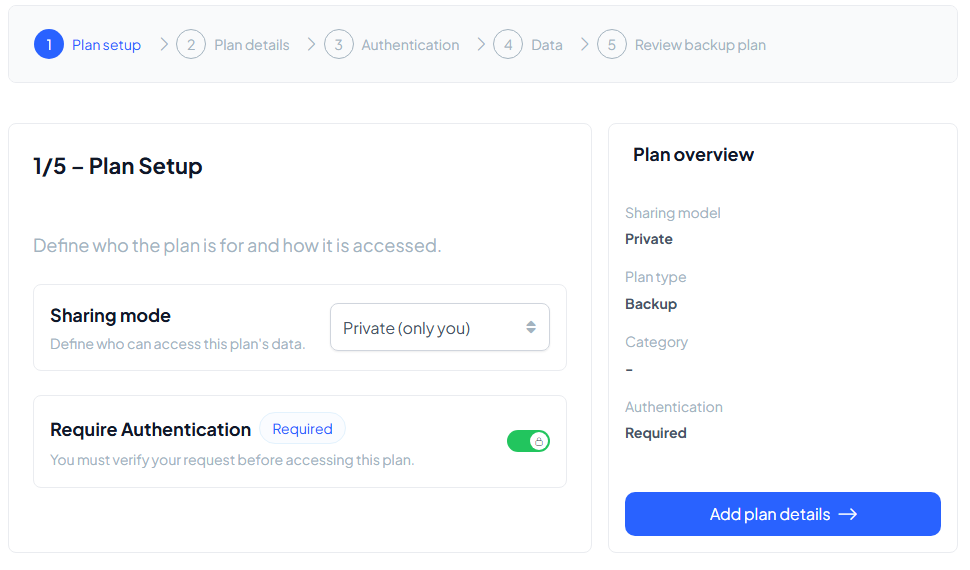
Under Sharing mode, choose Private (only you).
- Moderated Access disappears: a private plan has no moderators.
- Require Authentication is switched on and locked: "You must verify your request before accessing this plan."
These are the plan's properties. A private plan always keeps authentication as its gate.
Step 2: plan details
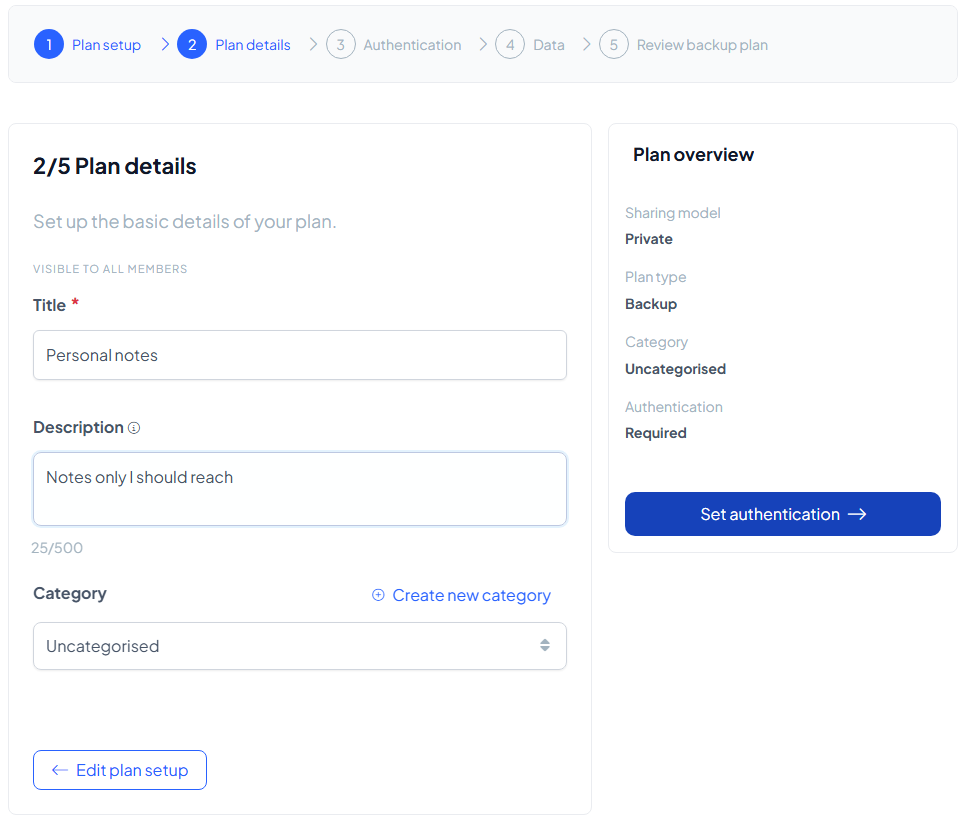
Give the plan a title you will recognise and a short description. Assign a category to keep your plan overview organised: pick an existing one or create a new one right here.
Step 3: authentication
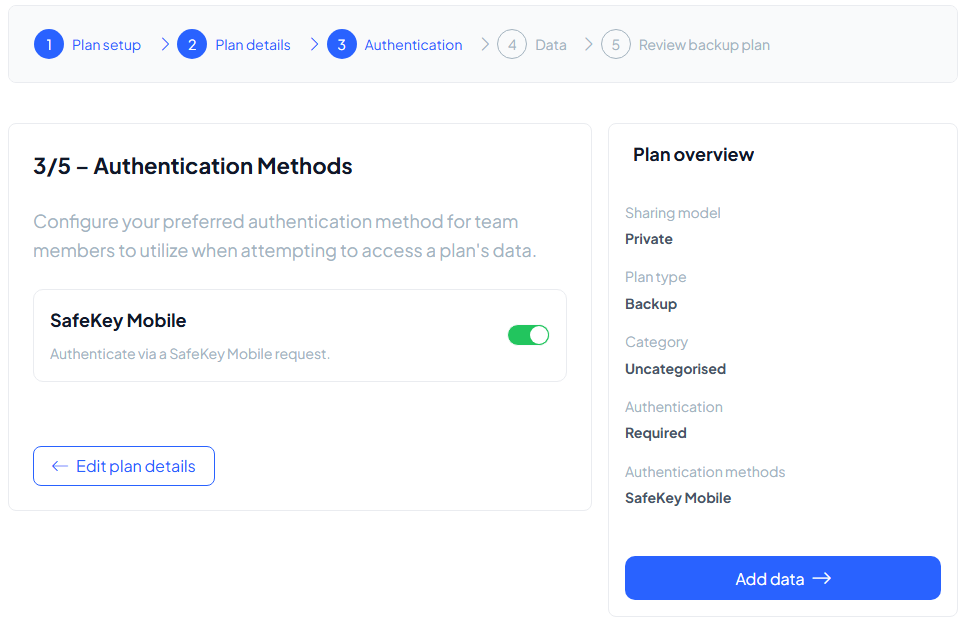
Choose how you will confirm your own access requests:
- SafeKey Mobile: approve the request in the app on your phone. Switched on by default.
- Link via Email: confirm by clicking an emailed link. Only offered when your organisation has enabled it under Settings → Authentication.
You need at least one method. Other methods are not available yet.
Step 4: data
Add the assets the plan will protect. Anything sensitive fits:
- General data: plain text notes and secrets
- Online accounts: usernames and passwords, recovery codes, PIN codes
- Developer keys and secrets: API keys and access credentials
- Crypto wallets: private keys and seed phrases
- Payment cards: credit and debit cards
- Files: documents, images and video
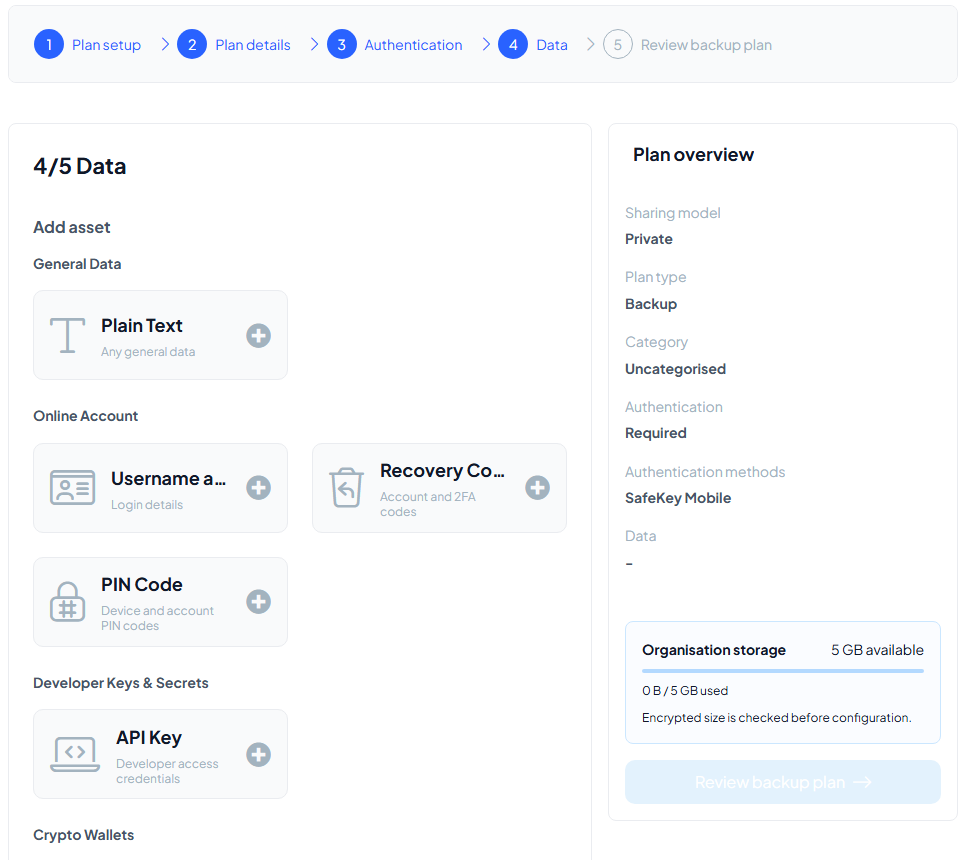
The Organisation storage box next to the steps shows how much of your space is available; the encrypted size is checked before the plan is configured.
Online accounts, API keys, PIN codes, payment cards and files can also carry optional integration settings (a code and the websites they belong to). They work the same as in a shared plan.
Step 5: review
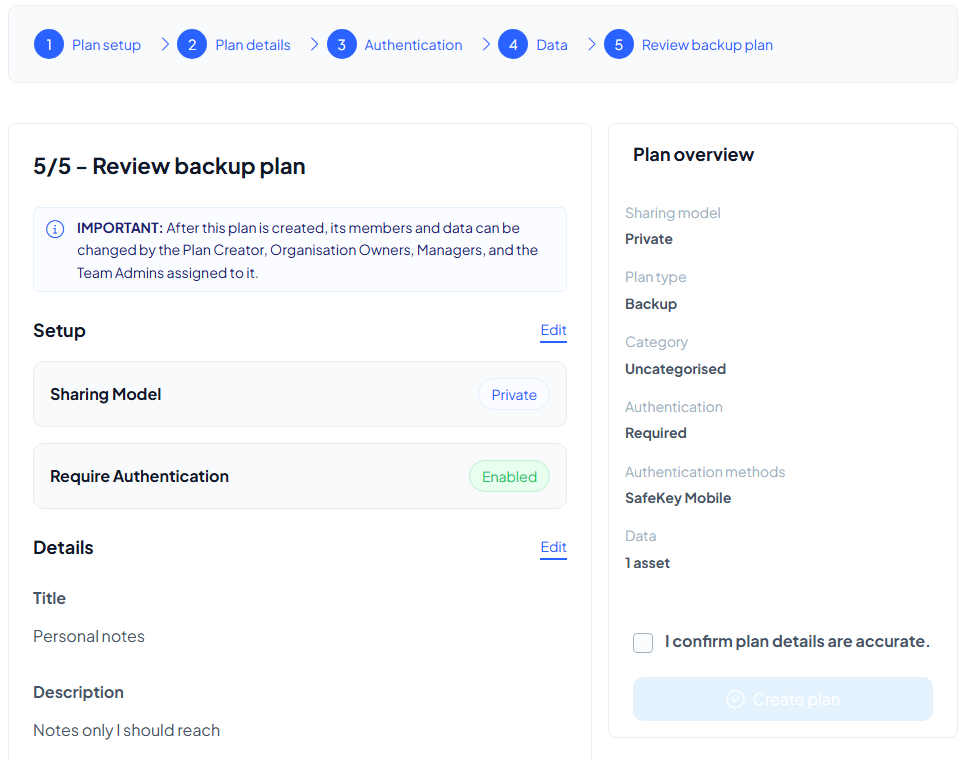
Everything you configured on one page, with an edit link per section. Read the notice at the top: after creation, the plan's members and data can be changed by the plan creator, Organisation Owners, Managers and assigned Team Admins. Tick I confirm plan details are accurate and select Create plan.
While the plan is created
First, confirm the Release the Organisation Key request in SafeKey Mobile (or choose Enter Recovery Key instead). Then the real work happens, in your browser: the data is encrypted, split into shares and distributed across your storage layers. A progress screen walks through it, and the success screen says The protection plan is ready.
From that moment the plan appears in your Data Backup overview. To open it, request access: you confirm the request, and the data is revealed to you alone.