✏️ Edit a backup plan
Who can do this: The Plan Creator, Owners, Managers and the Team Admins of the teams assigned to the plan.
Change a backup plan after creation: its details, teams, moderators, authentication methods and data assets. Each part has its own controls on the plan's page.
Who can edit
After a backup plan is created, its teams and data can be changed by the Plan Creator, the organisation Owner and Managers, and the Team Admins of the teams assigned to it. If your subscription has lapsed, editing is switched off and the controls show why.
The plan's setup (shared or private, moderated, authentication required) is chosen when you create the plan and is not offered when you edit.
Open the plan
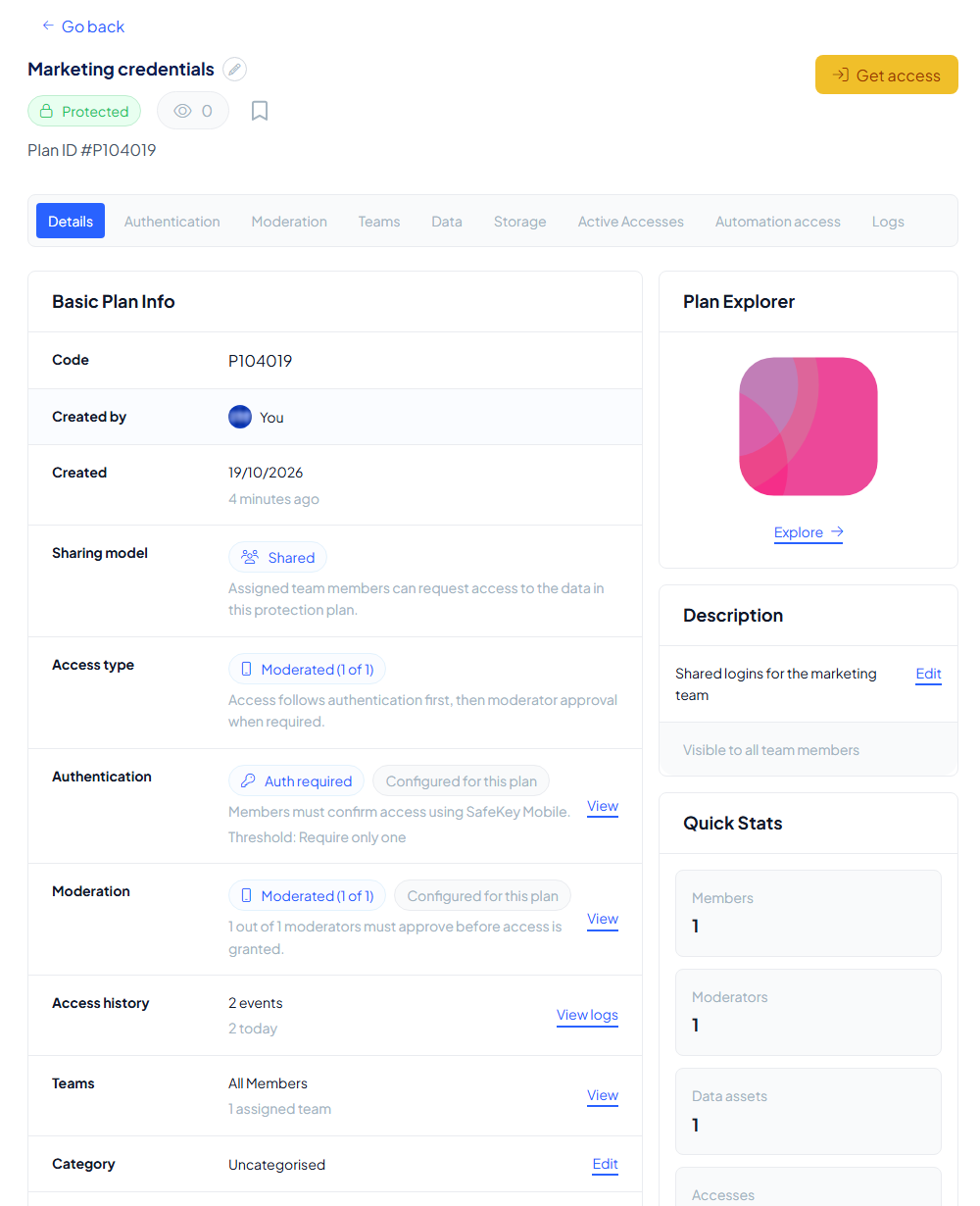
Go to Data Backup and open the plan. Its page has a tab per part of the plan:
| Tab | What you can change |
|---|---|
| Details | The overview of the plan, with Edit next to its description and its category |
| Authentication | Which methods members use to confirm a request, with Manage: at least one must stay active |
| Moderation | The plan's moderators and the number of approvals required, with Manage and Add moderator |
| Teams | Assign team: who has access follows the teams |
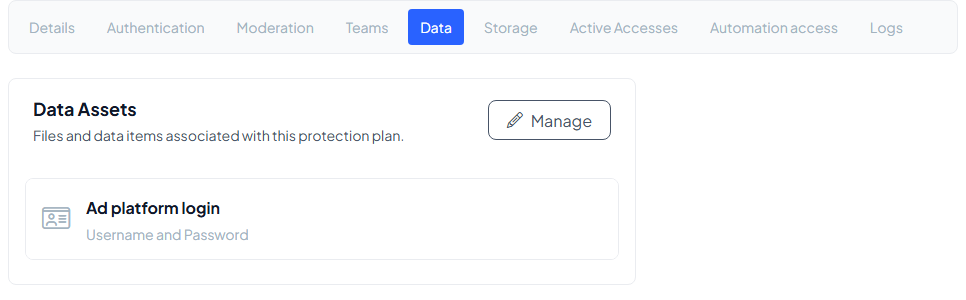
| Data | The protected assets themselves: Manage opens the Edit plan assets window |
| Storage | The storage layers linked to the plan (read-only) |
| Active Accesses | Who is accessing the plan right now |
| Automation access | The automation connections that may use this plan |
| Logs | The plan's activity, with Export |
You may need to confirm your change
Your organisation can require that edits are confirmed before they are saved. When you save, the plan tells you what is needed:
- No authorization required: you can save straight away.
- To save changes, authenticate your request: a request goes to your configured authentication method; confirm it there.
- To save changes, request moderator approval: Send approval request notifies all plan moderators in SafeKey Mobile, and the change is allowed once the approval threshold is reached.
If a request expires or is denied, you can start it again.
Editing the data
Changing the protected data is different from changing the settings: the data must first be opened before it can be changed, so editing assets goes through the plan's usual access steps.
Once you save, your browser rebuilds the plan from the new information:
- Encrypting plan data
- Distributing encrypted data shares to your storage layers
- Distributing validator shares to InheritiChain
- Finalizing plan
New shares replace the old ones, and the old shares are deleted. Earlier custodian share claims become stale, so you may be asked to choose a device for the custodian share again the next time the plan is opened. If something fails, the screen offers Try again and your changes are kept.
Stop an access that is running
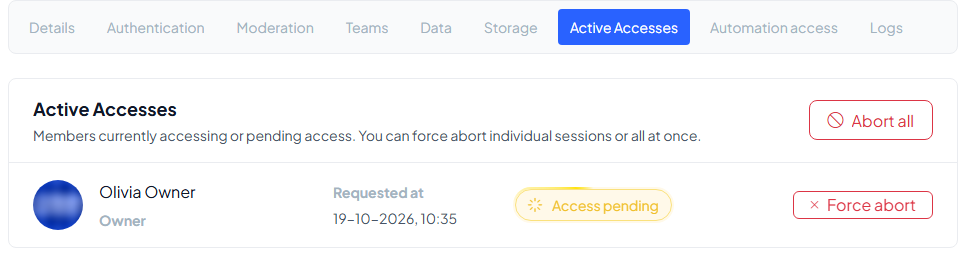
The Active Accesses tab (for those who manage the plan) lists members who are accessing the plan or waiting for access. You can Force abort a single session or Abort all.
Delete the plan
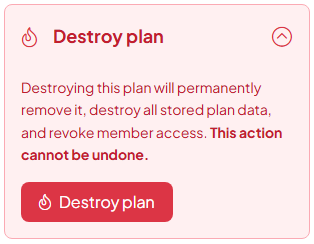
On the Details tab, Destroy plan (Delete plan for a draft) permanently removes the plan. The page warns: "Destroying this plan will permanently remove it, destroy all stored plan data, and revoke member access. This action cannot be undone."