📥 Pending imports
Already have secrets in another tool? The Inheriti® Database Importer (see Integrations) reads an export, lets you pick what to keep and sends it to your organisation as pending imports. Nothing becomes a protection plan yet: you review and create the plans here.
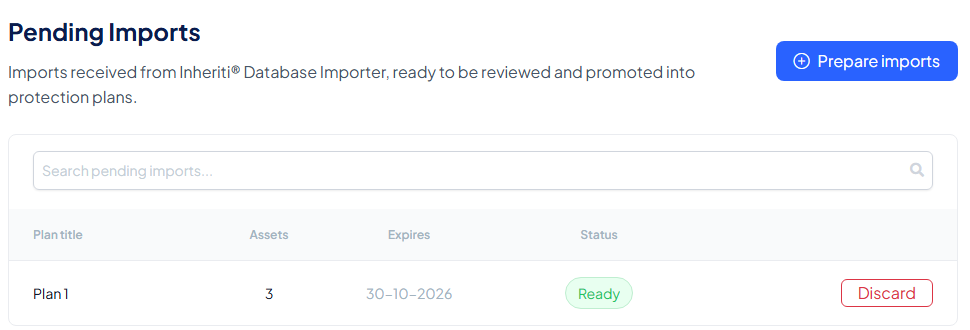
You find them under Protection plans → Pending Imports: "Imports received from Inheriti® Database Importer, ready to be reviewed and promoted into protection plans."
The list
Each pending import is one backup plan waiting to be created. The table shows the plan title, the number of assets, when the import expires and its status. You can search it.
| Status | What it means | What you do |
|---|---|---|
| Ready | Waiting to be selected and configured | Use Prepare imports |
| Setup incomplete | A plan draft already exists | Resume setup |
| In progress | The import is being turned into a plan right now | Wait: actions are unavailable for a moment |
| Promotion failed | The last attempt failed | Open Prepare imports to review and try again |
| Expired | The import is too old | It can no longer be promoted; ask for a new import |
Imports do not wait forever: every one has an expiry date.
Discard removes an import for good. A confirmation reminds you that "<plan title> will be permanently removed and can no longer be promoted into a plan. This action cannot be undone." A discard is not available while an import is in progress.
Prepare imports: the bulk wizard
Select Prepare imports to create several plans in one go. The wizard has four steps:
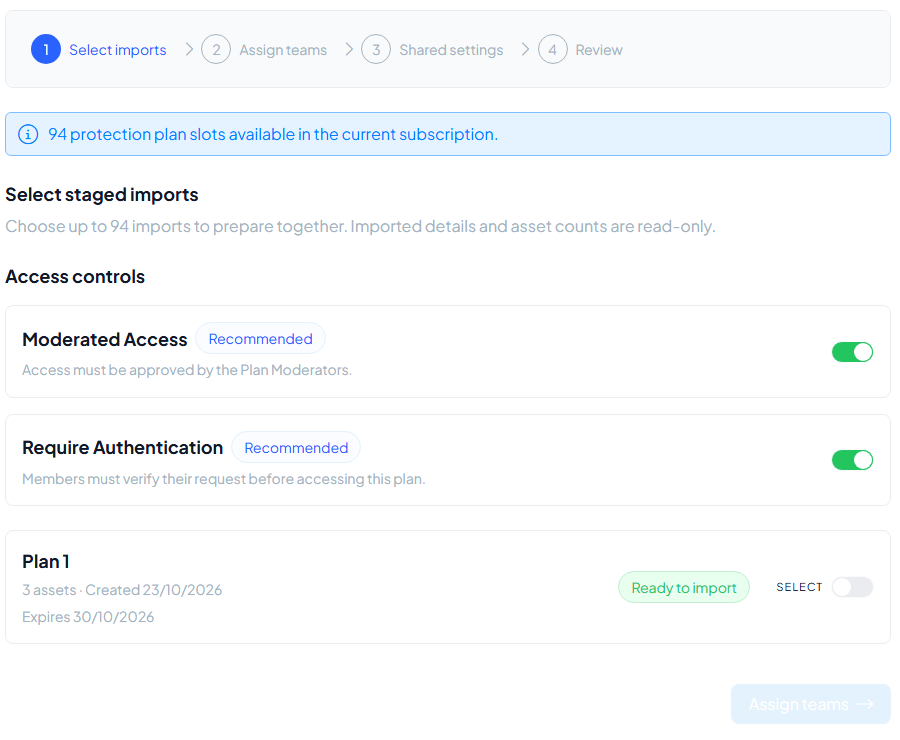
- Select imports: switch on Select for each import you want to prepare; you can choose up to the number of plans left in your subscription ("94 protection plan slots available in the current subscription"). The same step sets the access controls for the new plans: Moderated Access and Require Authentication, both on and recommended. The imported details and asset counts are read-only. Expired imports cannot be chosen, and imports that already have a draft are resumed separately from the list (Resume from Pending Imports).
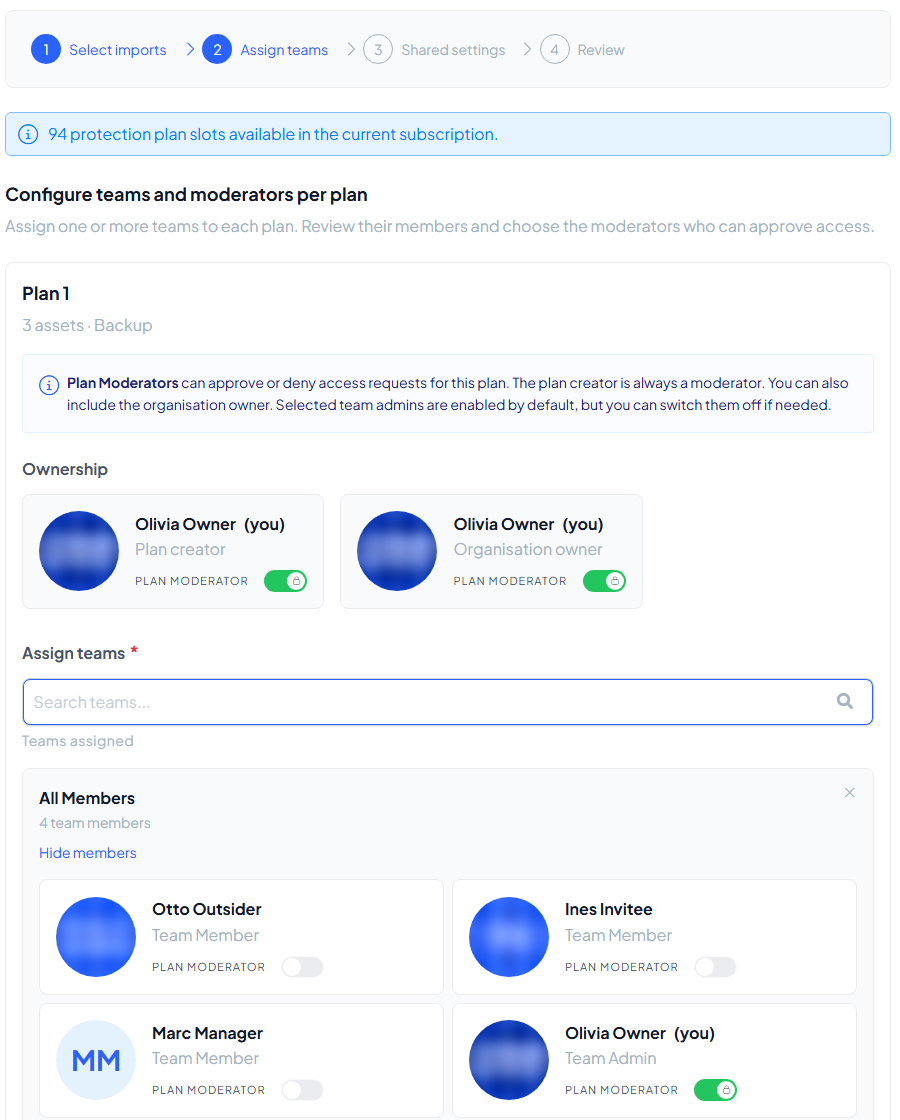
- Assign teams: for each plan, assign one or more teams, review their members and choose the moderators who can approve access. The plan creator is always a moderator and you can include the organisation owner. Choose the approval mode (a minimum number of approvals, or every moderator) and the minimum number of approvals.
- Shared settings: set the authentication methods and the authentication threshold (any one method, or all of them). These apply to every selected plan. If authentication is switched off in the plan's access controls, no method is asked for.
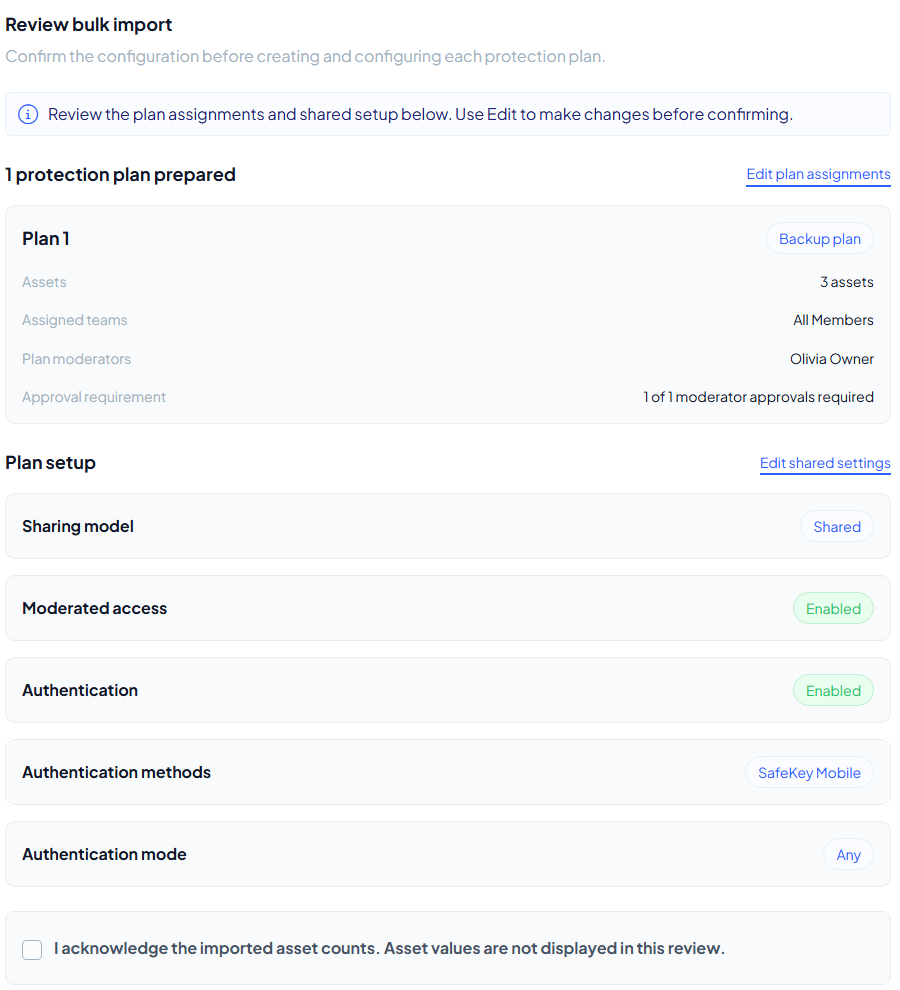
- Review: the page lists every plan with its assets, teams and moderators, and the shared settings. Use Edit to change anything, tick "I acknowledge the imported asset counts. Asset values are not displayed in this review." and select Confirm review.
Each plan is then created and configured, the same way as any other plan, with its data distributed over your storage layers. You are told when an import was promoted ("Staged import promoted.") or when one could not be ("The staged import could not be promoted.").
Good to know
- Imported secrets stay protected: the review shows asset counts, never the values.
- If the promotion cannot start, the page says "Plan promotion is unavailable" because the member or storage-layer information it needs could not be loaded; Try again reloads it.