🙋 Access a business continuity plan
Who can do this: Members of a team the plan is shared with.
Request access to a business continuity plan. One step more than a backup plan: the Dead Man Switch gives the plan's creator the chance to stop the request first, and only their silence lets it continue to the usual gates.
Before you start
The same conditions as for a backup plan apply: you have claimed the Organisation Key, the plan is finished, and its storage layers are healthy. If Get access is switched off, hover over it to see why.
Step 1: start the countdown
Open the plan and select Get access. The dialog opens on its first step, Release organisation key, and a continuity plan shows a Start countdown button instead of a plain start. Select it.
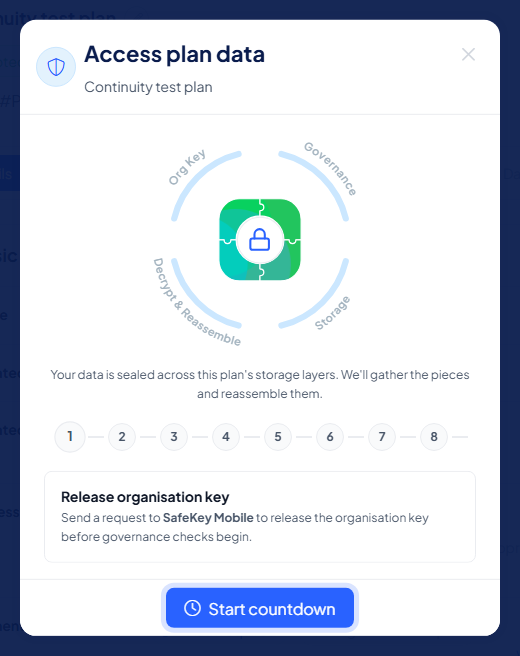
Step 2: release the Organisation Key
SafeKey Mobile is asked to release the Organisation Key into your browser, before any governance check begins: "The request has been sent to SafeKey Mobile. Waiting for confirmation…" Confirm it on your phone. If your browser already holds the key from earlier in the session, this step is skipped.
Step 3: the countdown runs
The dialog now shows Dead Man Switch: "Switches are activated when their countdown reaches zero." Each switch the creator set up appears as a card with its method (for example SafeKey Mobile, "Reject activation by responding to a SafeKey Mobile request"), the plan creator and the time left. The switches run one after the other, each with its own countdown, and the request moves on only when every enabled switch has run out.
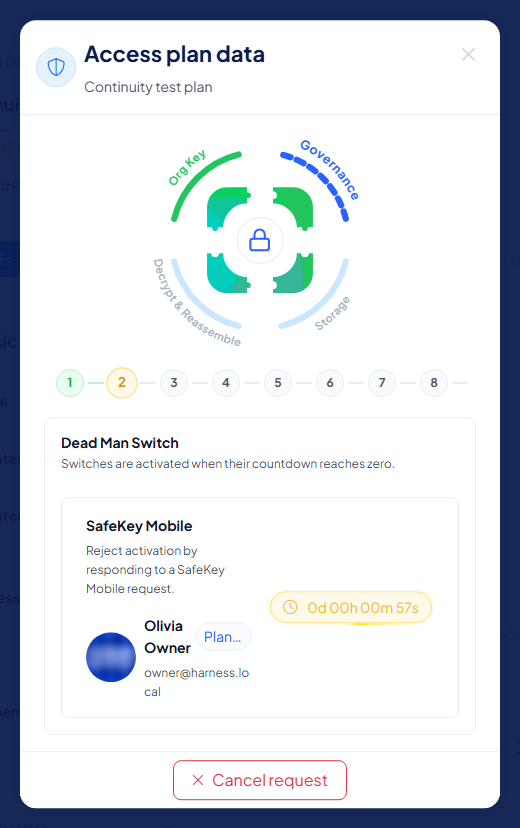
A running countdown is not a failure. If the creator answers, the request is cancelled; that is the system working as intended. Only if they stay silent do you move on.
Step 4: confirm it is you
Continuity plans always require authentication. "Complete any one of the authentication methods below." A request goes to the plan's methods, with a time limit shown on screen, and you confirm it with SafeKey Mobile (approve in the app) or Link via email (click the link).
Step 5: wait for the moderators
If the plan is moderated, all plan moderators are notified in SafeKey Mobile. As soon as the required number of approvals is reached, the others do not need to act. Moderators cannot include the plan's creator or the organisation owner.
Step 6: the plan opens
Your browser collects the validator shares, the encrypted data shares and the custodian share, then reconstructs and decrypts the data. The steps are the same as for a backup plan, including the one-time custodian share setup on SafeKey Pro or SafeKey Mobile. The data opens in a secure window on your computer that closes automatically after the access time your organisation sets.
If you are the plan's creator
When someone requests access, the Dead Man Switch asks you whether you are still there. You can stop the request or let it run: see Respond to a dead man switch request.
Every step is recorded
The request, each response and the reveal land in the plan's logs and in the audit trail.