♾️ Create a business continuity plan
Who can do this: Members of a team that can create plans, and Owners and Managers.
Protect the data your company would need on its worst day: bank access, contracts, the credentials everything depends on. A continuity plan works like a shared backup plan, with one addition: the Dead Man Switch, which you manage as the plan's creator.
Before you start
- You need to have claimed the Organisation Key.
- You need to belong to a team that can create plans (or be an Owner or Manager).
- Decide who will moderate. On a continuity plan neither you, as creator, nor the organisation owner can moderate, so choose other members from the teams you assign.
Start the plan
Go to Business Continuity and start a new plan. The wizard has seven steps (Plan setup, Plan details, Teams, Authentication, Dead Man Switch, Data and Review), and a Plan overview panel follows you through them.
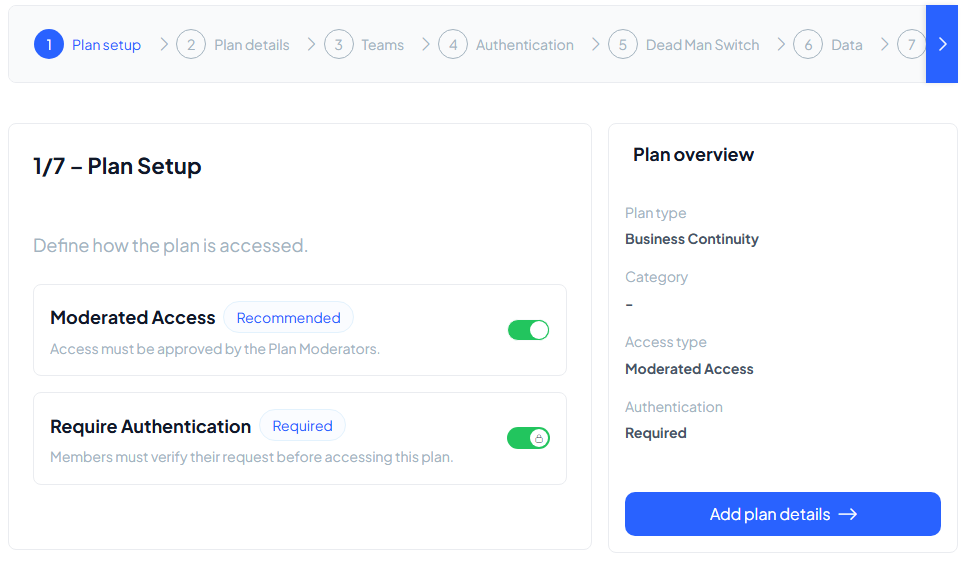
Step 1: plan setup
A continuity plan is always shared, so there is no sharing mode to choose.
- Moderated Access (recommended): every access request must also be approved by the plan's moderators.
- Require Authentication is shown as Required and cannot be switched off: continuity plans always confirm the requester.
Step 2: plan details
Give the plan a title your organisation recognises and a short description. Assign a category, or create one right here.
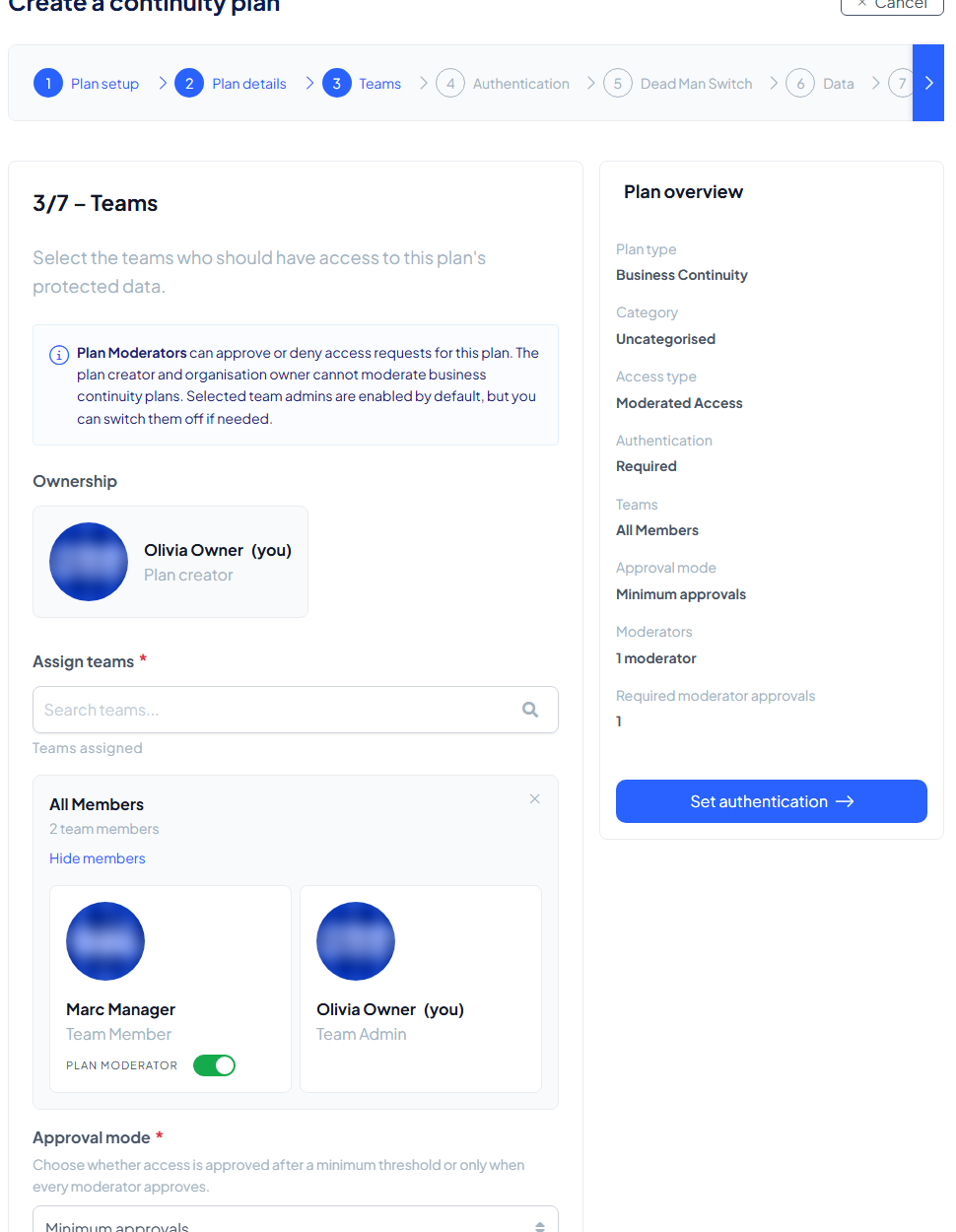
Step 3: teams
Assign the teams whose members may request access, up to five. The plan's moderators come from these teams: choose them, and set how many approvals a request needs. The screen reminds you that "the plan creator and organisation owner cannot moderate business continuity plans": you appear under Ownership as plan creator without a moderator switch, and the members you assigned get a Plan moderator switch. Without one the step stops with "At least 1 moderator is required".
Step 4: authentication
Choose how members confirm their requests:
- SafeKey Mobile: approve the request in the app on their phone. Switched on by default.
- Link via Email: confirm by clicking an emailed link. Only offered when your organisation has enabled it under Settings → Authentication.
You need at least one method.
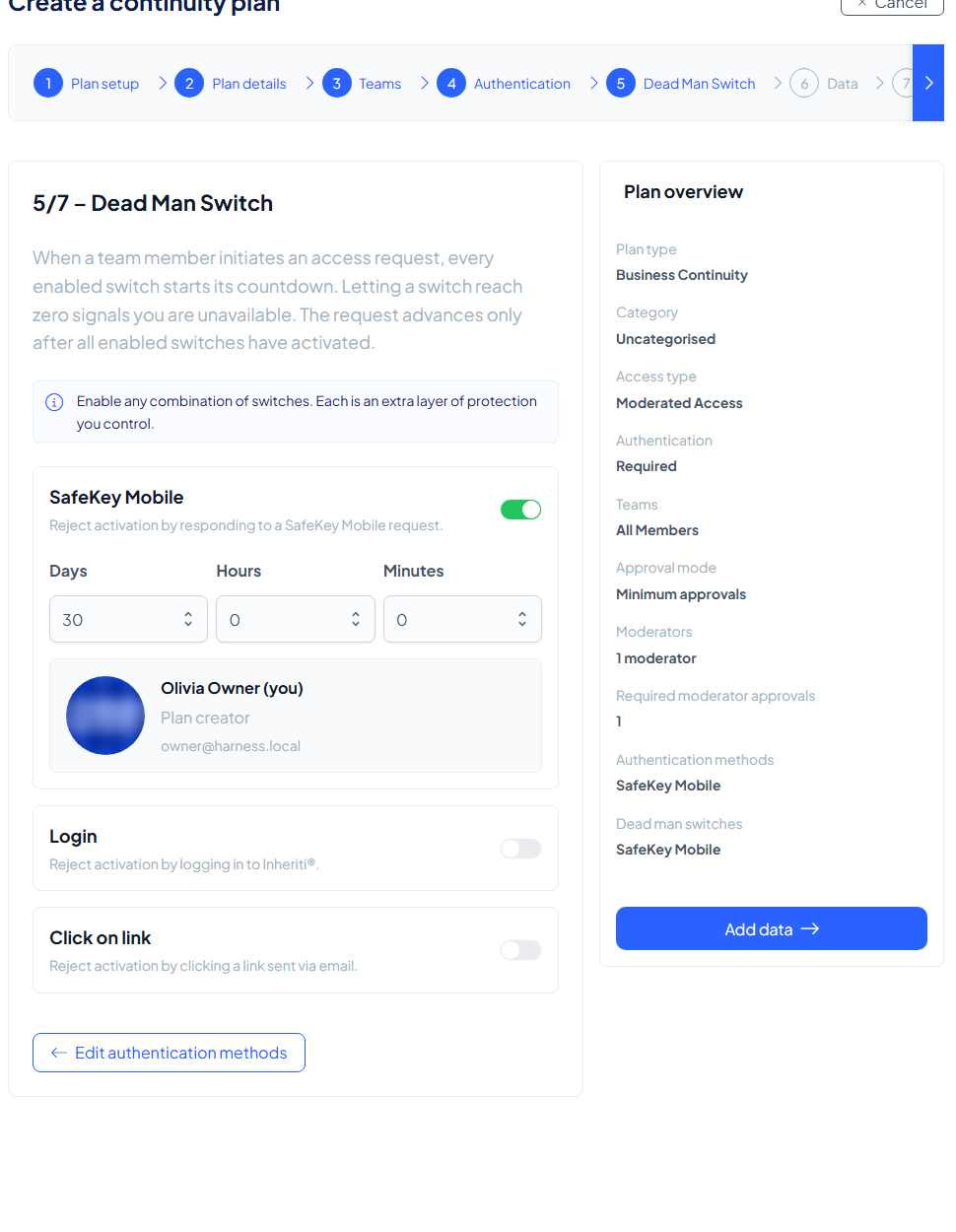
Step 5: Dead Man Switch
This is the step that makes the plan a continuity plan. When a member requests access, every enabled switch runs a countdown; letting a switch reach zero signals that you are unavailable, and the request advances only after all enabled switches have run out. Enable any combination of switches (SafeKey Mobile is pre-selected) and give each its own countdown in days, hours and minutes (30 days by default):
| Switch | You stop the request by |
|---|---|
| SafeKey Mobile | Responding to the request in SafeKey Mobile |
| Login | Logging in to Inheriti® |
| Click on link | Clicking a link sent by email |
The step shows you as the plan creator, and your email address is used for the switches that send you a message. Your organisation sets the defaults for the pre-selected switch and countdown.
Step 6: data
Add the assets the plan will protect: notes, online accounts, developer keys, crypto wallets and files.
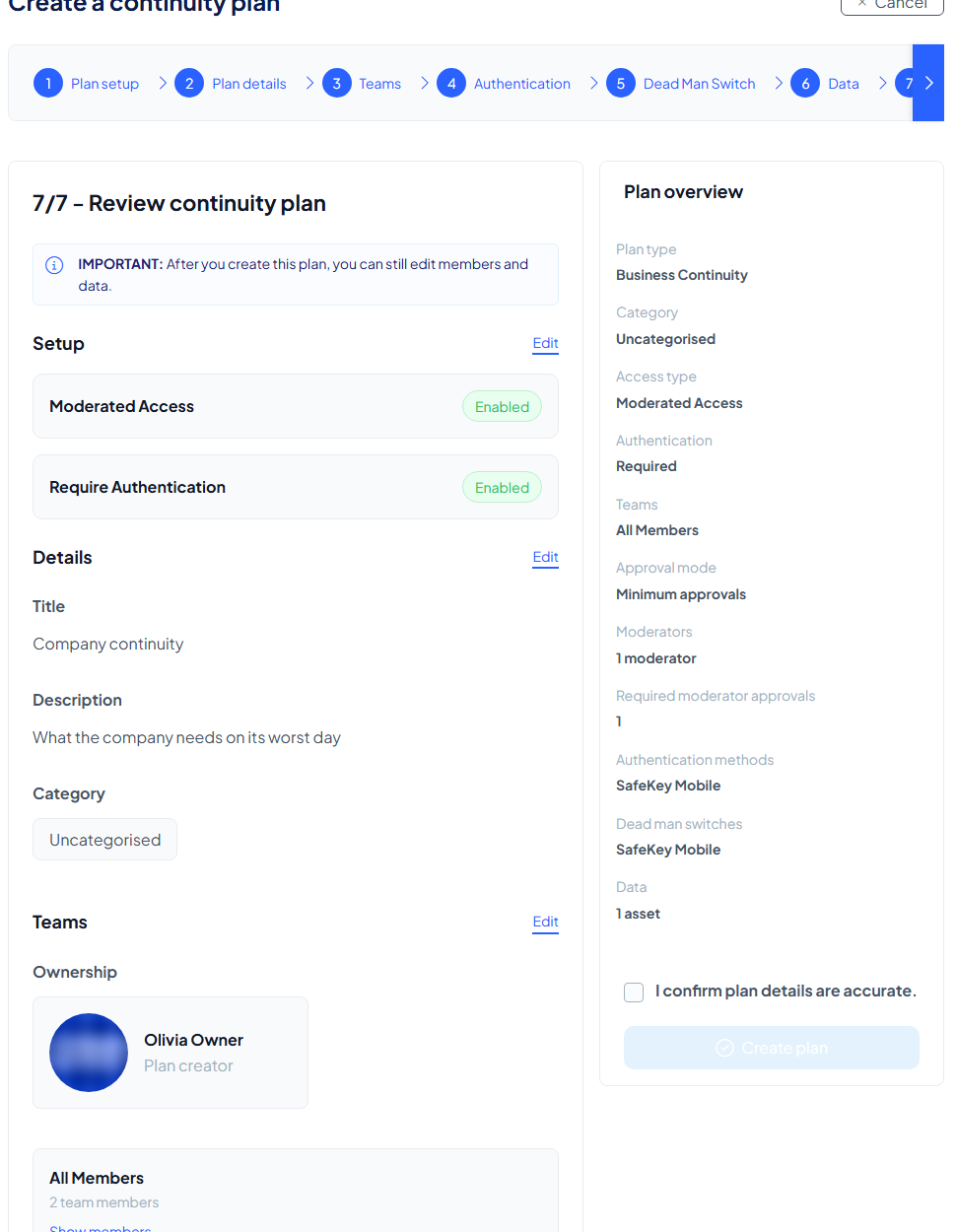
Step 7: review
Everything on one page, with an edit link per section, including the Dead man switches you set. The notice at the top says that after you create the plan you can still edit members and data. The switches show their countdown, for example 30d 00h 00m 0s. Tick I confirm plan details are accurate and select Create plan.
While the plan is created
Your browser encrypts the data, splits it into shares and distributes them across your storage layers, and a success screen confirms the plan is live.
Day to day nothing pings you. The Dead Man Switch only comes alive when someone requests access, you can then respond to the request, and you can change the switches whenever you like.