✏️ Edit a business continuity plan
Change a business continuity plan after creation, including the Dead Man Switch configuration its creator manages. After you create a continuity plan you can still edit its members and data.
Open the plan
Go to Business Continuity and open the plan. Its page has a tab per part of the plan. If your subscription has lapsed, editing is switched off and the controls show why.
| Tab | What you can change |
|---|---|
| Details | The plan's name, description and category |
| Dead Man Switch | The switches and their countdowns, with Manage |
| Authentication | Which methods members use to confirm a request, with Manage |
| Moderation | The moderators and the approvals required |
| Teams | The teams that can request access |
| Data | The protected assets: Manage opens the Edit plan assets window |
The plan's setup (always shared, always authenticated) is fixed by the plan type.
Change the Dead Man Switch
On the Dead Man Switch tab, select Manage. Each switch starts a countdown when an access request is made, and it activates automatically when the timer reaches zero; if the plan creator rejects the request, it is cancelled.
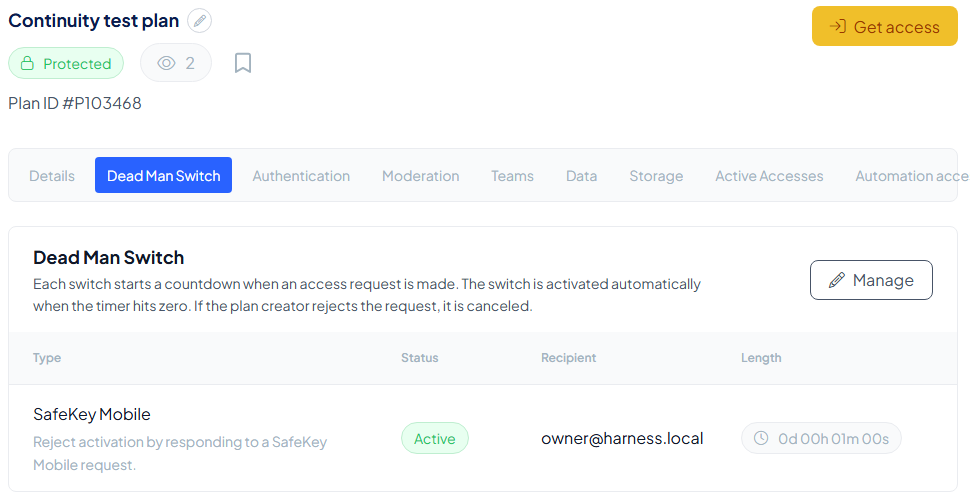
- Enable or disable a switch: SafeKey Mobile, Login or Click link.
- Change a countdown: days, hours and minutes, per switch.
- Keep at least one switch enabled: "At least one Dead Man Switch trigger must be enabled."
Before the window lets you change anything, it asks you to confirm it is you: Start authentication sends a request to your authentication method.
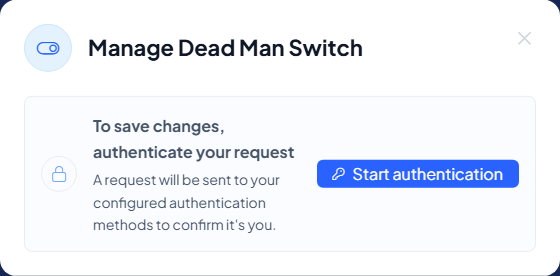
While the request waits, the window shows Authentication in progress with the time left. Confirm it in SafeKey Mobile. The window then opens the switches: each one has an on/off switch and, when it is on, a countdown in Days, Hours and Minutes. Select Save to keep your changes.
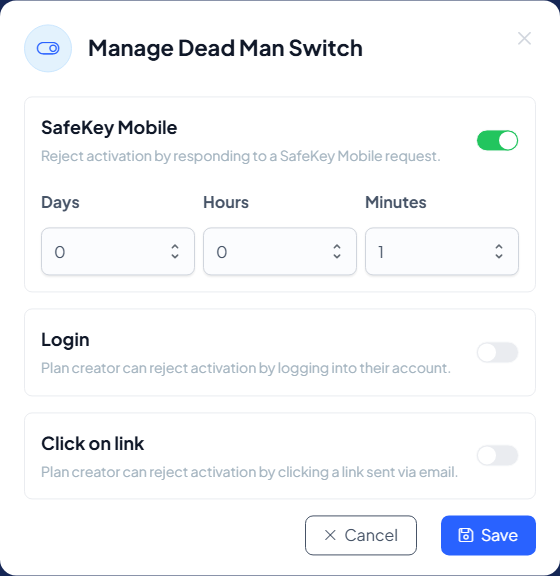
Choose countdowns that are long enough for you to react, for example when you are on holiday, and short enough that your company is not locked out for long.
Change who moderates
Moderators are managed on the Moderation tab. Remember that the plan creator and the organisation owner cannot moderate a continuity plan. If a member you want to remove is needed to reach the approval threshold, change the moderators or the threshold first.
You may need to confirm your change
Your organisation can require that edits are confirmed. When you save, the plan tells you what is needed: nothing, authenticate your request, or request moderator approval, which notifies the plan's moderators in SafeKey Mobile. See edit a backup plan for the details; they work the same way here.
Editing the data
The data has to be opened before it can be changed, so Manage on the Data tab opens Edit plan assets, which starts the plan's usual access steps. After you save, your browser re-encrypts the data, creates new shares and distributes them to the storage layers; the old shares are deleted.