🛑 Respond to a dead man switch request
Who can do this: The Plan Creator.
This guide is for the creator of a business continuity plan. When someone asks for access, the Dead Man Switch asks you whether you are still there. You have two choices: stop the request, or do nothing and let it continue.
You respond through the switch the plan uses. A plan can use one, two or all three.
SafeKey Mobile
A Dead man switch request arrives under Pending actions in SafeKey Mobile. It names the person asking and the plan: "Respond to prevent unauthorized access." and shows a countdown and a Reject button.
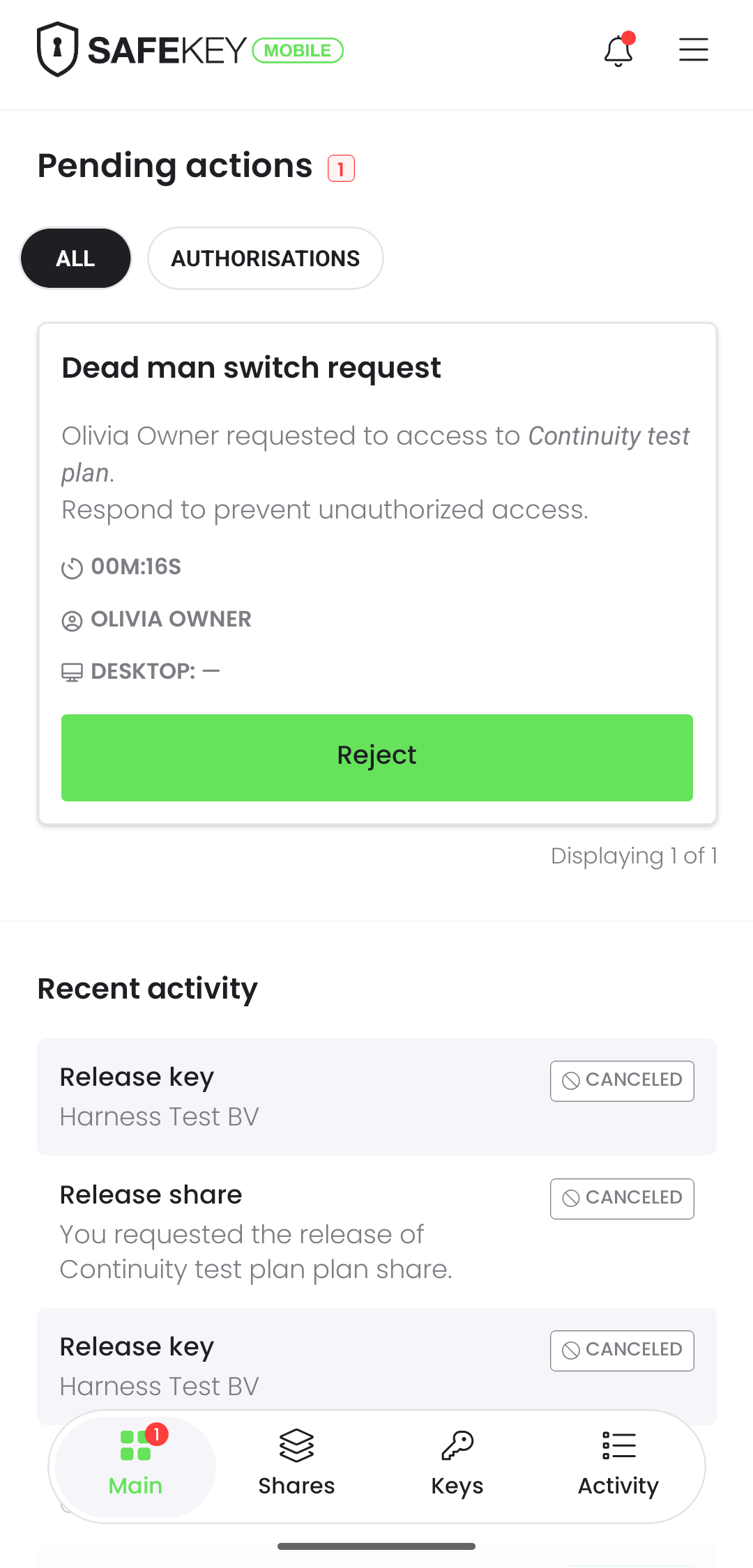
- To stop the request: select Reject and confirm with your PIN. Do it before the countdown reaches zero.
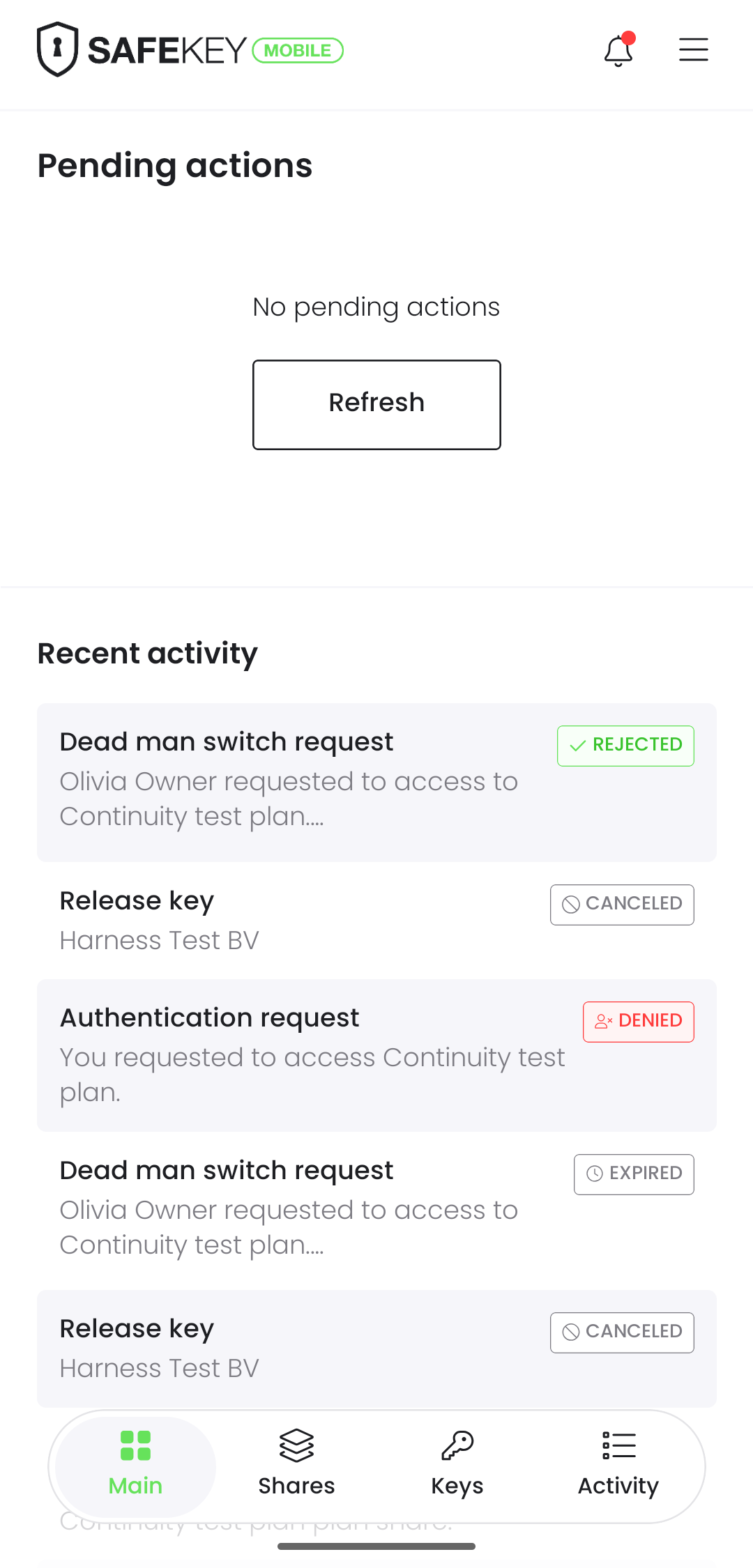
- To let it continue: do nothing. When the countdown ends, the request shows as Expired under Recent activity and moves on.
After you reject, the request shows as Rejected:
Login
Logging in to Inheriti® cancels the request. Use this when your plan has the Login switch on.
Click on link
Click the link in the e-mail you receive. Use this when your plan has the Click on link switch on.
What the person asking sees
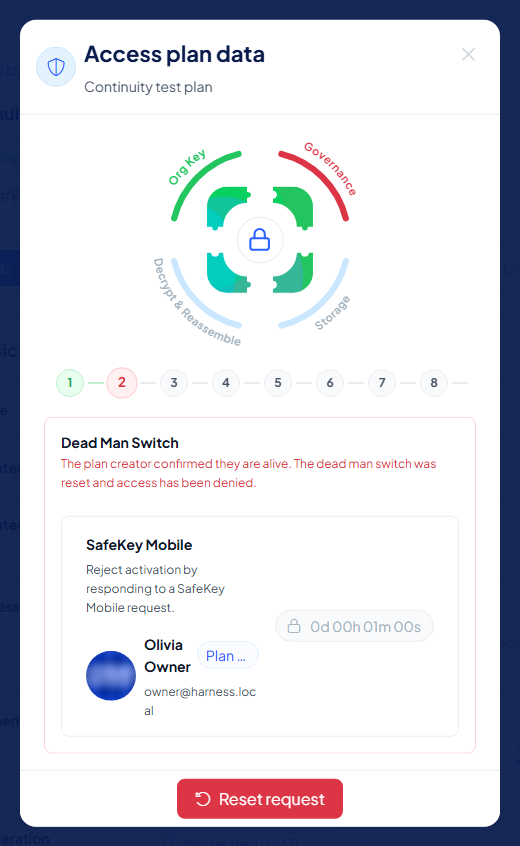
When you stop the request, the access dialog of the person asking stops with: "The plan creator confirmed they are alive. The dead man switch was reset and access has been denied." They can start over with Reset request.
If you do nothing
When every switch has run out, the request moves on to authentication and moderation, exactly as described in Access a business continuity plan. Those steps can still stop it.
Set the countdown to something you can keep: a switch you cannot answer in time lets the request through. You can change the switches at any time.
Every response is recorded
The request, your response and the outcome land in the plan's logs and in the audit trail.