🧭 Dashboard and Plan Explorer
Who can do this: Every member. What you see depends on your role.
The Dashboard is the first page you see after you sign in. It shows where you left off and what needs you. This guide also covers three tools that help you find your way: pinned plans, the Tree view of the plan list, and the Plan Explorer.
The dashboard
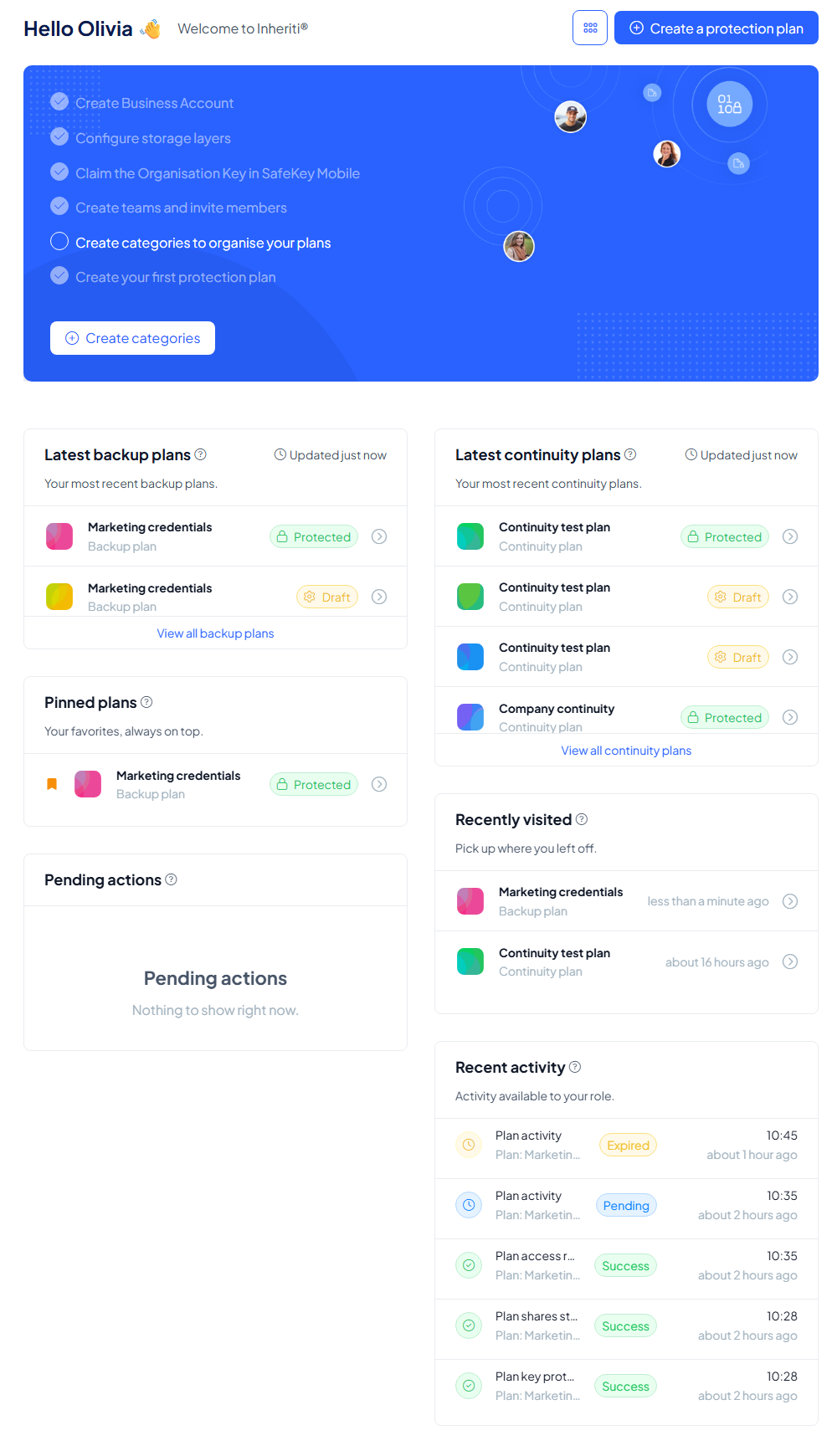
From top to bottom:
-
Create a protection plan (top right) starts a new plan.
-
The blue welcome card is a setup checklist: Create Business Account, Configure storage layers, Claim the Organisation Key in SafeKey Mobile, Create teams and invite members, Create categories to organise your plans and Create your first protection plan. Finished steps are ticked, and the button below it takes you to the next open step.
-
Latest backup plans and Latest continuity plans show your most recent plans with their status (for example Protected or Draft). Select a row to open the plan, or View all to see the whole list.
-
Pinned plans holds your favourites, always on top.
-
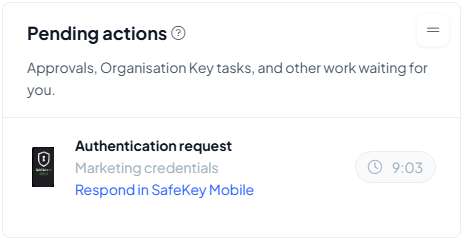
Pending actions lists "Approvals, Organisation Key tasks, and other work waiting for you": an authentication request or a moderation request you have to answer, an Organisation Key to distribute or one to claim. Each item names the plan, says where to respond (for example Respond in SafeKey Mobile) and shows the time left before the request expires. It says Nothing to show right now. when you are up to date.
-
Recently visited brings you back to the plans you opened last.
-
Recent activity shows the latest events you are allowed to see, for example a plan access request or shares that were stored. What you see depends on your role.
Choose what the dashboard shows
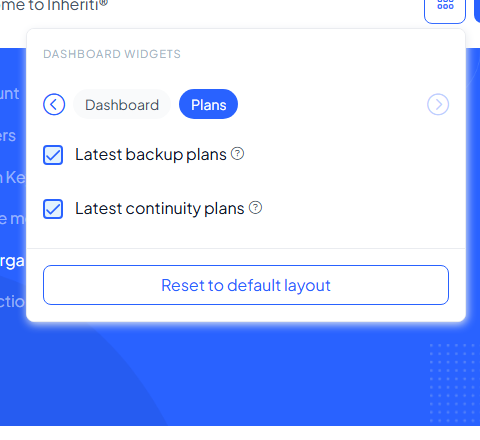
Select the small grid button next to Create a protection plan (Customize dashboard widgets). Two tabs list the widgets:
- Dashboard: Pinned plans, Recently visited, Pending actions and Recent activity.
- Plans: Latest backup plans and Latest continuity plans.
Untick a widget to hide it. Reset to default layout brings everything back.
Pin a plan
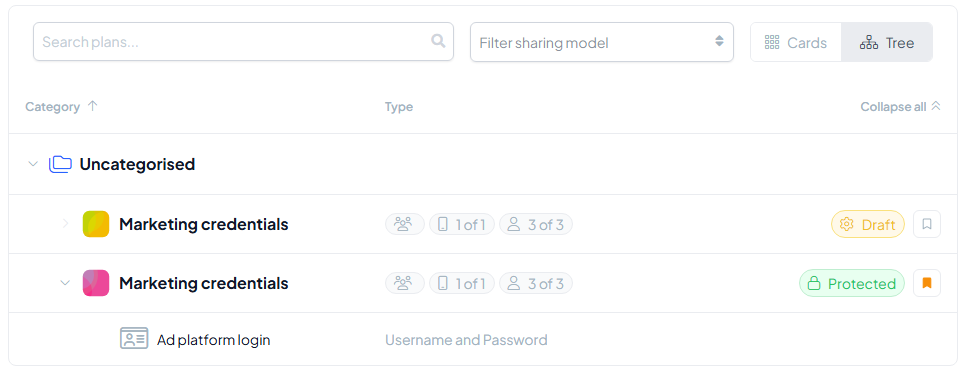
Select the bookmark next to a plan's name, on the plan page or in the plan list, to pin it. A pinned plan shows an orange bookmark and appears in Pinned plans on the dashboard. Select the bookmark again to unpin it.
Cards or Tree
The plan lists (Data Backup and Business Continuity) have a switch with two views:
- Cards: one card per plan, with its status, sharing model, moderation, authentication and members.
- Tree: a compact list grouped by category. Select Expand all to open every plan and see the data assets inside it. The small badges show the sharing model, the moderators needed (for example 1 of 1) and the members of the plan.
Both views have a search box and, in the tree, a Filter sharing model menu.
Plan Explorer
The Plan Explorer shows how a plan is kept safe, without any technical detail. Open a plan and select Explore in the Plan Explorer card on the right.
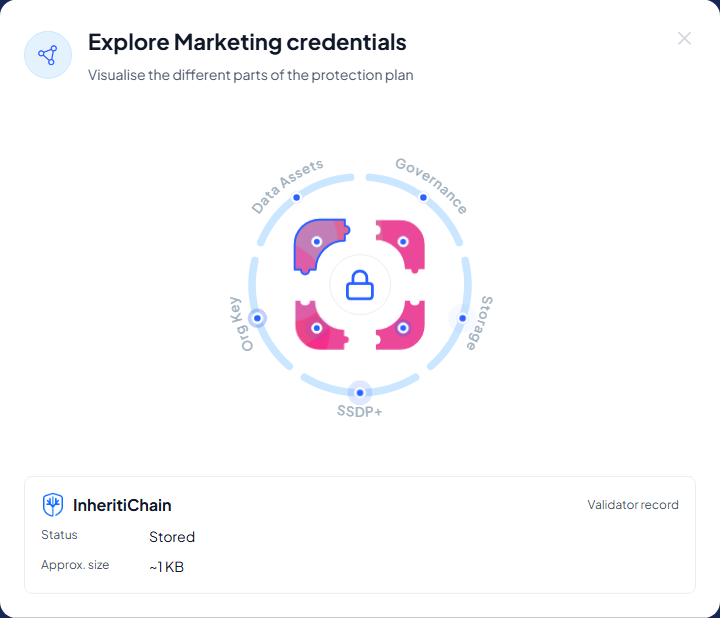
The picture has four tiles in the middle and five gates around them. Select any of them for a short explanation on the spot:
| Select | You see |
|---|---|
| Top left tile | InheritiChain, the Validator record, with its status and approximate size |
| Top right tile | Inheriti® HSM, the Plan key, caged, with its status |
| Bottom left tile (and Data Assets) | Inheriti® Vault, the Data share, with its status and approximate size |
| Bottom right tile | Your device, the Custodian share. It reads Not distributed yet until the share has been handed to a device. |
| Governance | Who can access the plan and how: the number of moderators and whether authentication is required |
| Storage | The three storage layers with their status and response time |
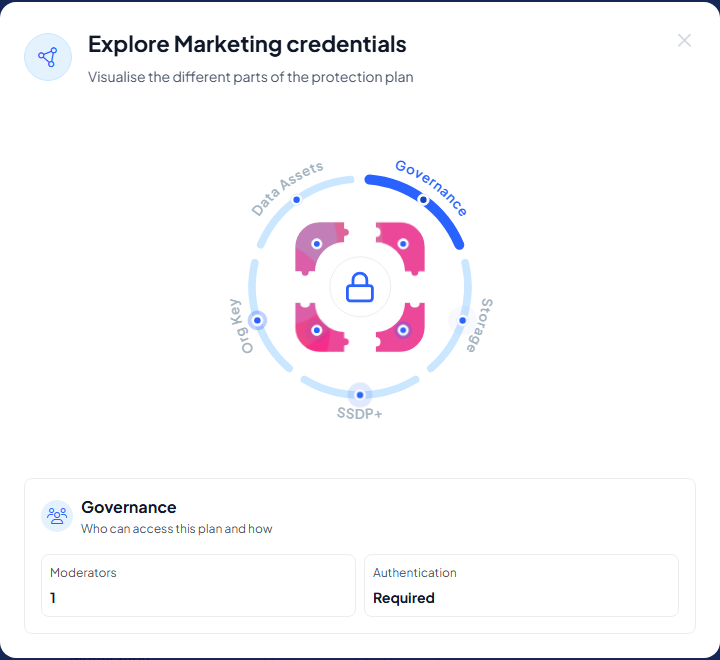
Use the Plan Explorer to check, for example, that every layer holds its share before you tell your team a plan is ready. The pieces themselves are explained in How it works.