🔔 Notifications and your profile
Who can do this: Every member.
Inheriti® Business tells you what needs your attention: a key to distribute, a plan created in your team, a request to approve. This guide shows where to read those messages and how to choose what reaches you by e-mail and in your browser.
The bell
The bell at the top of every page shows a red number for what you have not read yet. Select it for the latest messages, for example:
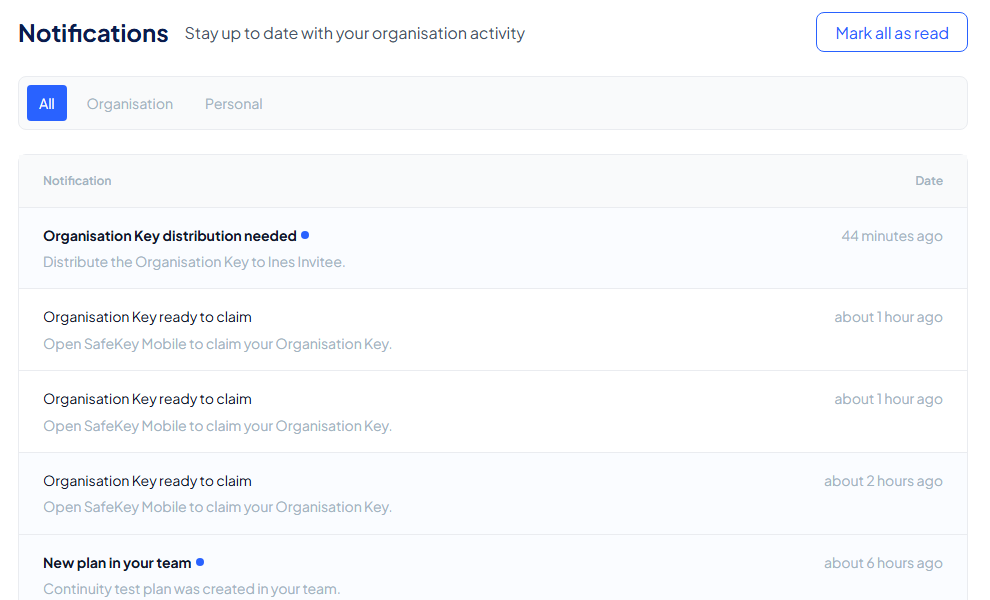
- Organisation Key distribution needed: "Distribute the Organisation Key to [name]."
- New plan in your team: "[plan name] was created in your team."
- Added to team: "You have been added to Finance."
- Organisation Key ready to claim: "Open SafeKey Mobile to claim your Organisation Key."
Use Mark all as read to clear the number, or View all notifications to see the whole list.
All notifications
The Notifications page ("Stay up to date with your organisation activity") lists everything with its date. Unread items have a blue dot. The tabs split it into All, Organisation and Personal.
Your profile: My Inheriti
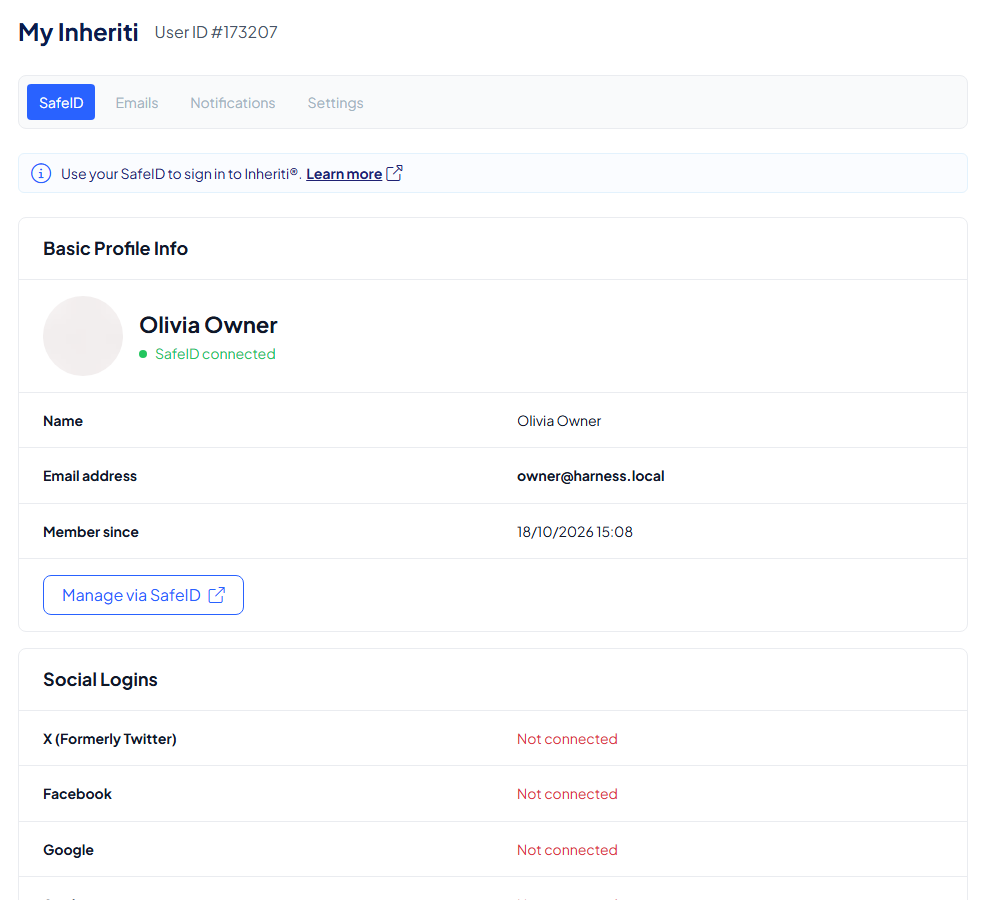
Select My Inheriti at the top right, then View profile. The page has four tabs: SafeID, Emails, Notifications and Settings.
SafeID
This tab shows your name, e-mail address and Member since date. Your social logins, password and two-factor authentication are managed in SafeID: select Manage via SafeID.
Emails
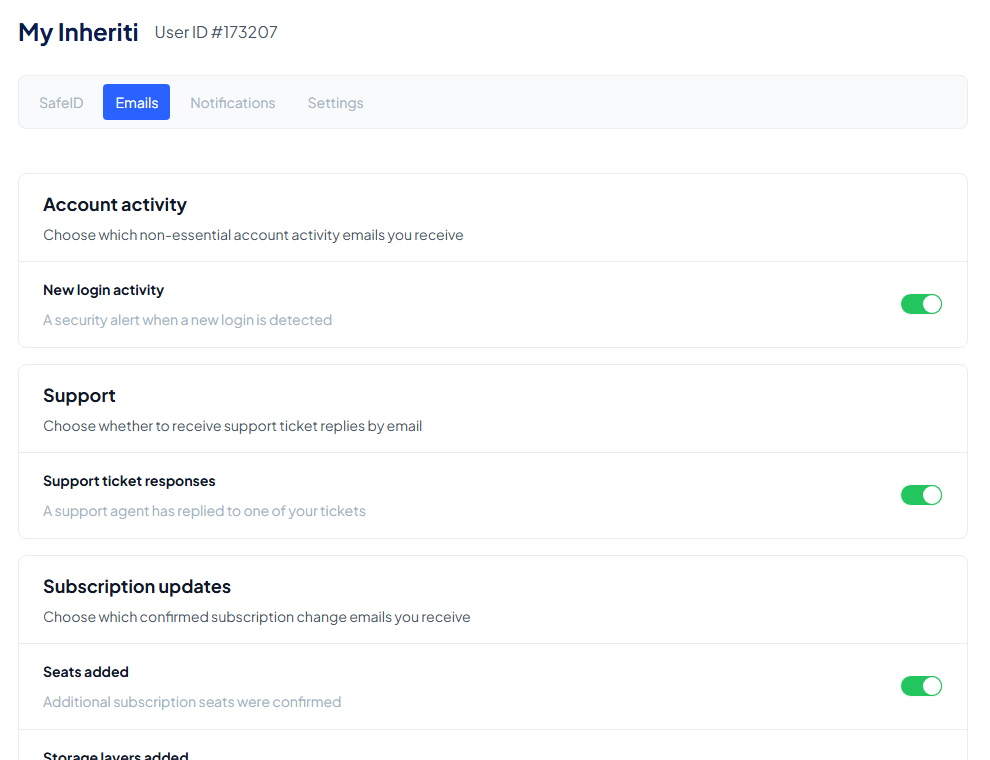
Choose which non-essential e-mails you receive:
- New login activity: a security alert when a new login is detected.
- Support ticket responses: when a support agent replies to one of your tickets.
- Subscription updates: when seats or storage layers are added or removed.
Notifications: browser alerts
Browser notifications show important alerts on this device when the app is hidden or closed. Switch them on and allow notifications for this site in your browser. The card tells you the state of each part: Browser permission, Background notifications, This device, API registration and Server delivery. Refresh status checks again.
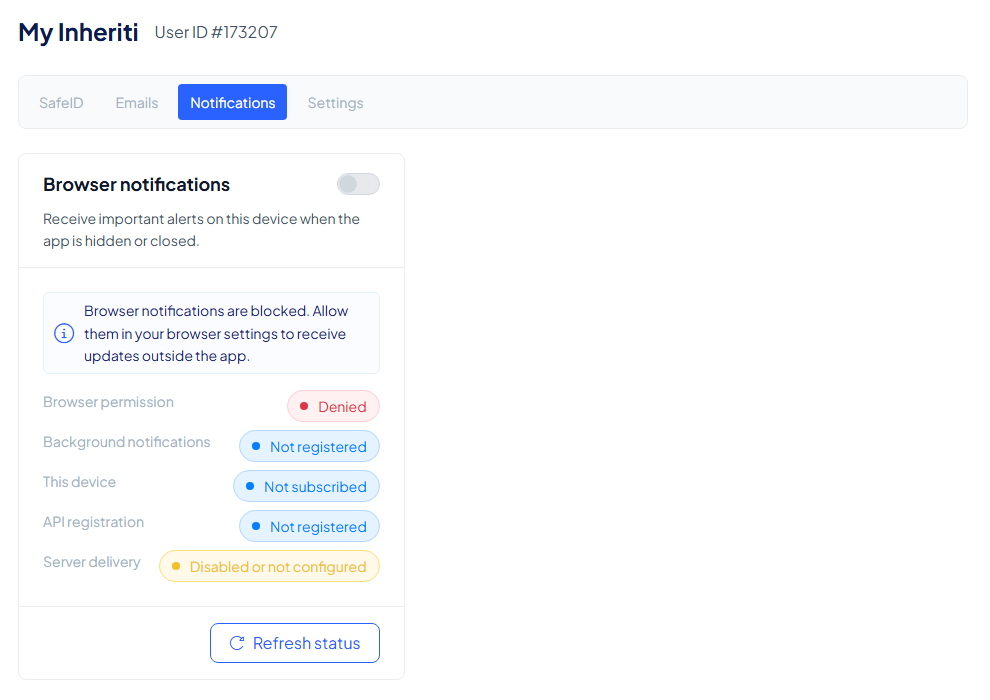
If the card says Browser notifications are blocked, allow them for this site in your browser settings, then select Refresh status.
Settings
The Settings tab opens your organisation's settings: see Settings.
Approvals on your phone
Requests that need your decision arrive in SafeKey Mobile, not only here: see Approve requests.