📨 Accept an invitation
Who can do this: The person who was invited.
Someone invited you to their organisation in Inheriti® Business. This guide is for you, the invited member: from the e-mail to your first dashboard. It takes two minutes. If you are the one inviting, see Invite members.
Step 1: open the invitation e-mail
You receive an e-mail called "You're invited to join [organisation name]". It says who invited you and what accepting means: "By accepting this invitation, you'll be able to collaborate with team members and access shared resources within the organisation." Select Accept invitation.

Do not recognise the request? Ignore the e-mail: "If you do not recognise this request, you can safely ignore this email." Nothing happens until you accept.
Step 2: sign in with your SafeID
Sign in with your SafeID, the account for Inheriti® and SafeKey Mobile. If you have no SafeID yet, create one first.
Step 3: choose how to proceed
The page says "You have 1 pending invitation" and shows a card with the organisation, who invited you and your role. Select Accept, or Decline if you do not want to join.
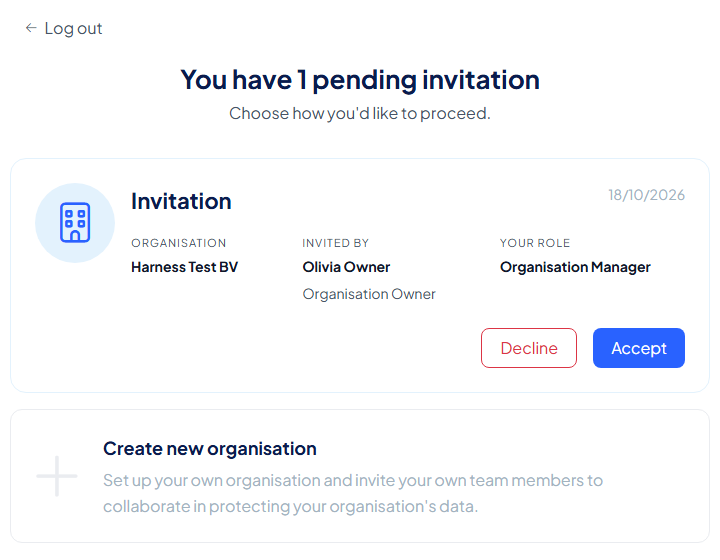
Below it you can also choose Create new organisation to set up one of your own instead.
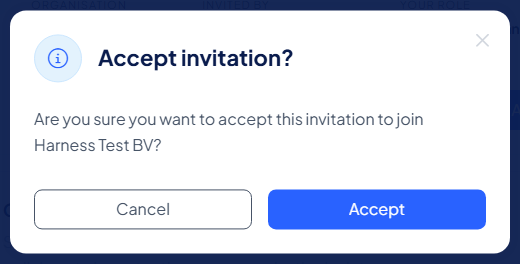
A last question confirms it: "Are you sure you want to accept this invitation to join [organisation name]?" Select Accept.
Step 4: you are in
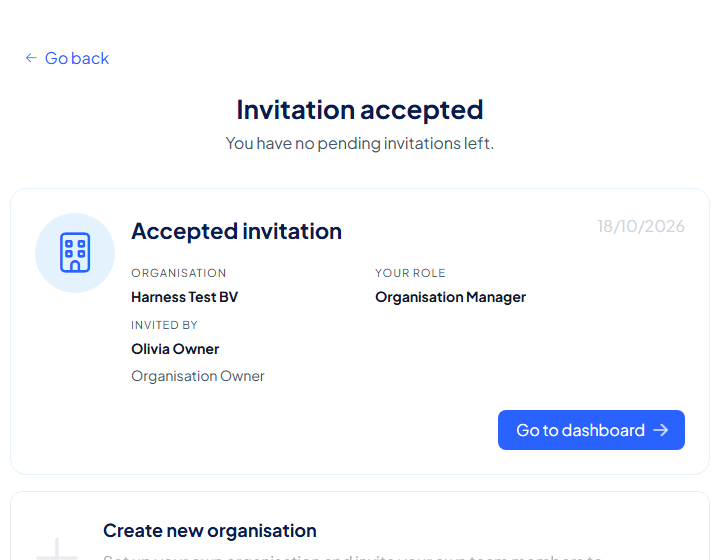
The page says "Invitation accepted" and "You have no pending invitations left." Select Go to dashboard.
Step 5: finish your part
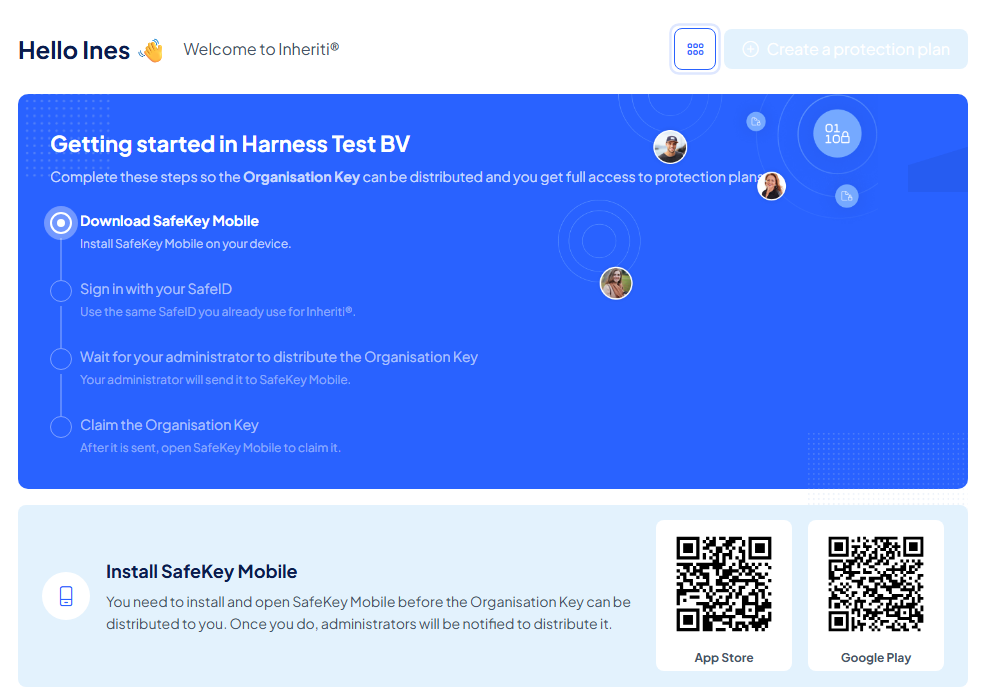
Your dashboard shows Getting started in [organisation name] with four steps:
- Download SafeKey Mobile: install it on your phone. A banner with the App Store and Google Play QR codes helps you.
- Sign in with your SafeID: use the same SafeID as above.
- Wait for your administrator to distribute the Organisation Key: it is sent to SafeKey Mobile. As soon as you have set up the app, administrators are notified to send it.
- Claim the Organisation Key: open SafeKey Mobile and claim it.
Next: set up SafeKey Mobile, then claim the Organisation Key.
Decline an invitation
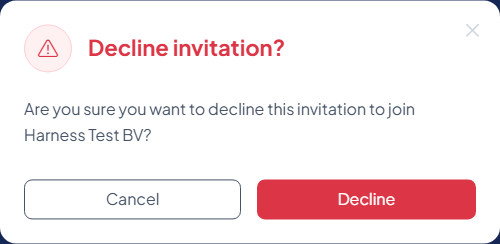
Do not want to join? Select Decline on the invitation card. A last question confirms it: "Are you sure you want to decline this invitation to join [organisation name]?" Select Decline.
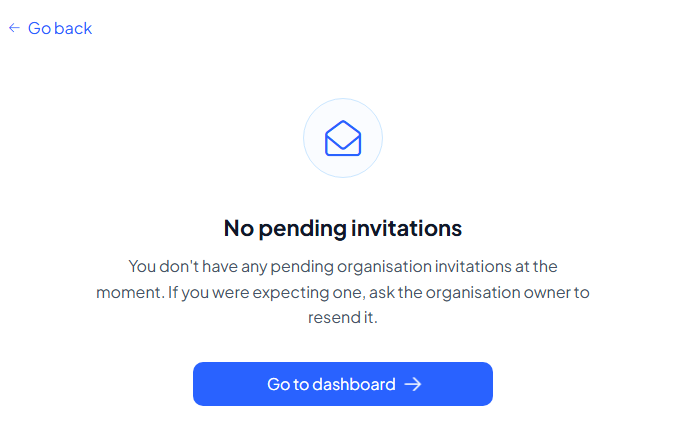
The page then says "No pending invitations": "If you were expecting one, ask the organisation owner to resend it." For the organisation that invited you, the pending member disappears from its member list. You can still create an organisation of your own.
Good to know
- Your role was chosen by the person who invited you. It decides what you can do: see Roles.
- Until you accept, the organisation shows you as Pending, and nothing is accessible yet.
- Already a member of another organisation? You can belong to several: see Work in several organisations.