🤝 Distribute the Organisation Key
Who can do this: Owners and Managers.
Members need the Organisation Key before they can access protection plans. As an Owner or Manager you distribute it to each member, and the member then claims it in SafeKey Mobile. This guide is the organisation's side of that story.
Before you start
- You hold the key yourself. You must have claimed the Organisation Key in your own SafeKey Mobile before you can send it to anyone.
- The member has joined. They have accepted their invitation.
- The member has set up SafeKey Mobile. They install the app and sign in with their SafeID. Until then the key cannot be sent.
Check where the member is
Go to Members and open the member. Their profile has an Organisation Key card that always tells you what comes next:
| What the card says | What it means |
|---|---|
| Awaiting invitation acceptance | They have not joined yet; the key can be distributed once they do |
| Distribution pending, awaiting SafeKey Mobile | They joined but have not set up SafeKey Mobile: ask them to install and open the app |
| Ready to distribute | Their SafeKey Mobile is ready: you can send the key now |
| Awaiting claim | The key has been sent; the member still has to claim it |
| Organisation Key active | They have claimed it and can access and create protection plans |
| Organisation Key Not Claimed (shown to you) | You must claim the key on your own SafeKey Mobile before you can distribute it |
While a member is onboarding, a checklist on the card shows the steps: download SafeKey Mobile, wait for them to set it up, distribute, wait for them to claim.
Distribute the key
- On the member's Organisation Key card, select Distribute Organisation Key.
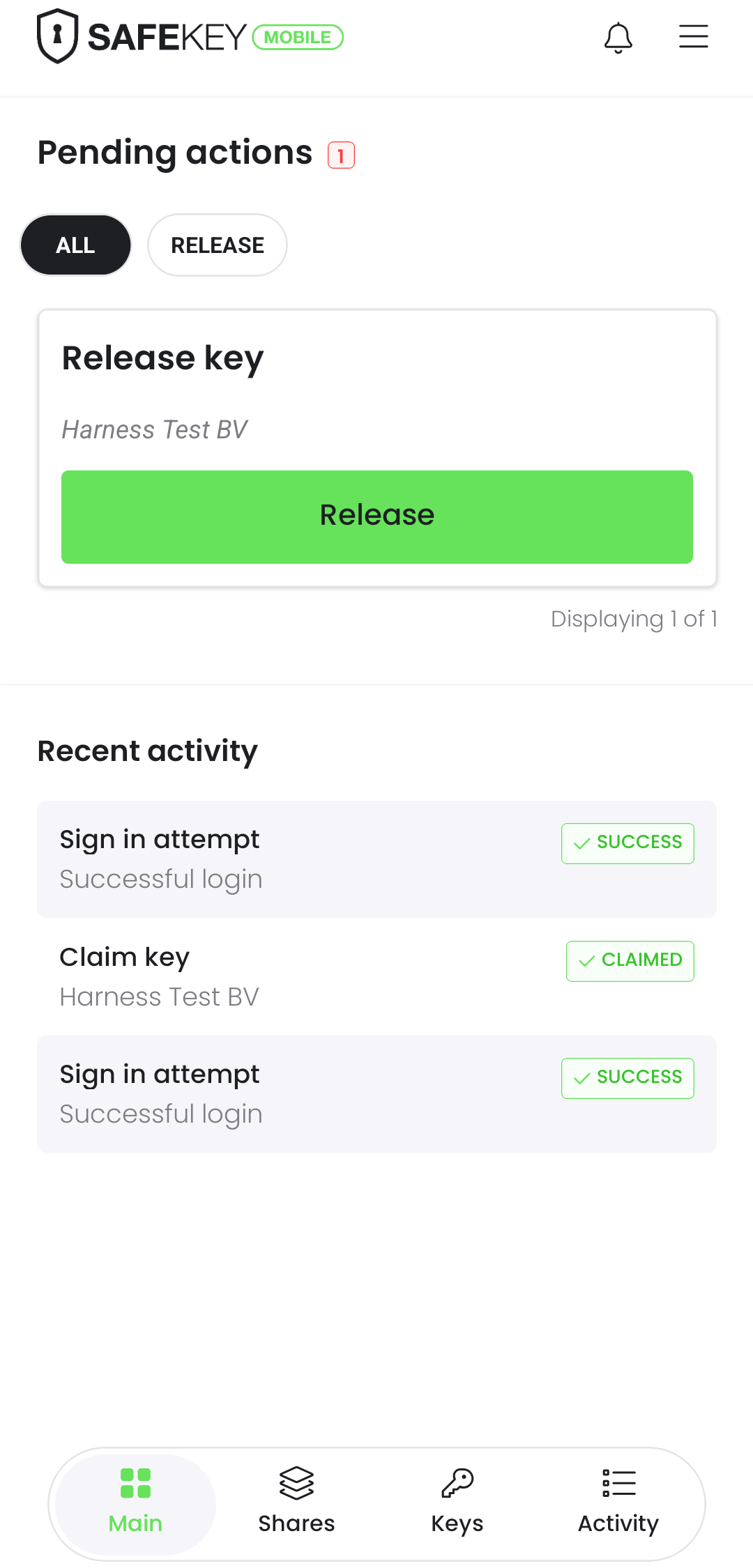
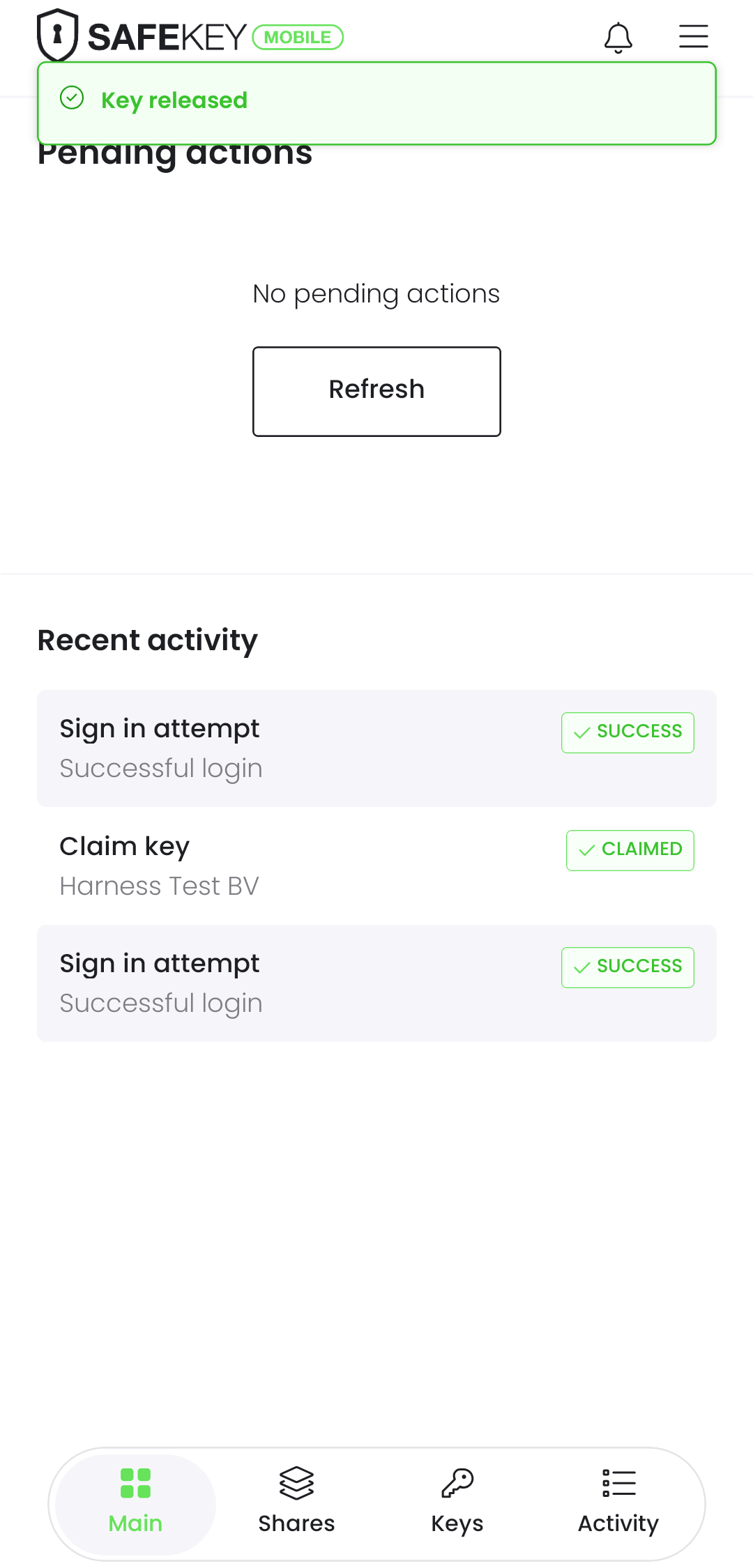
- If your browser does not hold the key yet, SafeKey Mobile asks you to release it first: a Release the Organisation Key dialog appears in the browser, and a Release key action with your organisation's name appears under Pending actions on your phone. Select Release; the app confirms with Key released.
 3. Confirm the question "Distribute Organisation Key?" with Distribute key.
4. The key is sealed with the member's identity key. This only takes a moment, and the key never travels in a readable form.
5. The card changes to Awaiting claim. The member gets a notification in SafeKey Mobile.
If something fails you see "Distribution failed" and can close the window and try again. If the key was already sent, you are told it is awaiting the member's claim.
Several members at once
When members are waiting, a notice tells you that Organisation Key actions are open. Following it opens a queue of the members who are ready to distribute or waiting for a claim. After each distribution, Continue to next member takes you to the next one.
Take the key back
To remove the key from a member's phone, select Revoke Access on their card and confirm: "This will remove the Organisation Key from this member's SafeKey Mobile. They will lose access until the key is redistributed." You can revoke while the key is awaiting a claim or after it was claimed.
Distribute again whenever the member is ready, for example after they get a new phone. If it is you, the organisation owner, who changed phones, use your Recovery Key instead: recover the Organisation Key.
If you are the owner and you change phone
As the owner you have your own route: on the organisation's details page, Lost or changed your phone? lets you redistribute the key to your new device. You need your Organisation Recovery Key for it, and the previous device is revoked first. Read more in Organisation Key.