✏️ Edit a member
Who can do this: Owners and Managers.
People change jobs. You can change a member's name, role and teams at any time, without inviting them again. You need the right to manage members.
Open the member
Go to Members in the sidebar and select the member. On their Details tab, select Edit member.
What you can change
The page is called Edit Member: "Update individual details". A note at the top says: "The member will receive an email summarising the changes."
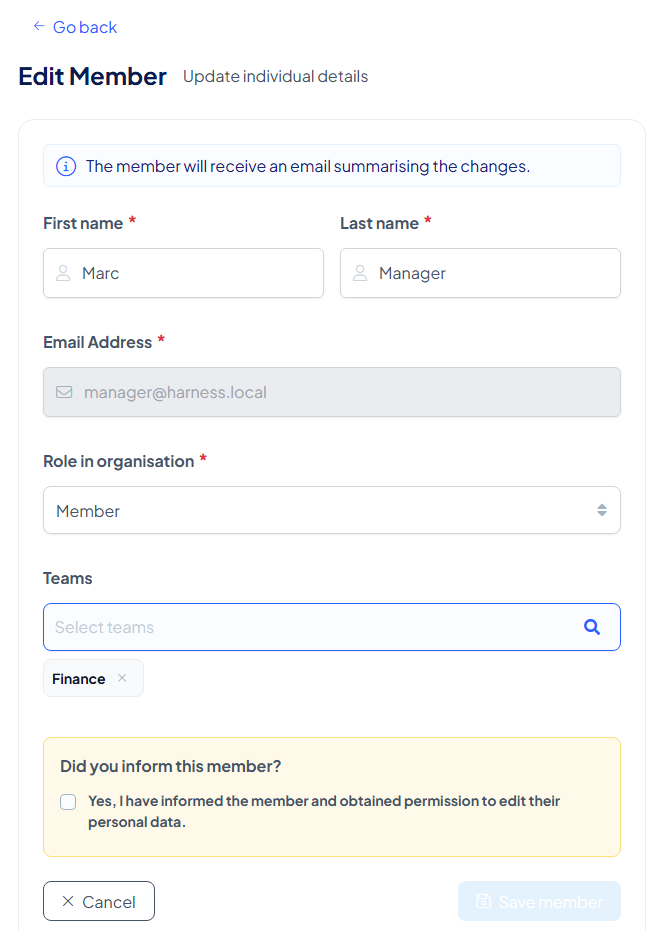
| Field | Notes |
|---|---|
| First name and Last name | Both are required |
| Email Address | Greyed out: it cannot be changed here. The member signs in with it |
| Role in organisation | Choose Manager or Member. See Roles for what each can do |
| Teams | Search to add a team, or remove one with the × on its label. Teams decide which plans the member can reach |
Confirm and save
A yellow box asks Did you inform this member? Tick "Yes, I have informed the member and obtained permission to edit their personal data." Save member stays inactive until you do.
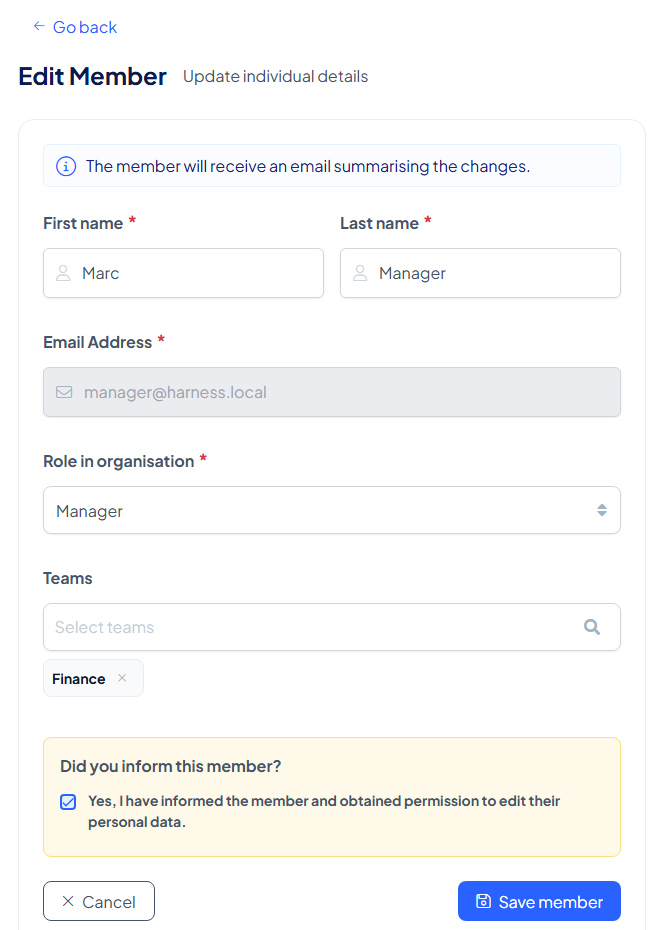
Select Save member. You see "Member updated successfully." and the member's page shows the new role and teams.
Good to know
- Teams decide which plans the member can reach, so changing them changes what the member can open.
- A member who got a new phone needs the key again: see Distribute the Organisation Key.
- To remove someone from the organisation altogether, see Offboard a member.