✉️ Invite members
Who can do this: Owners and Managers.
Bring your colleagues into the organisation. You invite them by email, and they sign in with their SafeID. Inviting members is reserved for Organisation Owners and Managers.
Before you start
- Check your available seats: the Members page shows them next to the member list, with an Add seats shortcut if you need more.
- Members can be assigned to teams while you invite them, and you can even create a new team on the spot from the invite form. Adding people to teams later also works, even while their invitation is still pending.
Add a single member
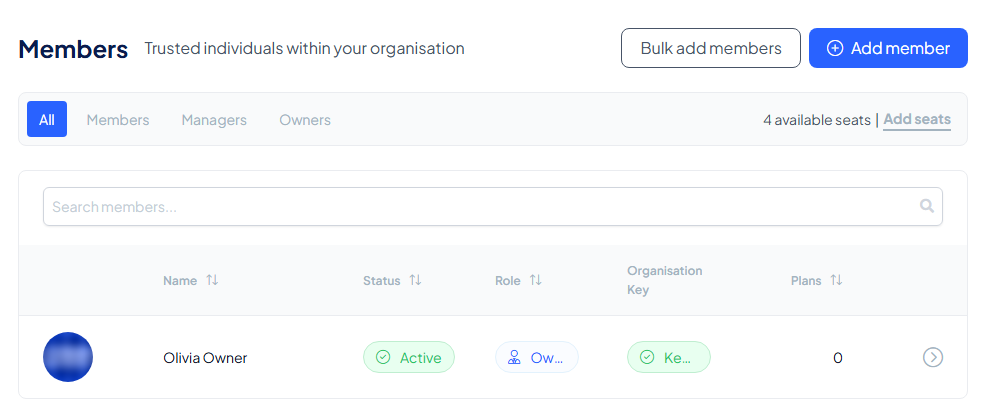
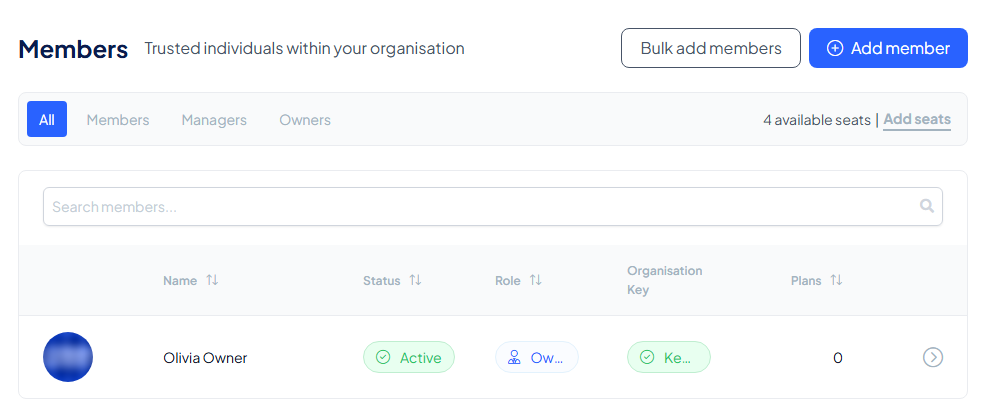
- Go to Members and select Add member.
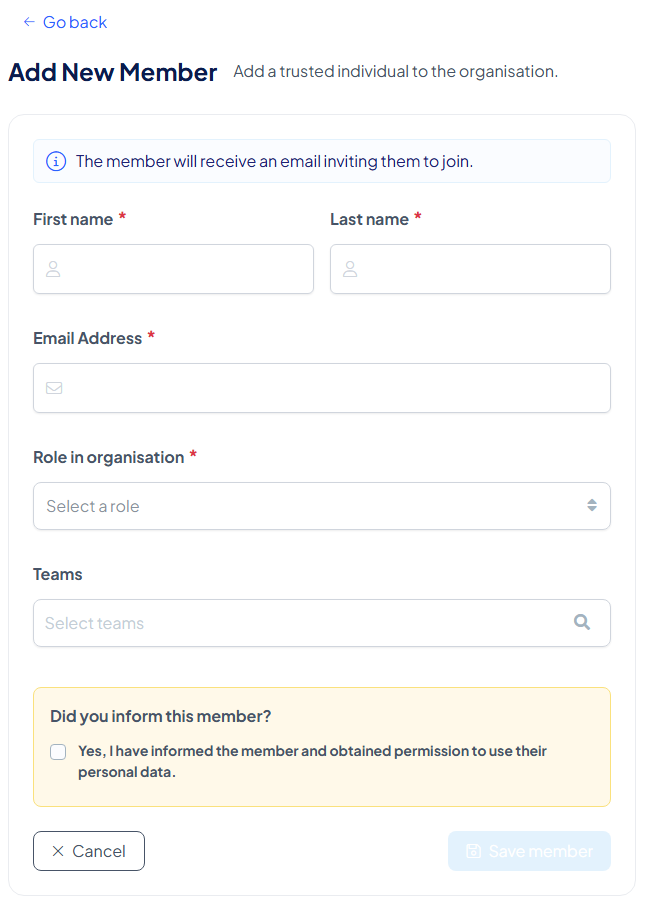
- Enter their first name, last name and email address.
- Choose their role in the organisation: Manager or Member (the Organisation Owner is the person who created the organisation). When in doubt, choose Member; roles can be changed later.
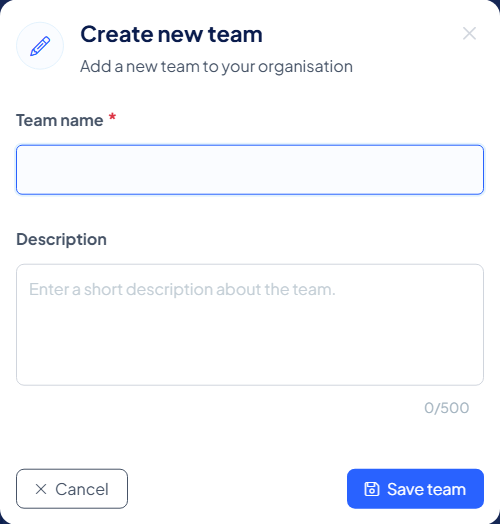
- Select the teams they belong to. No team yet? The dropdown footer has a Create new team button.
- Confirm Did you inform this member? by ticking Yes, I have informed the member and obtained permission to use their personal data.
- Select Save member. The member receives an email inviting them to join.
You never have to leave this page to organise teams: Create new team in the team dropdown opens a small dialog (team name and description, Save team), and the new team is immediately selectable for the member you are adding.
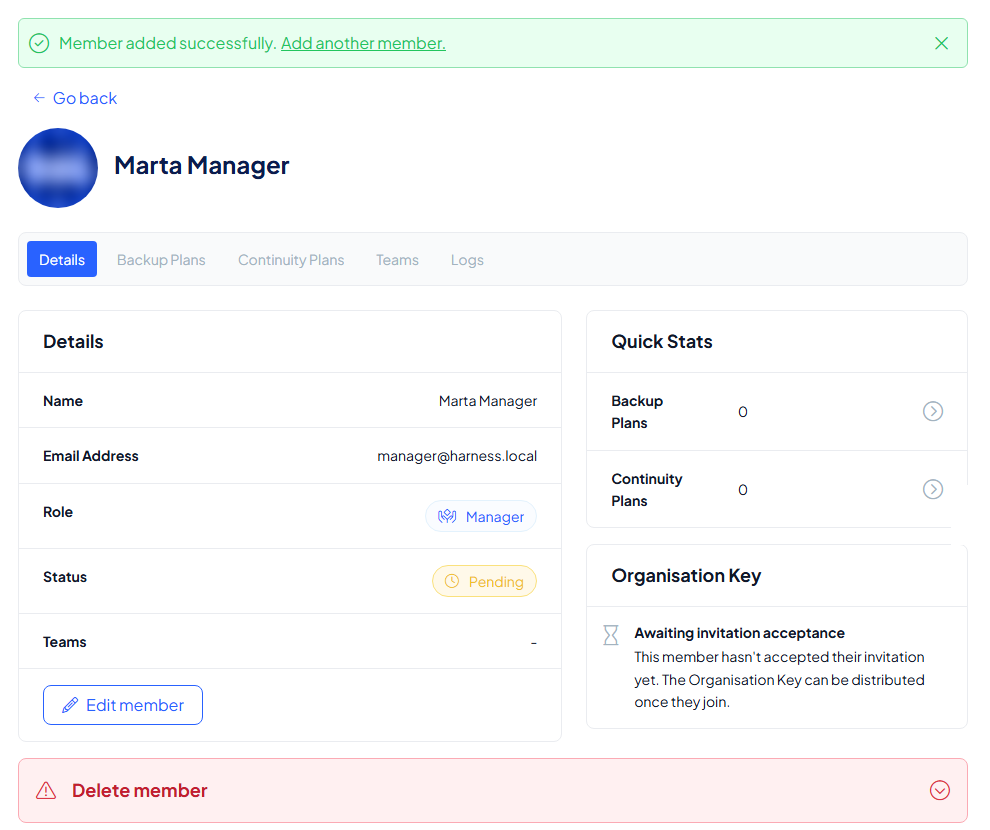
After saving, you land on the new member's profile: tabs for Details, Backup Plans, Continuity Plans, Teams and Logs, quick stats, and an Organisation Key card. Until the invitation is accepted, that card reads Awaiting invitation acceptance: the Organisation Key can be distributed once they join. A banner confirms the member was added and offers to add another member right away.
Add members in bulk
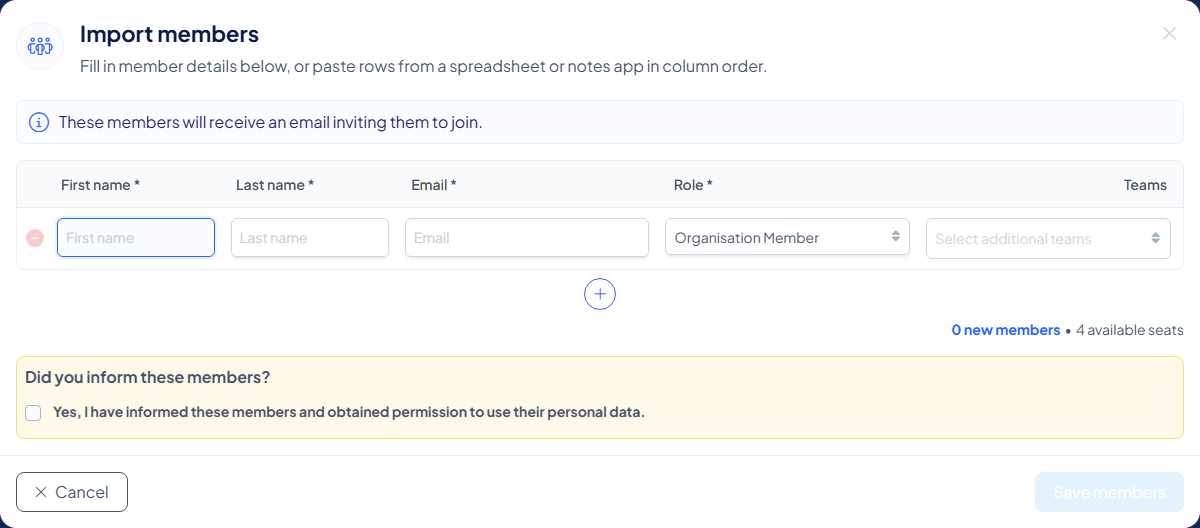
For a whole department at once, select Bulk add members. The Import members dialog opens.
Enter the details one row per member: first name, last name, email, role and teams, or paste rows from a spreadsheet in column order. The dialog counts the new members against your available seats. Tick the Did you inform these members? confirmation and select Save members; every listed member receives the same invitation email. What the member then sees is described in Accept an invitation.
After the invitation
- The member appears in your list as Pending until they accept, and Active once they have.
- The Organisation Key column tracks their key state; a new member still needs to claim the Organisation Key before they can reach any plans.
- Invitations, role changes and removals all land in the audit trail.
Next: create a team.