🚪 Offboard a member
Who can do this: Owners and Managers.
When someone leaves, remove them once. Their access ends that same second, with no passwords to change in a hurry and no plan to re-share. Removing members is reserved for Owners and Managers.
What you cannot remove
- The organisation owner.
- Yourself.
Check the plans they moderate
If the member is a moderator, make sure the plans can do without them. A member cannot be removed while they moderate plans that would fall below the required approval threshold: "Reassign moderators or lower the threshold first."
- Open each plan the member moderates, on the Moderation tab.
- Add another moderator, or lower the number of approvals required.
- Come back and remove the member.
The message tells you how many plans stand in the way.
Remove the member
- Go to Members and open the member.
- On the Details tab, scroll to the Delete member section at the bottom: "Deleting a member will remove them from the organisation."
- Select Delete member. A dialog asks "Delete [Name]?"
- Read the warning and select Delete (or Cancel).
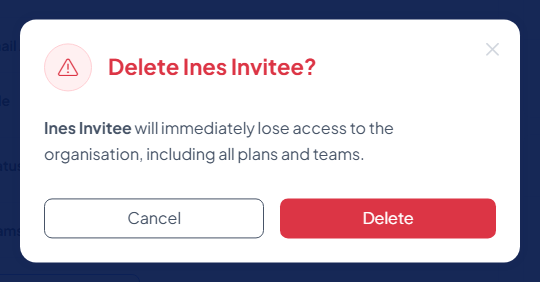
The warning says it plainly: "[Name] will immediately lose access to the organisation, including all plans and teams." In addition:
- They are removed as a moderator from every plan they moderated.
- Access requests that were pending their approval are aborted; the requesters can ask again.
- Their access to every plan stops at once, because every access request checks live that the requester is still an active member. Whatever still sits on their devices is useless on its own.
The member disappears from your list.
What happens next
- Nothing needs to be re-encrypted or re-shared: plans point at teams, not at a frozen list of names.
- If the person leaves and a replacement joins, invite the new member and add them to the same teams.
- The removal is recorded in the audit trail and the member's log.
Read more about why this works in Members.