🏢 Create your organisation
Who can do this: Anyone with a SafeID who sets up a new organisation. You become the Organisation Owner.
Creating an organisation happens in two parts: choose a plan and name your organisation, then set it up: install SafeKey Mobile, claim your Organisation Key and save your Organisation Recovery Key. This guide follows both parts step by step.
Whoever completes it becomes the Organisation Owner: the one person who holds the Organisation Recovery Key.
When it appears
- On your first sign-in after signing up, the setup opens automatically, unless you have pending invitations to join an existing organisation.
- Have pending invitations? Then you choose first: accept an invitation, or start the organisation creation flow yourself from your dashboard.
Part 1: plan and organisation name
Select a plan
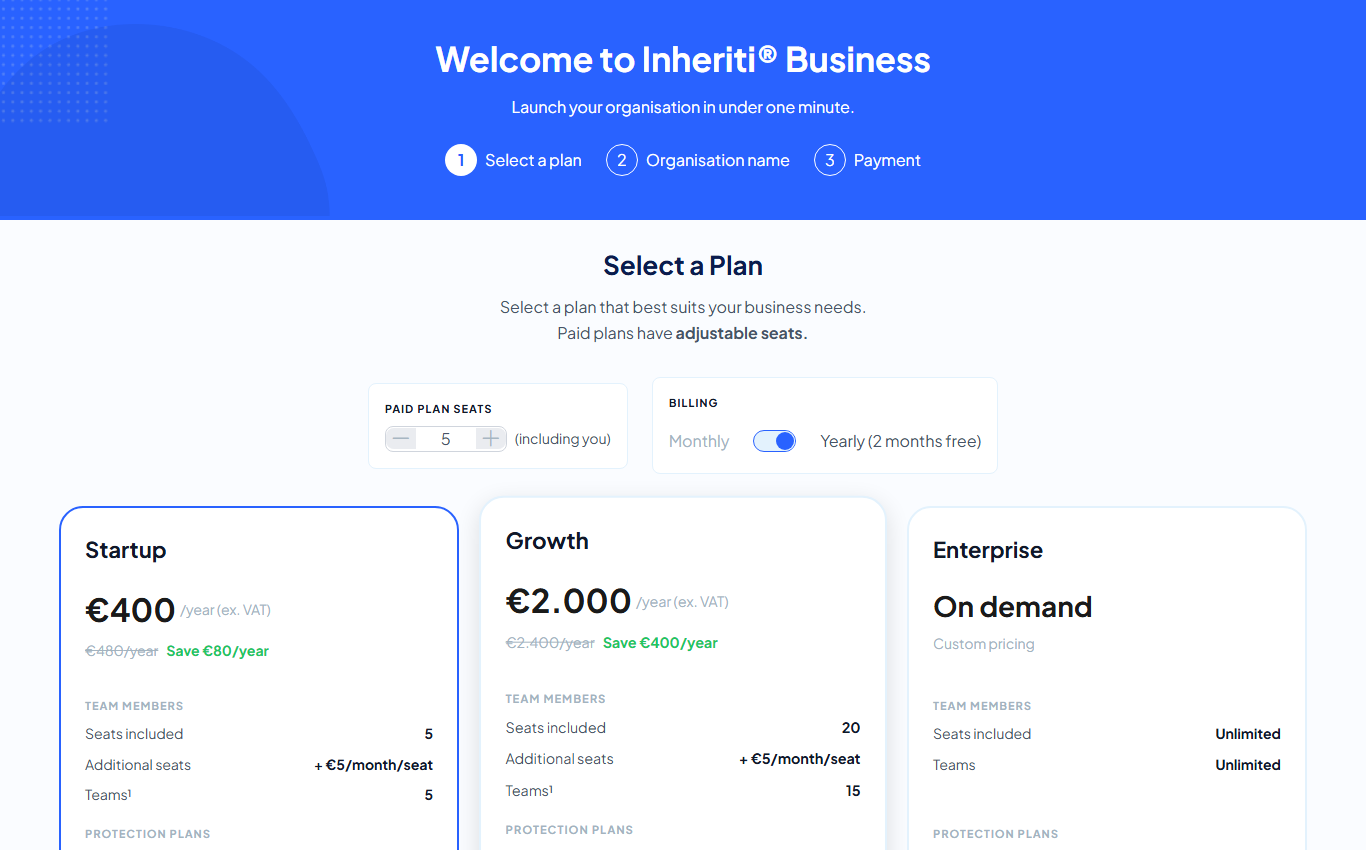
Pick the plan that fits your organisation. Paid plans have adjustable seats (the number includes you) and can be billed monthly or yearly. Select Start 7-Day Free Trial to try the plan first, or Subscribe now to start paying right away. Enterprise is priced on demand: Contact us.
Name your organisation
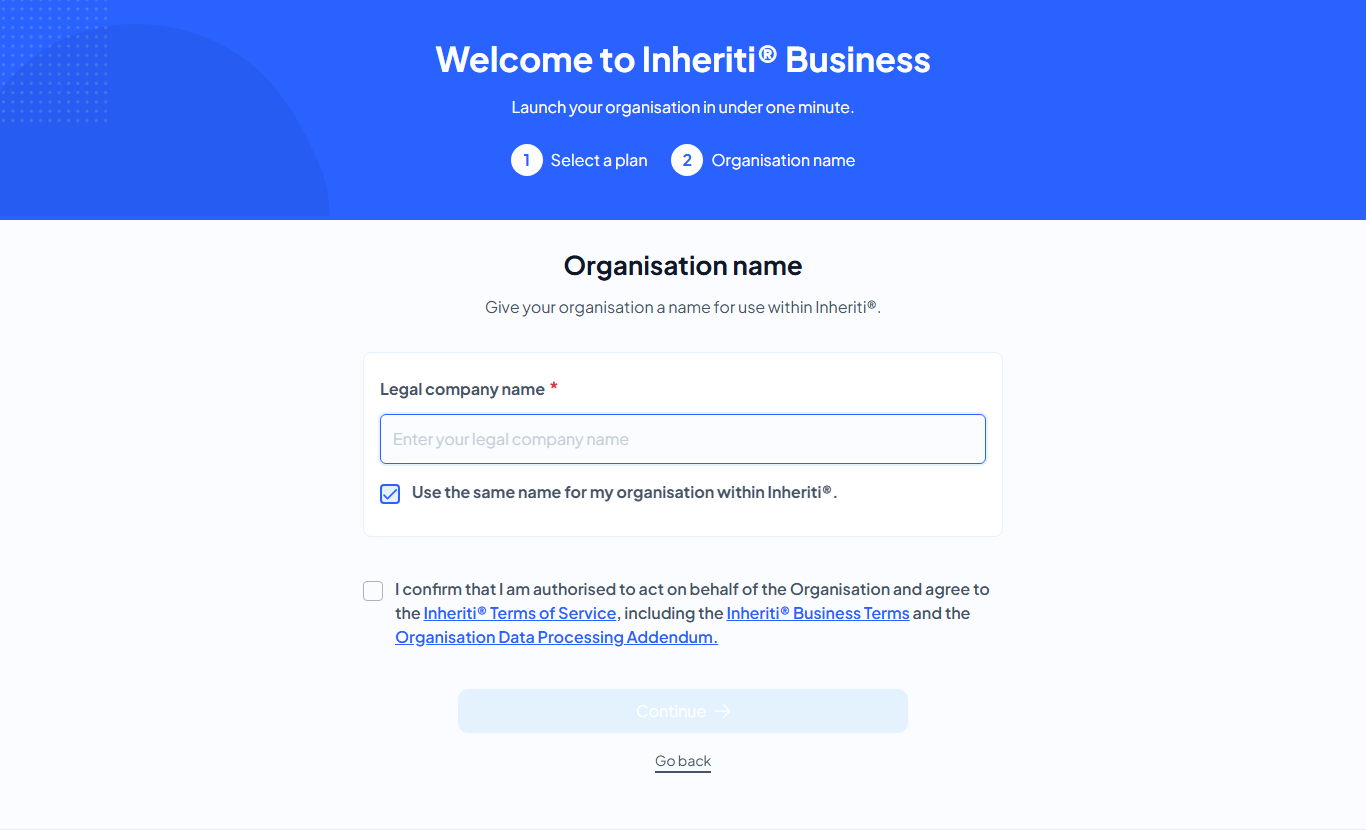
Enter your legal company name. By default it is also used as your organisation's name within Inheriti®; untick Use the same name for my organisation within Inheriti® if your team knows it under a different name. Then confirm that you are authorised to act on behalf of the organisation and agree to the Terms of Service, the Business Terms and the Data Processing Addendum, and select Continue.
With a paid plan, the Payment step follows. With a trial, you go straight on.
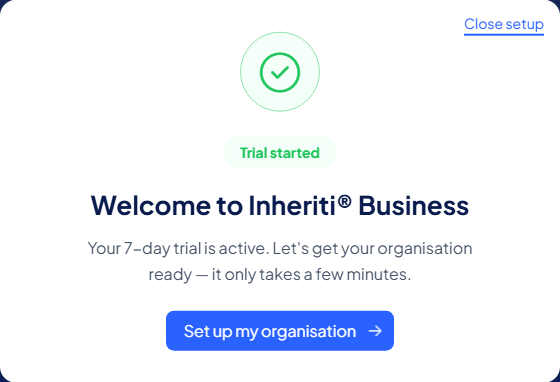
Your organisation now exists. Select Set up my organisation (or Get started on your dashboard later) to start part 2.
Part 2: set up your organisation
A four-step dialog guides you through the rest. Your Organisation Key and the other building blocks were created automatically; what is left is making sure you hold the keys.
You can select Close setup at any time and continue later with Get started on your dashboard.
Step 1: install SafeKey Mobile
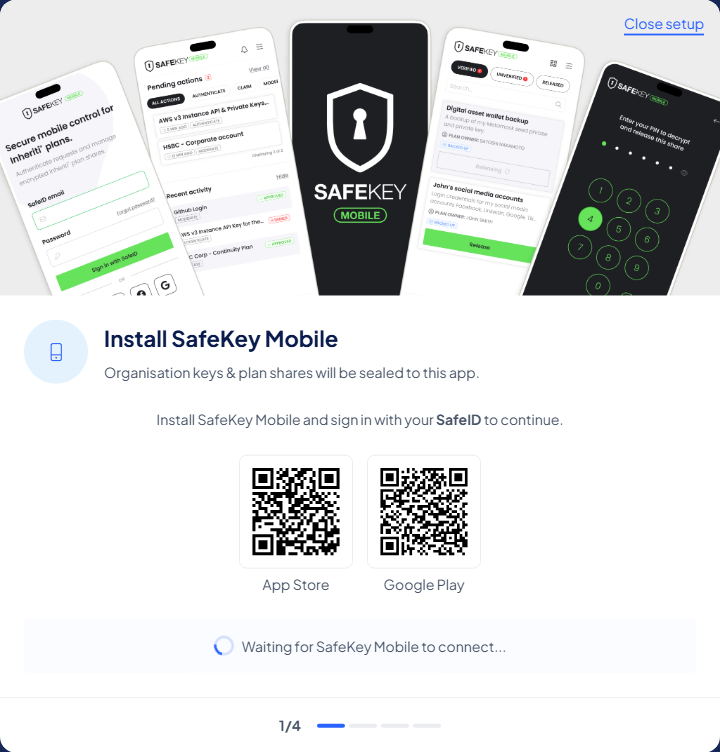
Scan the QR code for the App Store or Google Play with your phone, install SafeKey Mobile, and sign in with the same SafeID you use for Inheriti®. You never create a second account.
On first sign-in the app generates a key pair on your device that will seal and protect your Organisation Key. The private key never leaves your phone. The dialog shows Waiting for SafeKey Mobile to connect… and moves on by itself the moment the app is connected.
Step 2: claim your Organisation Key
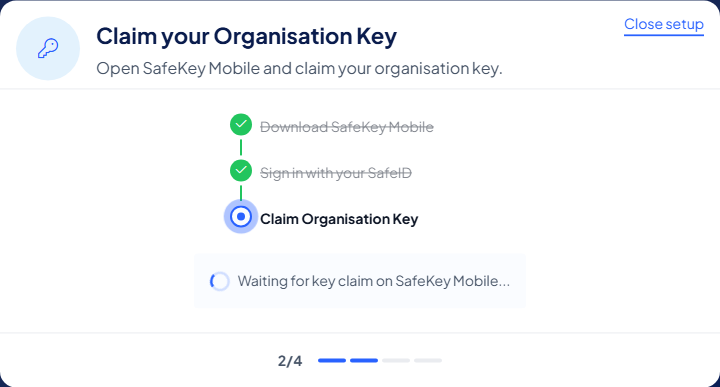
The dialog shows three sub-steps, the first two already done: Download SafeKey Mobile · Sign in with your SafeID · Claim Organisation Key. Open SafeKey Mobile and claim the key; the dialog waits for the claim and then continues. This seals the Organisation Key to your phone.
Not now? You can claim it later on SafeKey Mobile; your dashboard keeps a Claim the Organisation Key in SafeKey Mobile task until you do.
Step 3: save your Organisation Recovery Key
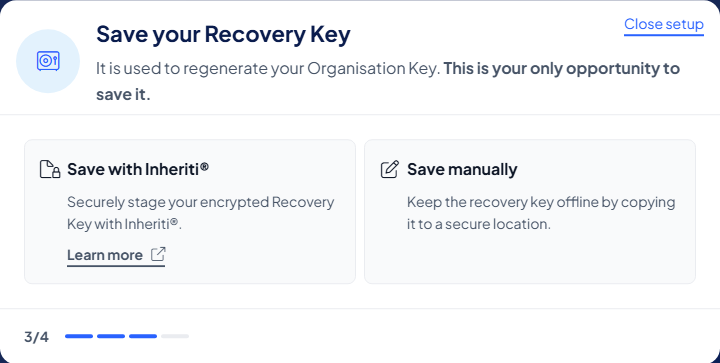
Your browser generates an Organisation Recovery Key: 16 characters that only you hold. It is used to regenerate your Organisation Key, and it is the only way to recover the Organisation Key if you ever lose your phone. (How to use it.) The dialog is explicit: this is your only opportunity to save it. Inheriti® never receives it in plain text.
Choose how to keep it:
- Save with Inheriti®: select Prepare key. The recovery key is encrypted in your browser before it is backed up. Then select Open Inheriti®, sign in with your SafeID and accept the encrypted Recovery Key. Tick I understand I can finish setting up my organisation now and complete the Recovery Key backup in Inheriti® later. Then select Finish.
- Save manually: the dialog shows the recovery key. Copy it to a secure place that is not on your computer's screen, for example a password manager or a printout in a safe. Tick I have securely stored my recovery key. Keeping it is then your own responsibility.
Step 4: confirm
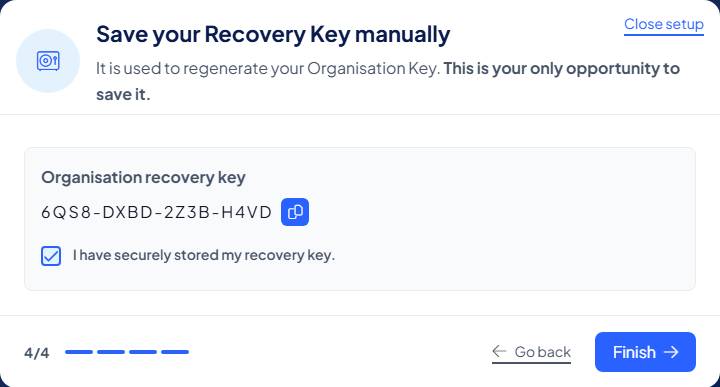
With Save manually, step 4 shows the key (grouped as four blocks of four characters) next to a copy button. Tick the confirmation and select Finish. Your organisation is set up, and you land on your dashboard.
Without the Organisation Recovery Key, the Organisation Key cannot be recovered if no device holds it any more. Your members never see or enter it: they claim the Organisation Key through SafeKey Mobile, no recovery key involved.
What you now have
Behind those steps, everything your plans will ever need was created automatically: your Organisation Key, your organisation's own smart contract on InheritiChain, and its own key pair in the Inheriti® HSM. A first team, All Members, with you in it, exists too. The details live on My organisation.
Your dashboard keeps a checklist for what comes next: configure storage layers, create teams and invite members, create categories, and create your first protection plan.
Next: invite your members.