🔑 Recover the Organisation Key
Who can do this: The Organisation Owner.
Lost, broken or replaced your phone? When you set up SafeKey Mobile on a new phone, the Organisation Key must then be claimed on that device.
If no other Organisation Owner or Manager can redistribute the Organisation Key to you, use your Organisation Recovery Key to recover it. This guide will walk you through the process.
If you are another member, your Organisation Owner or Manager distributes the key to you again.
What you need
- Your Organisation Recovery Key: the 16 characters you saved when you created your organisation.
- Your new phone with SafeKey Mobile installed.
If you backed up your Recovery Key with SafeKey Mobile, you also need the backup of your plan share to restore it on your new phone.
Without the Organisation Recovery Key, the Organisation Key cannot be recovered if no Organisation Owner or Manager has it. Select Support in the menu of Inheriti® Business to discuss resetting your organisation.
Step 1: set up SafeKey Mobile on the new phone
Install SafeKey Mobile, sign in with the same SafeID account you used before, and set your PIN. You can do this before or after starting the recovery in Inheriti® Business. If your Recovery Key is in a plan on SafeKey Mobile, set up the phone first: you need it to retrieve the key.
Step 2: retrieve your Recovery Key
Your Organisation Recovery Key may be stored manually or backed up in an Inheriti® 2.0 (Personal) protection plan. Open the section that matches how you saved it.
Manual storage
Retrieve the Organisation Recovery Key from the safe offline location where you stored it.
Inheriti® 2.0 (Personal) plan
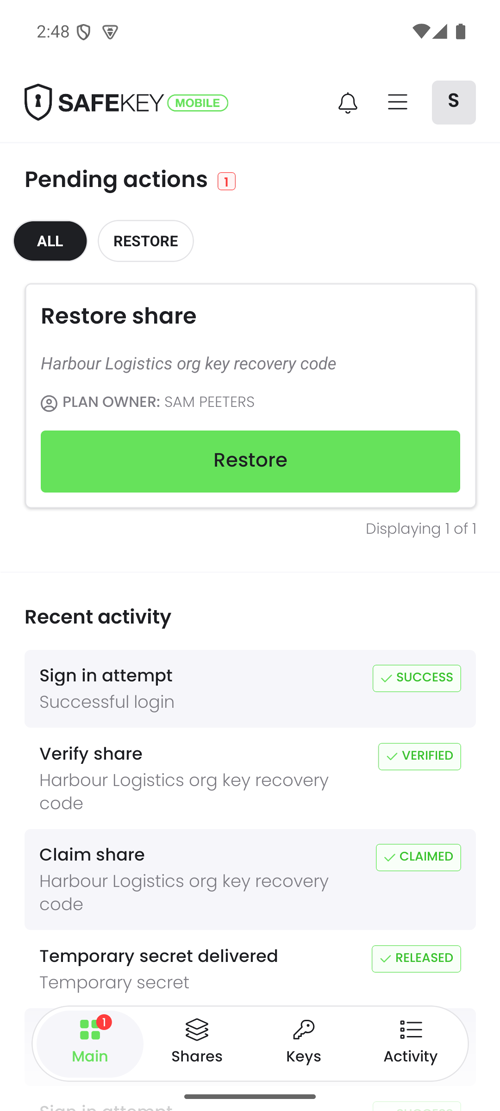
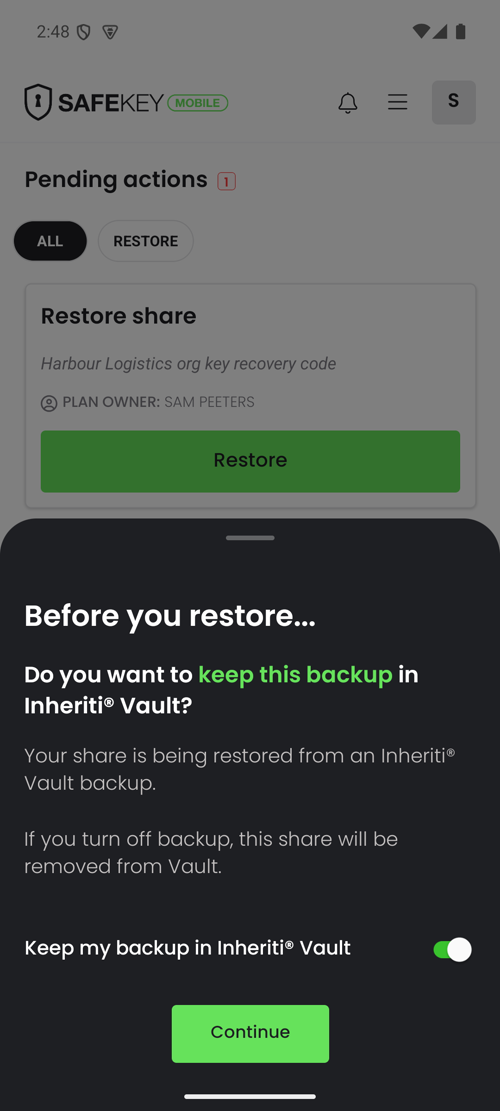
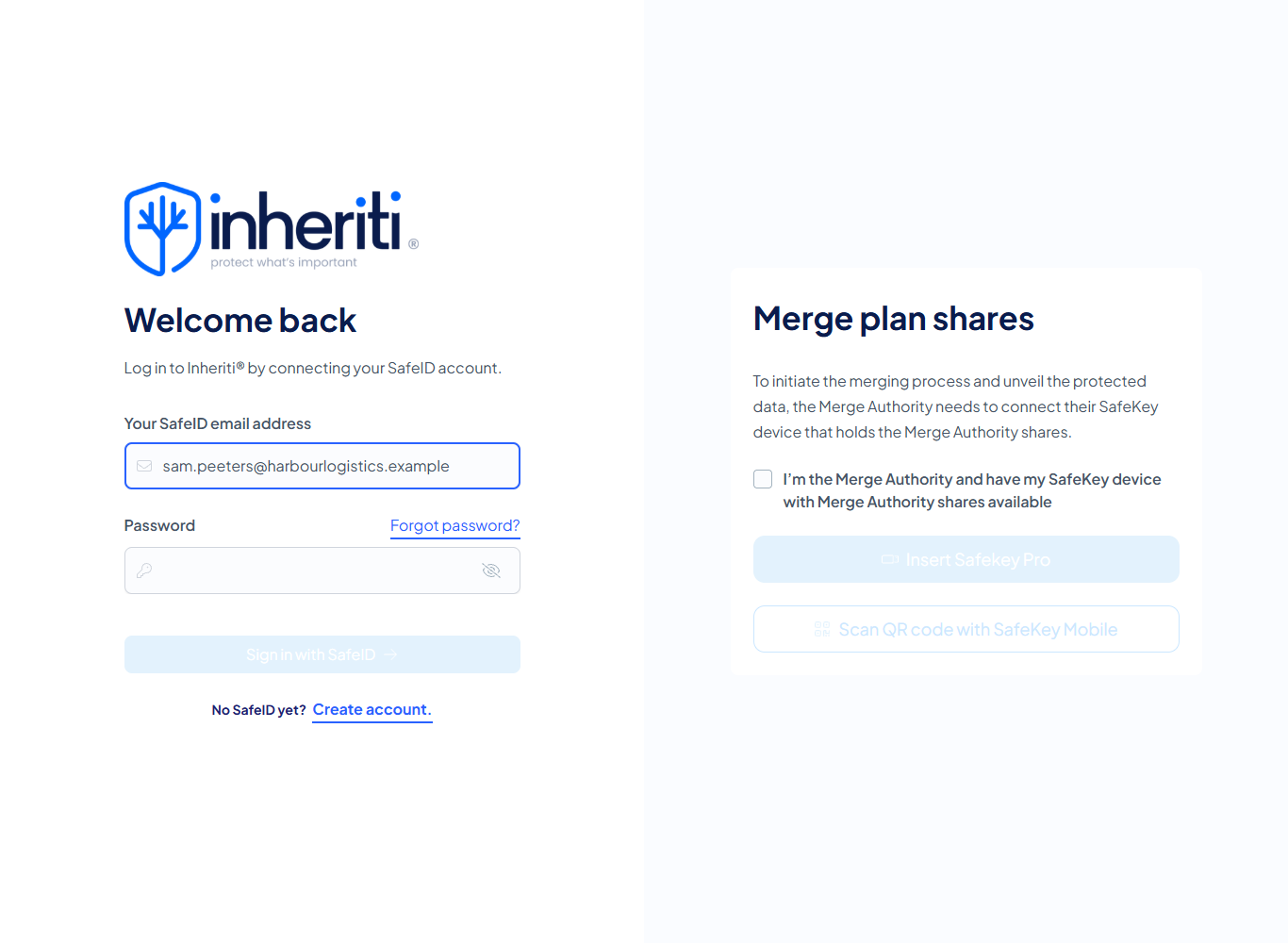
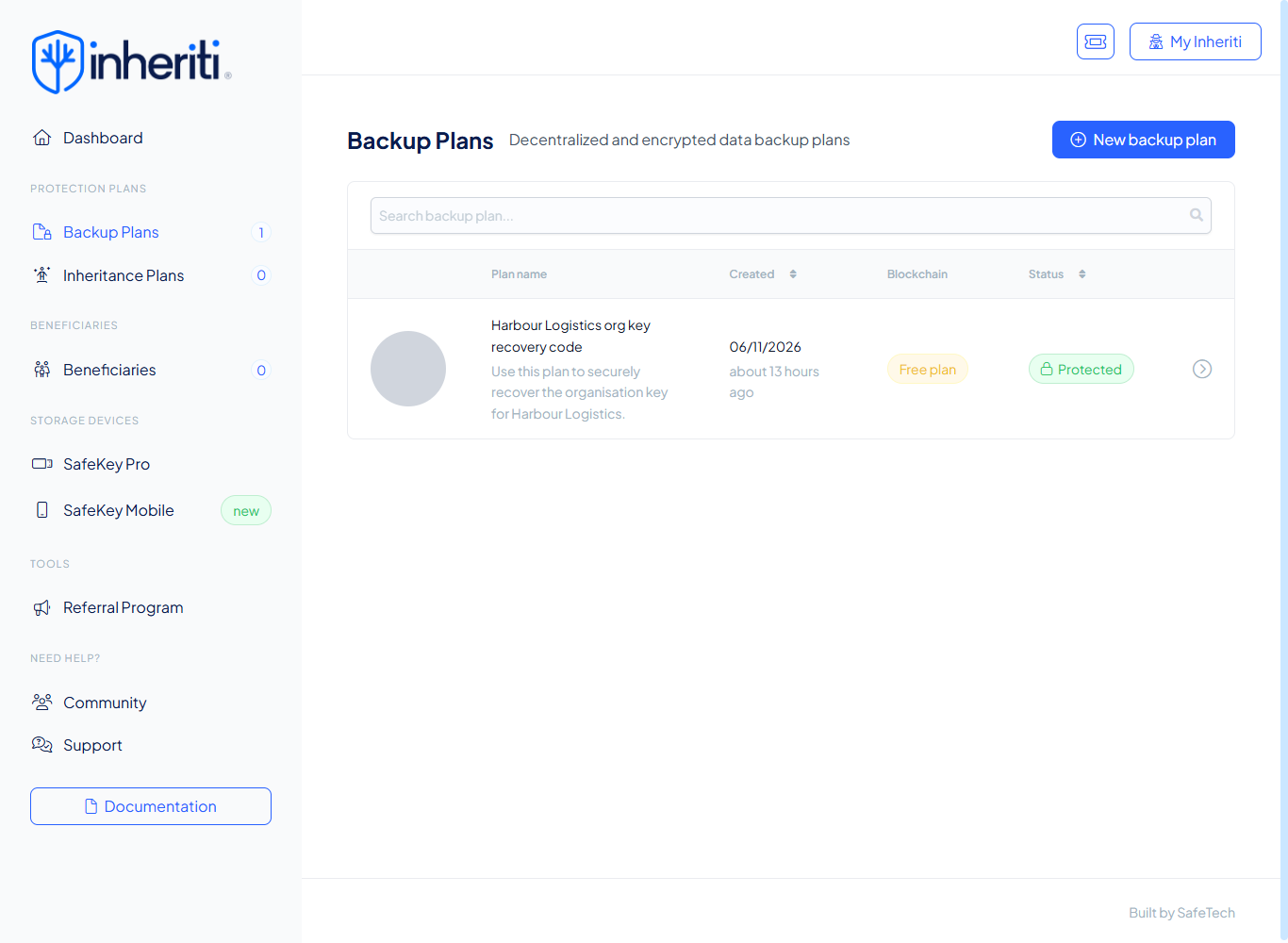
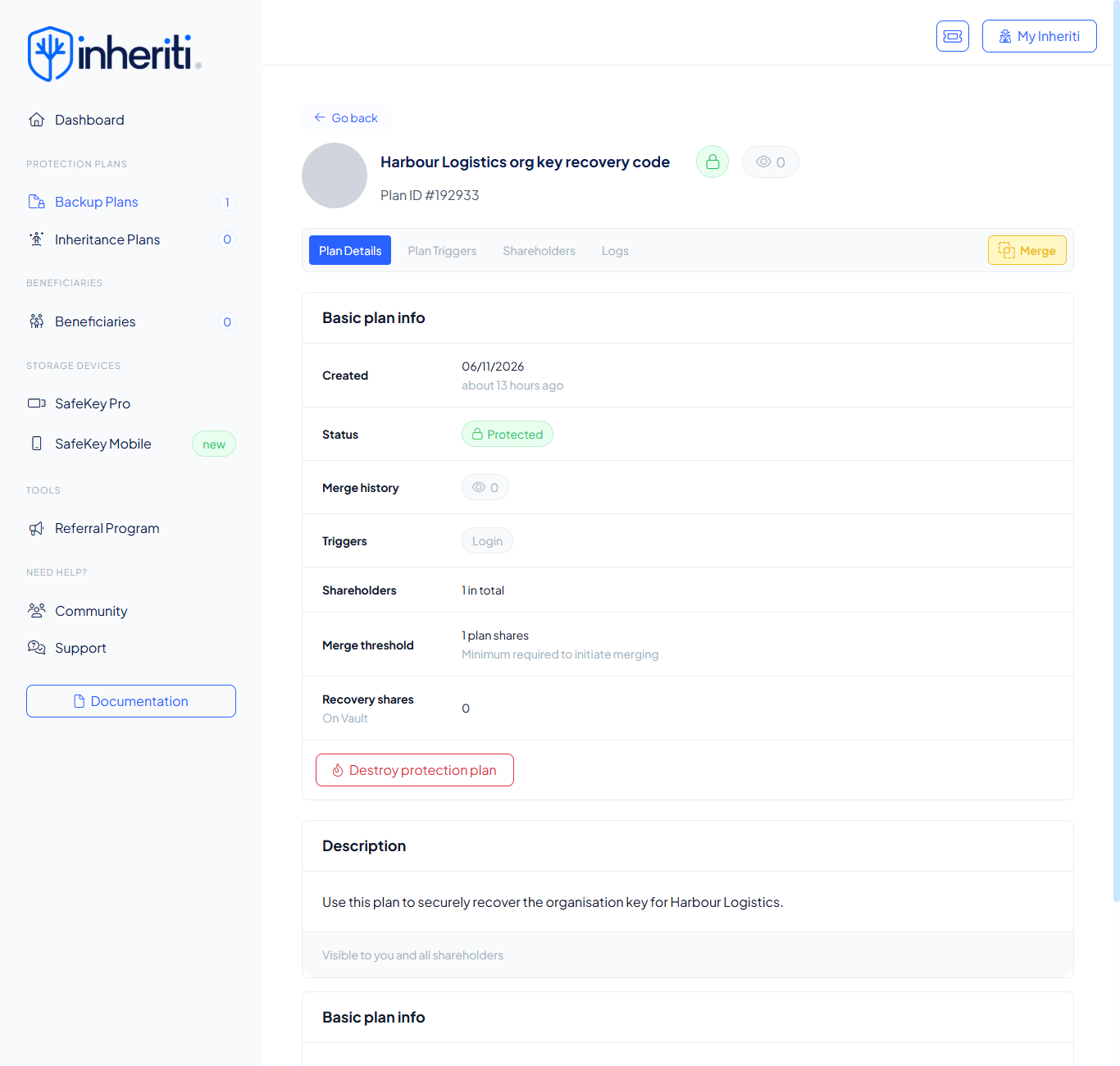
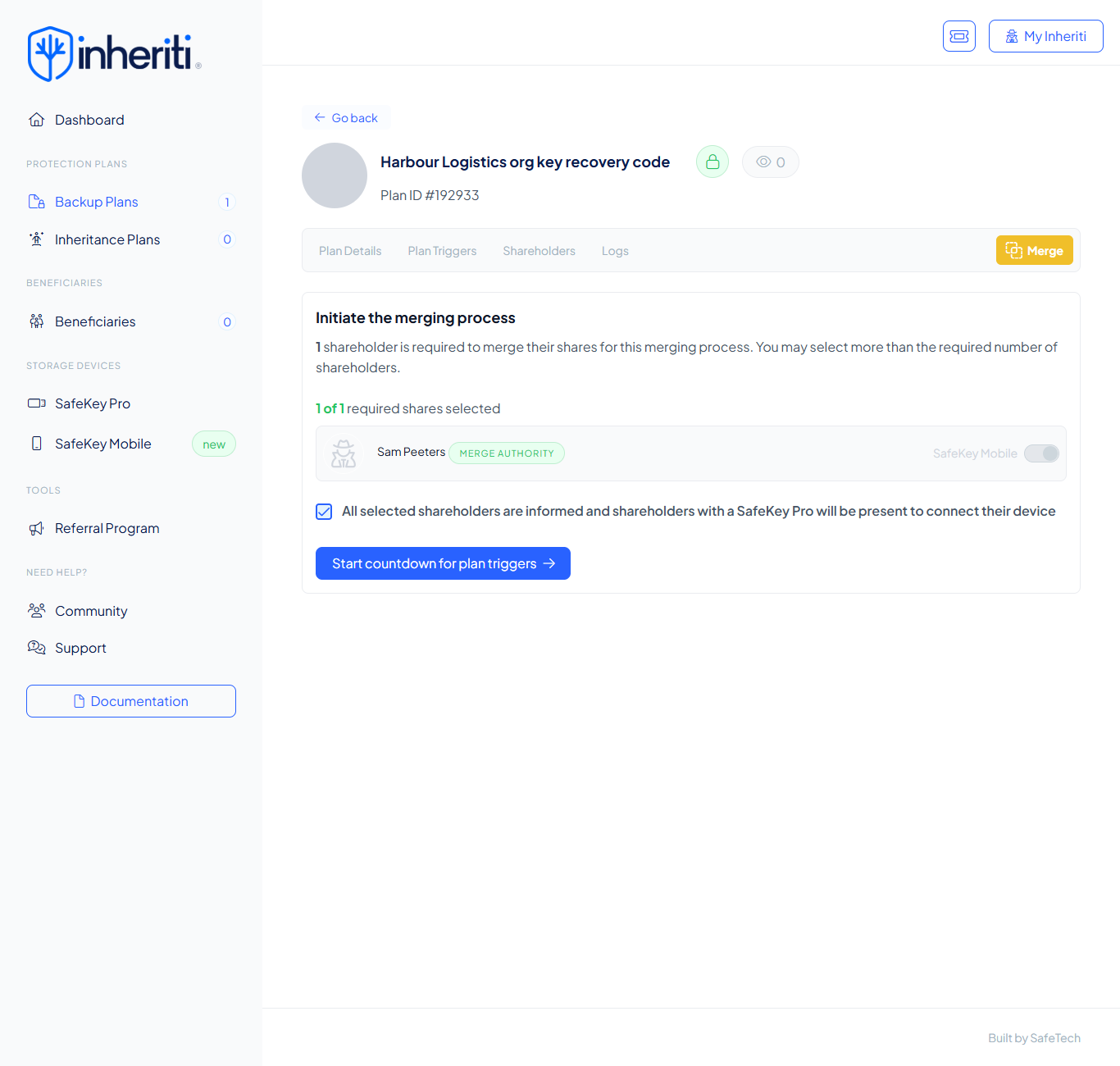
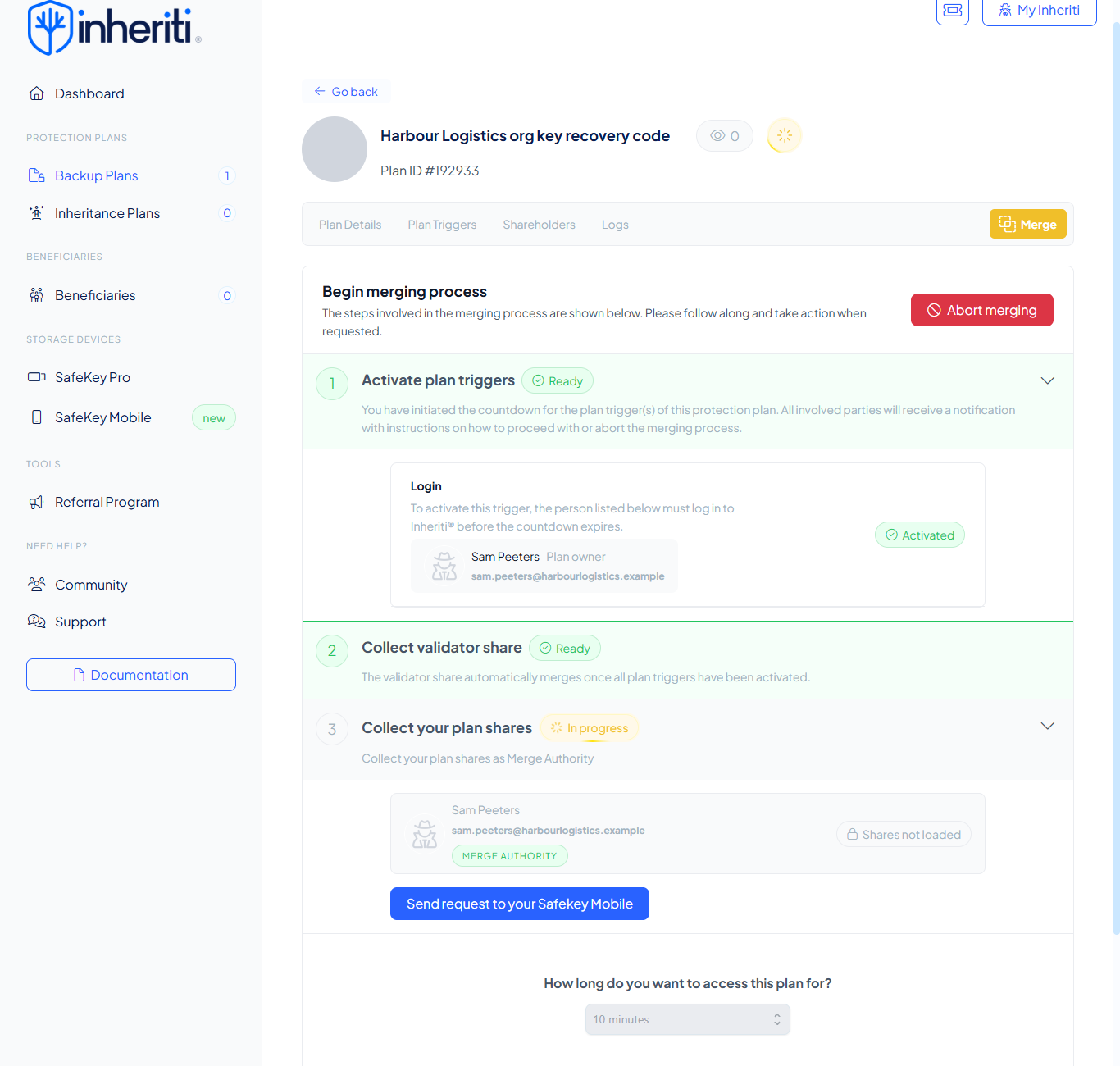
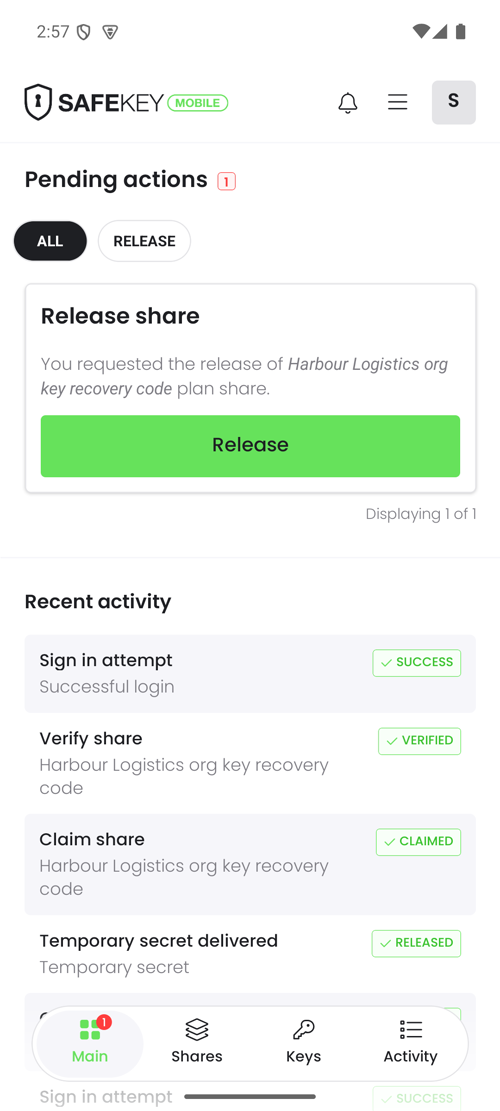
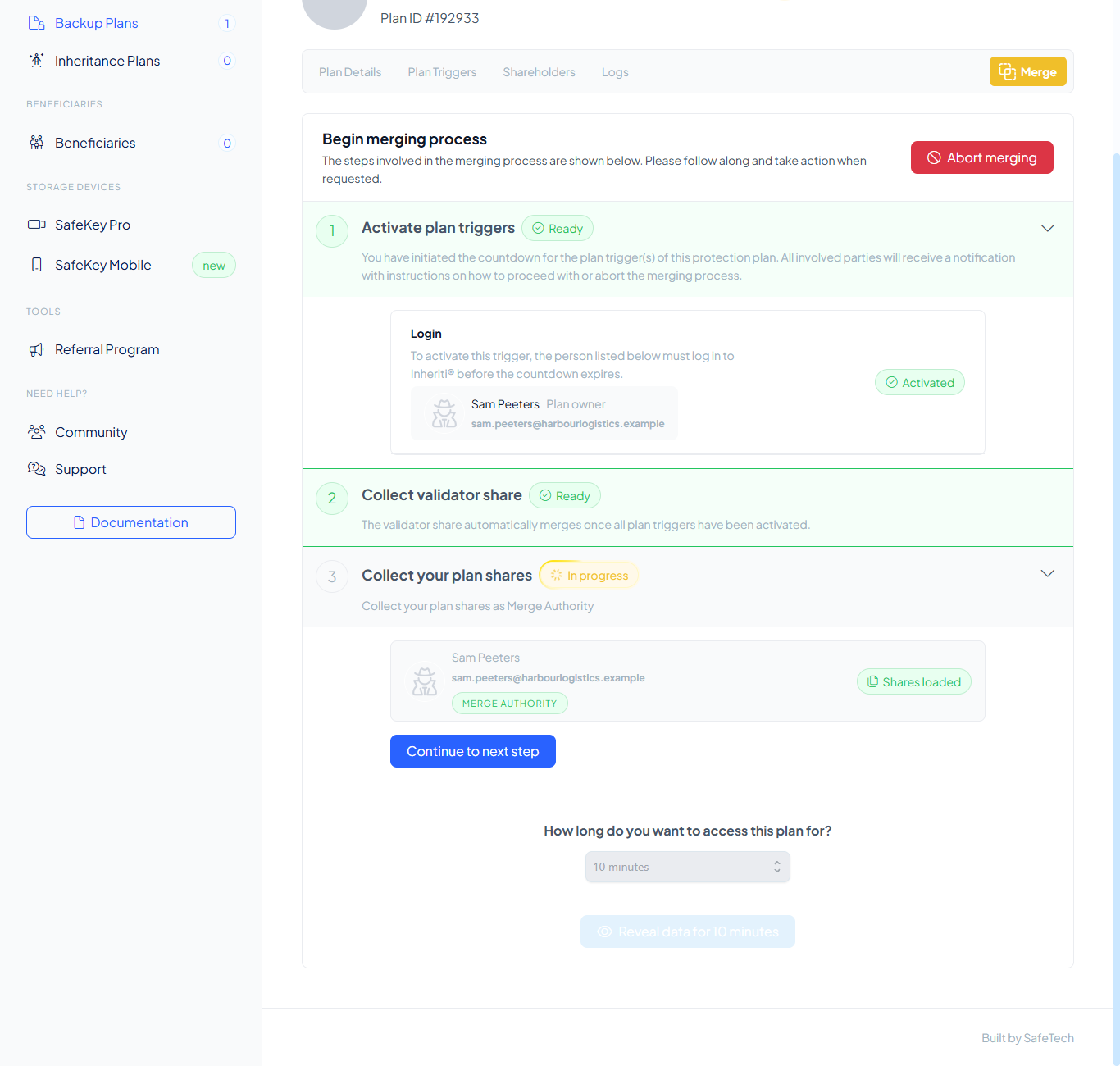
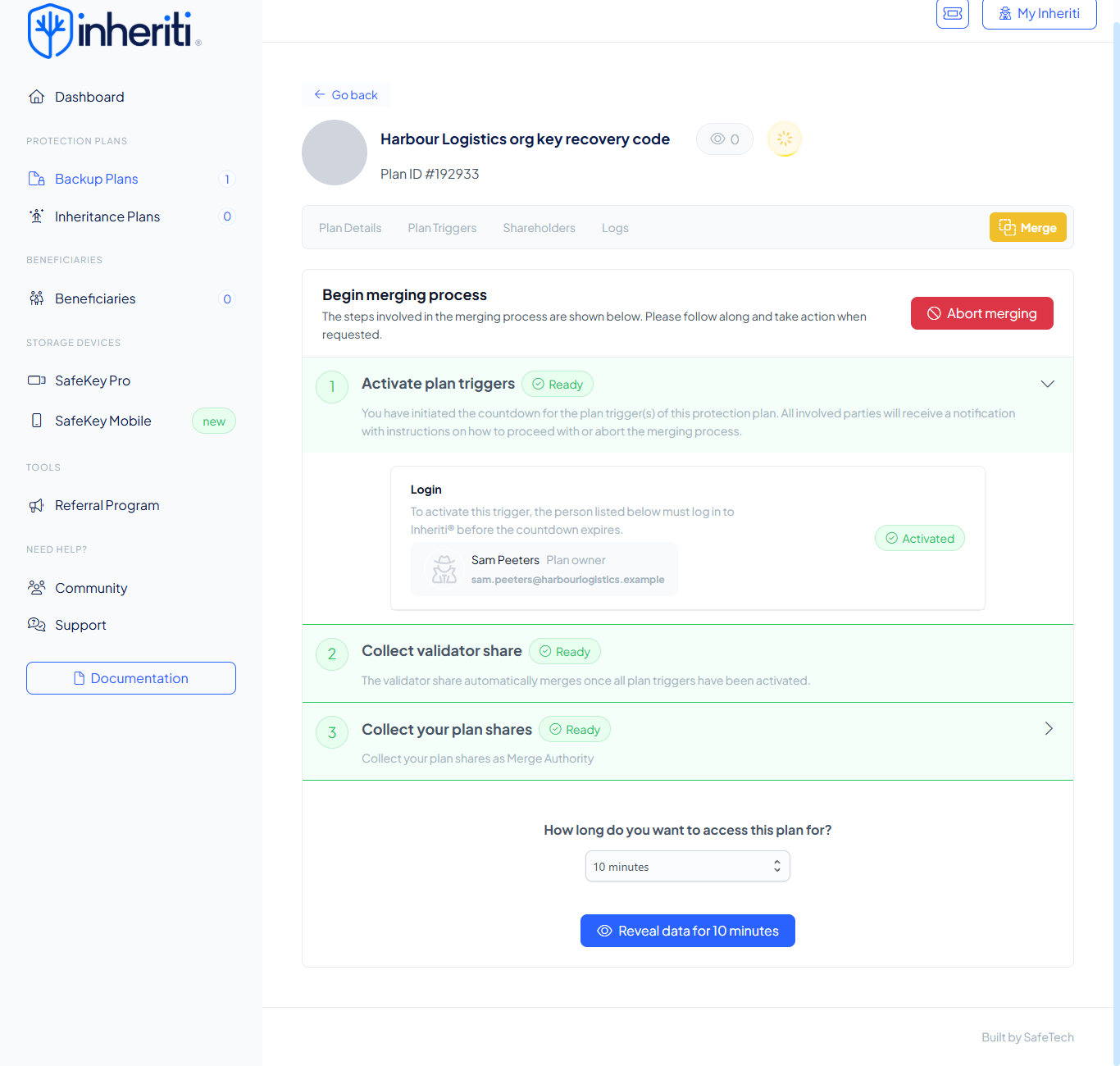
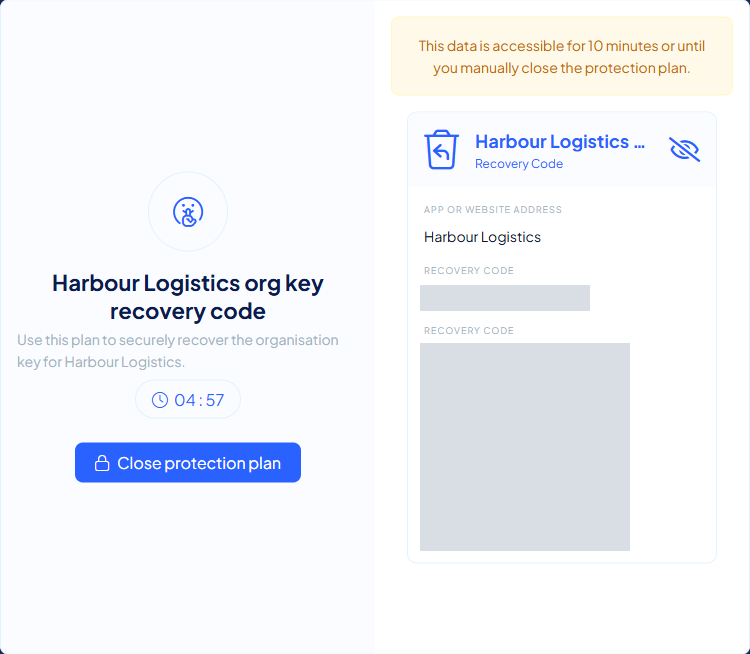
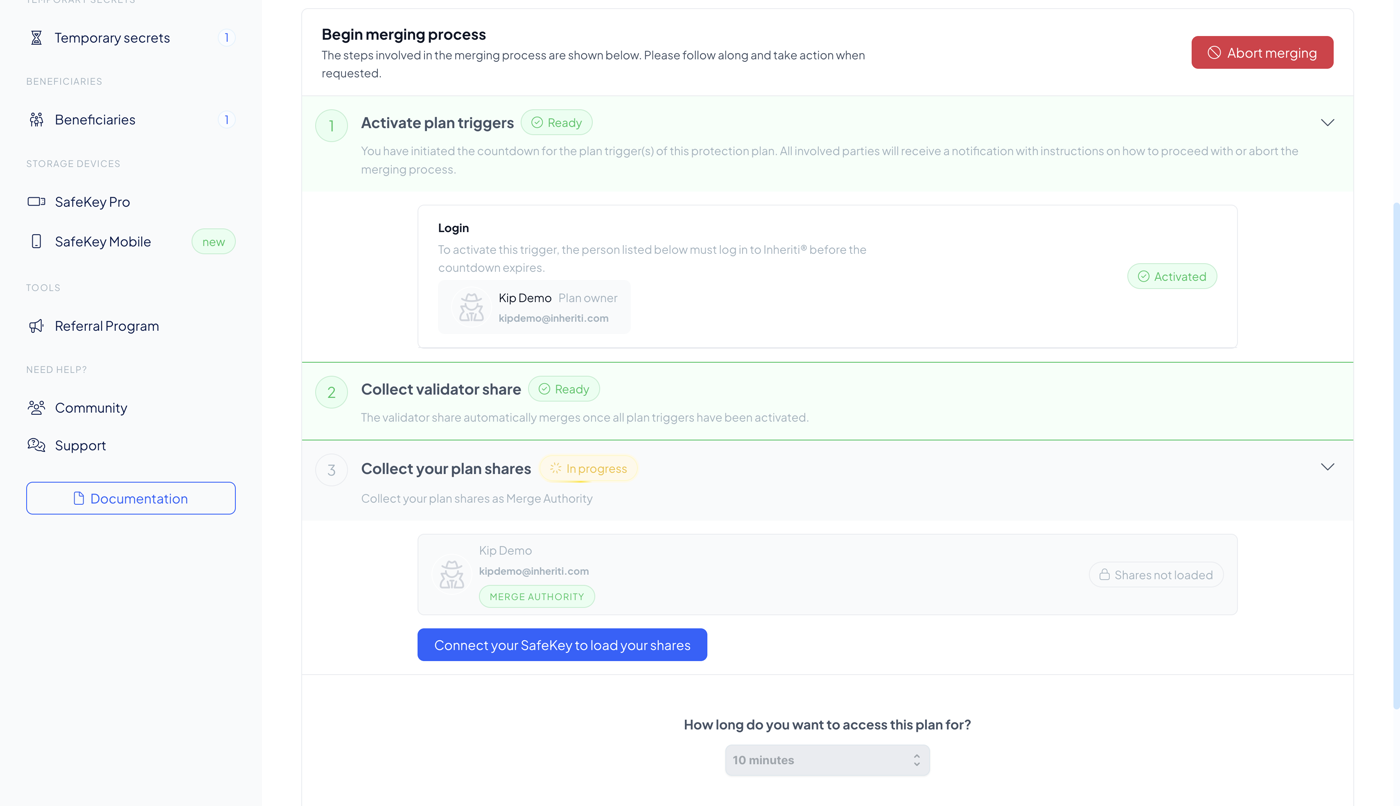
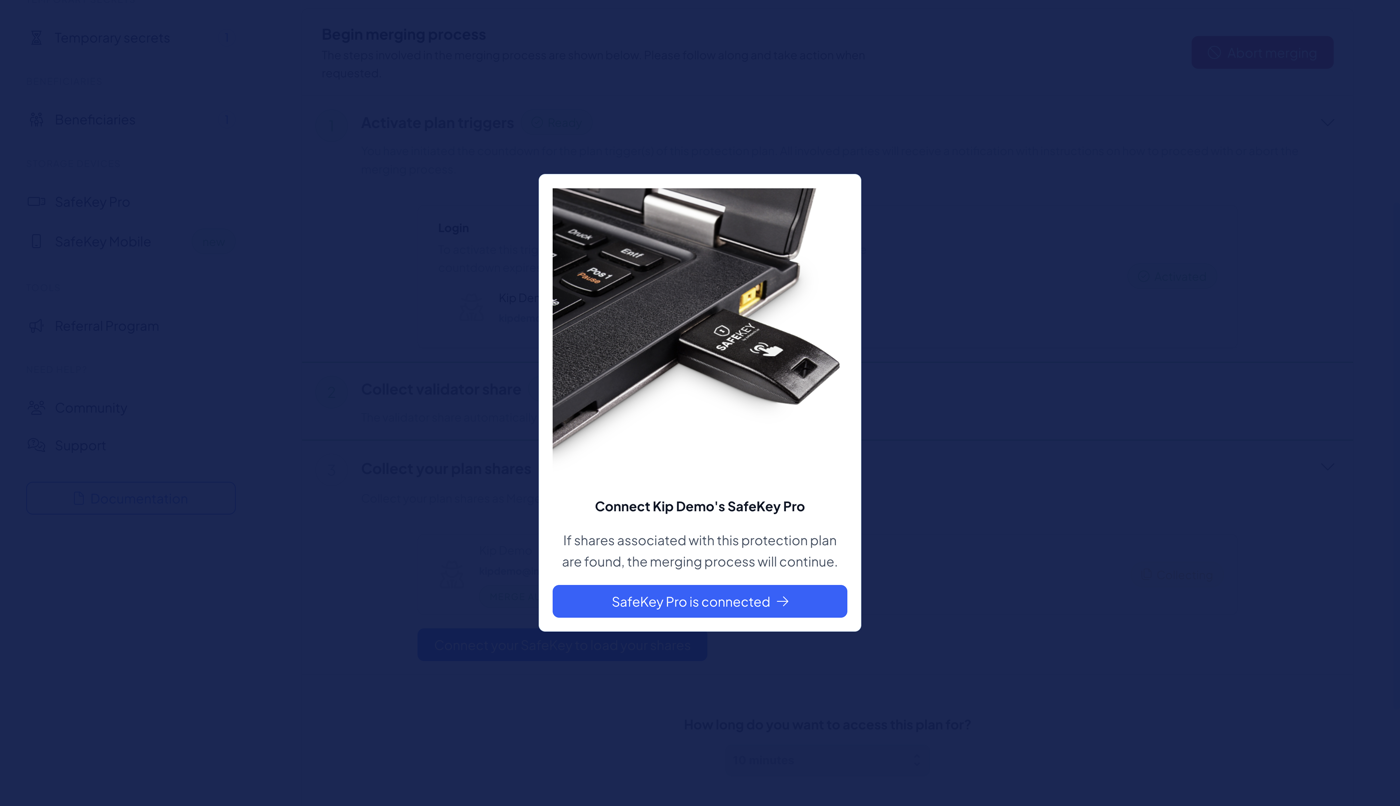
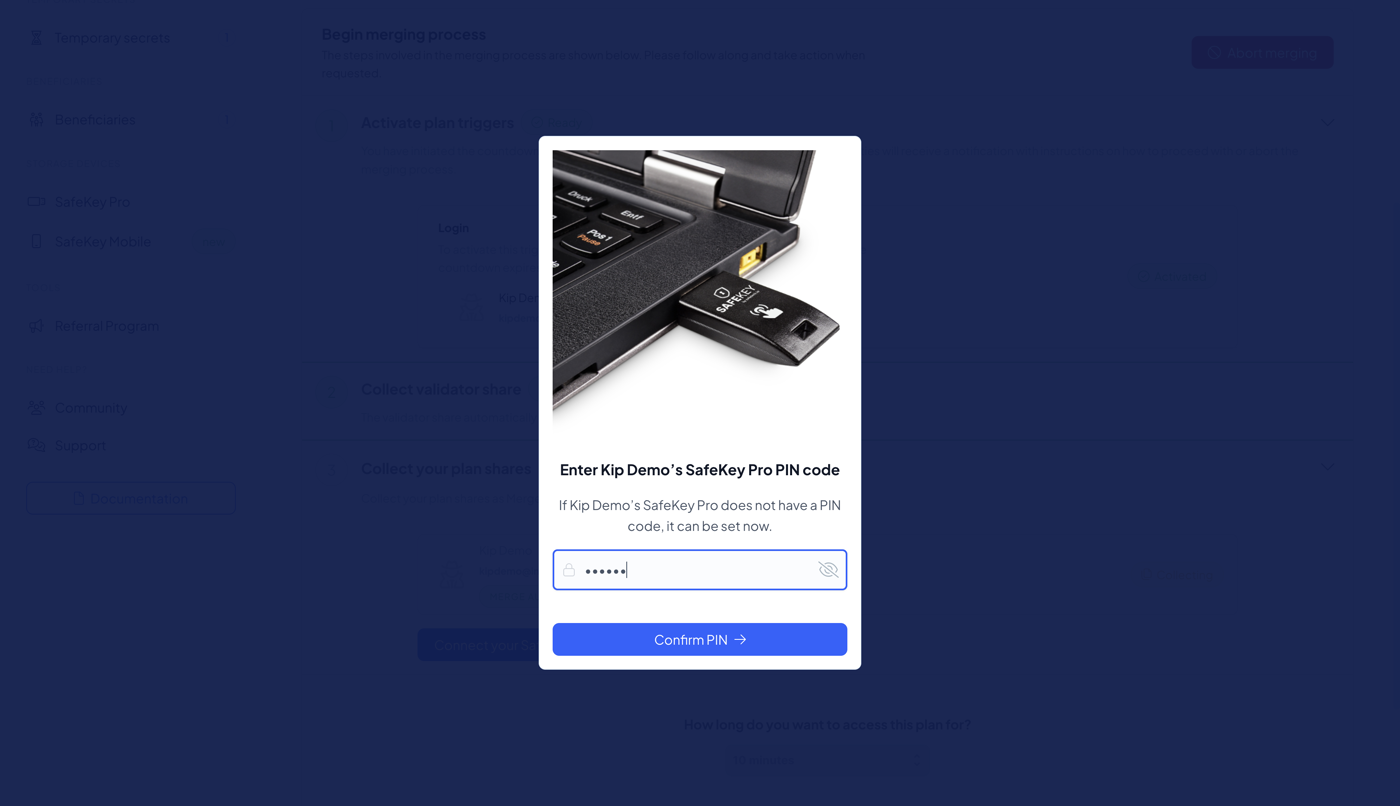
Open the protection plan you created to back up your Organisation Recovery Key, and retrieve the recovery key from it. Step 1: In SafeKey Mobile, select Restore on the Restore share card. Choose whether to keep your backup, select Continue, then enter your PIN. If SafeKey Mobile asks how often to authenticate, select Save. Step 2: Go to app.inheriti.com and sign in with your SafeID. Step 3: Select Backup Plans in the left menu. Step 4: Select the recovery key plan of your organisation. Step 5: Select Merge. Step 6: Tick All selected shareholders are informed..., then select Start countdown for plan triggers. If your plan has other triggers than Login, complete them too. Step 7: Select Send request to your Safekey Mobile. Step 8: In SafeKey Mobile, open the Release share card, select Release, then enter your PIN. Step 9: When the page shows Shares loaded, select Continue to next step. Step 10: Choose how long you want access, then select Reveal data. Step 11: Select the eye icon next to your Recovery Key and copy the code under Recovery code. The screenshots of the SafeKey Pro steps are preliminary and will be replaced. Step 1: Go to app.inheriti.com and sign in with your SafeID. Step 2: Select Backup Plans in the left menu. Step 3: Select the recovery key plan of your organisation. Step 4: Select Merge. Step 5: Select additional shareholders if applicable, tick All selected shareholders are informed..., then select Start countdown for plan triggers. If your plan has other triggers than Login, complete them too. Step 6: Select Connect your SafeKey to load your shares. Step 7: Insert your SafeKey Pro, then select SafeKey Pro is connected. Step 8: Enter your PIN, then select Confirm PIN. Step 9: Follow the on-screen prompts and wait while your SafeKey Pro is scanned for the shares of this plan. Step 10: Remove your SafeKey Pro, tick the confirmation, then select Complete merging process. Step 11: Choose how long you want access, then select Reveal data. Step 12: Select the eye icon next to your Recovery Key and copy the code under Recovery code.Share stored with SafeKey Mobile
Share stored with SafeKey Pro

Step 3: start the redistribution
In Inheriti® Business, go to My organisation → Details. If you do not hold a claimed Organisation Key, select Redistribute Organisation Key in the Organisation Key card.
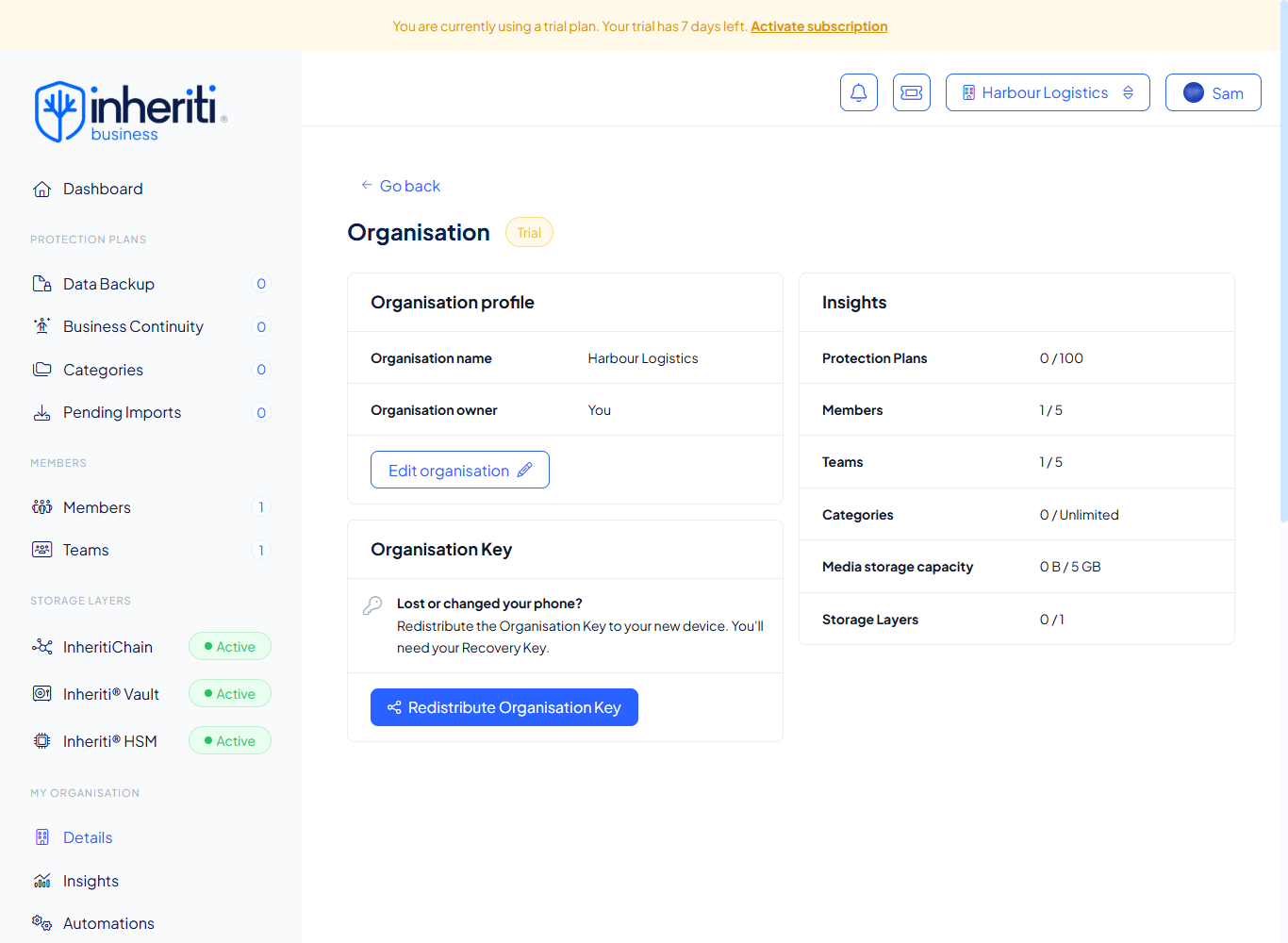
Only the Organisation Owner sees this card, and only while they have no claimed Organisation Key.
Step 4: enter your Organisation Recovery Key
Verifying your key revokes the Organisation Key from your previous device and prepares it for your new one. Enter all 16 characters, then select Verify Recovery Key.
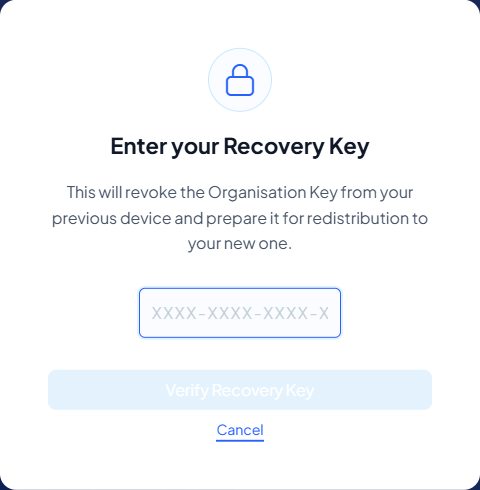
Your Organisation Recovery Key stays in your browser. Only a check value is sent to verify it.
Step 5: follow the progress
The card shows the recovery steps and ticks them off:
- Download SafeKey Mobile on your new device
- Set up SafeKey Mobile on your new device
- Redistribute the Organisation Key
- Claim the Organisation Key
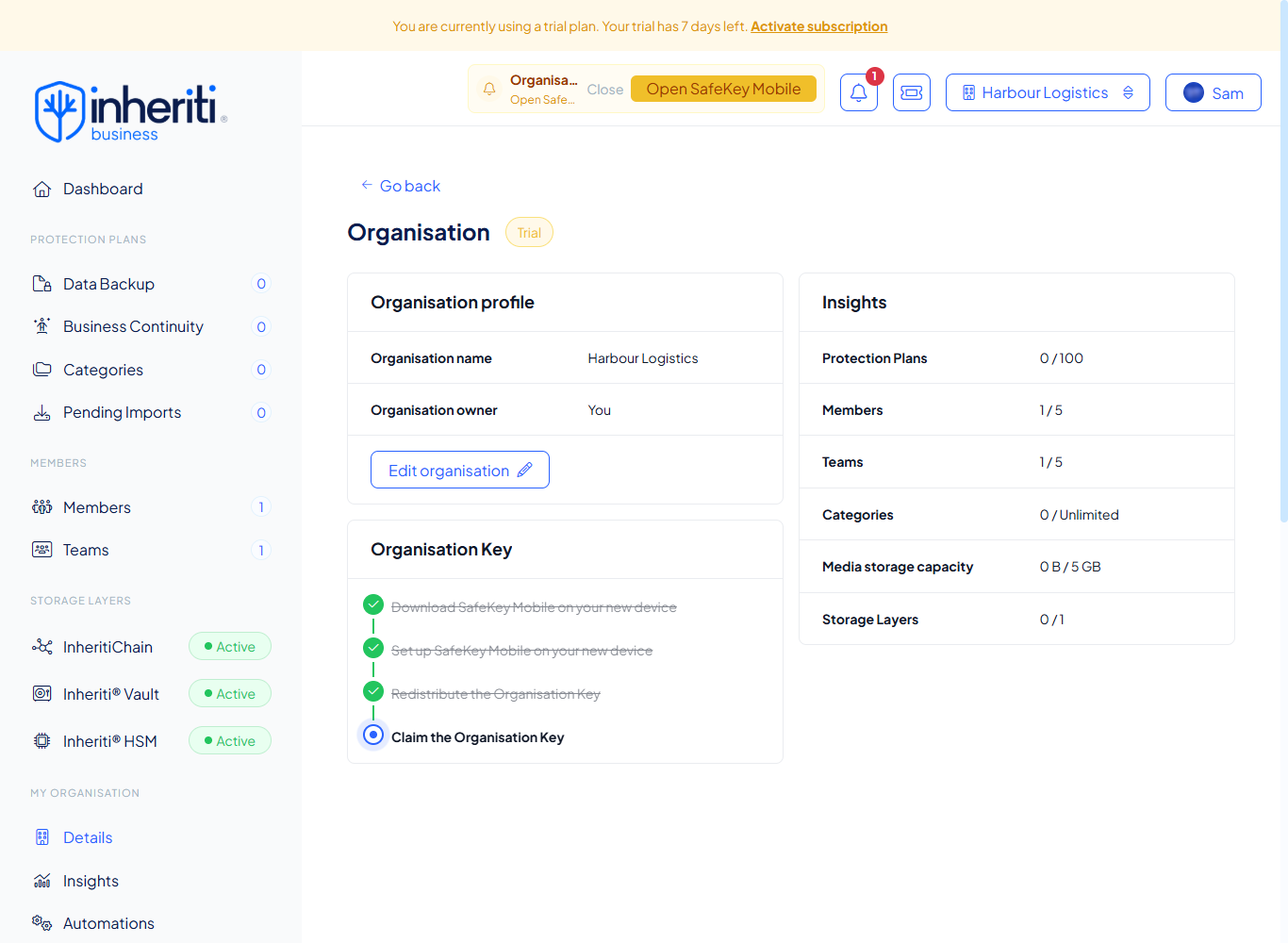
If your new phone is not ready, the first step stays active. You can select Cancel redistribution and start again later.
Step 6: claim the Organisation Key on your new phone
In SafeKey Mobile, select Claim on the Claim key card.
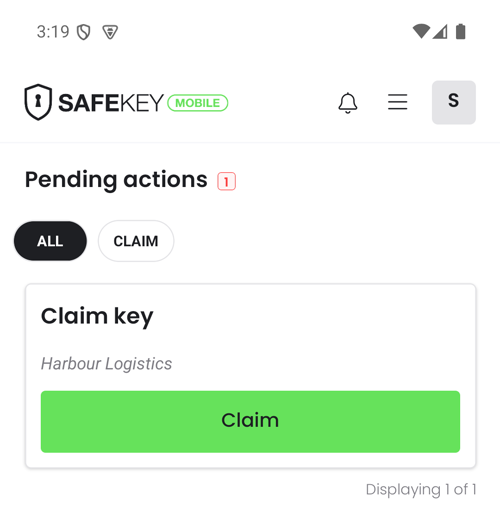
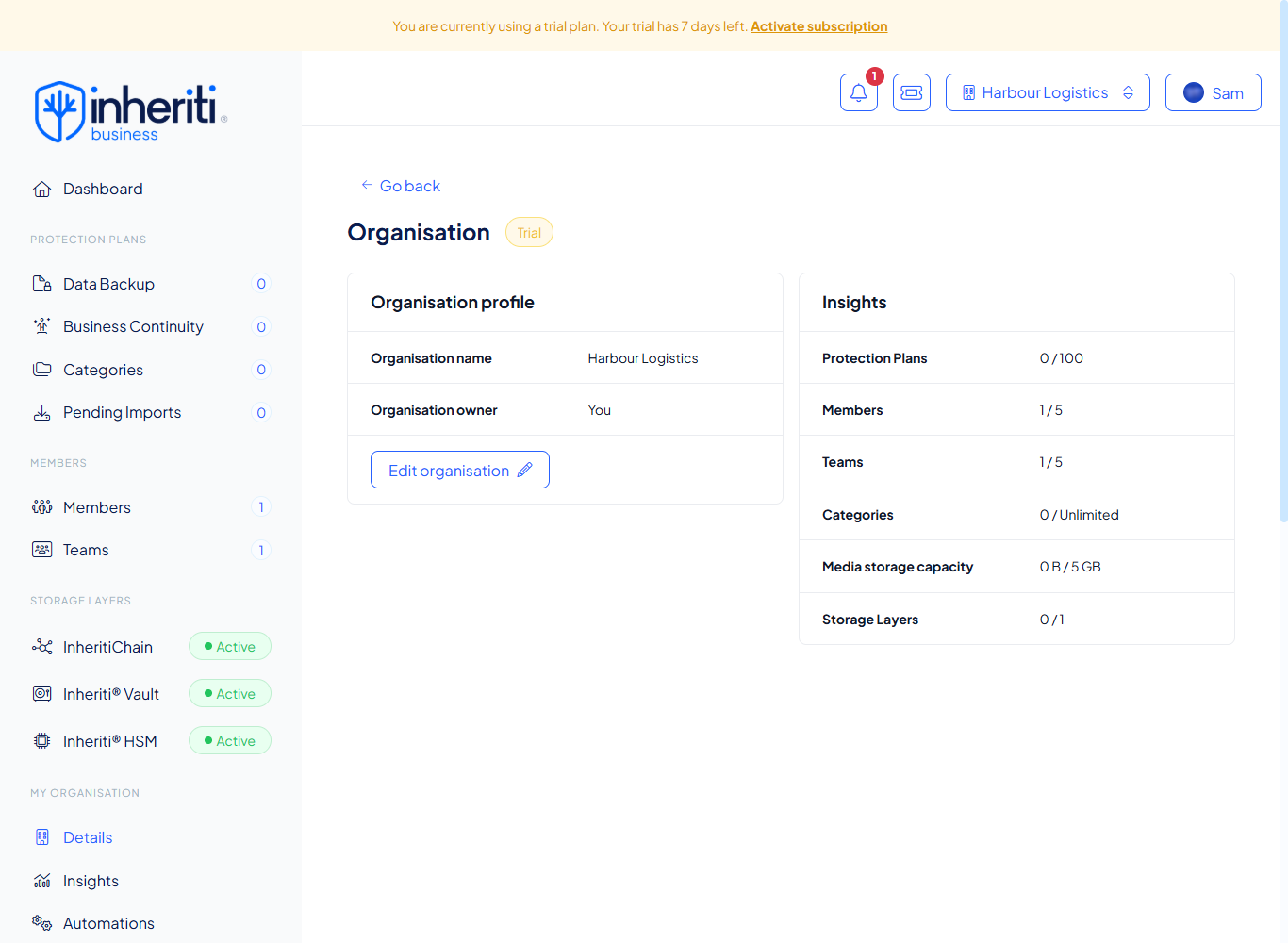
When the claim is complete, the Organisation Key card disappears from the details page.
If something goes wrong
- "Something went wrong": Select Try again to restart the redistribution.
- "Incorrect Recovery Key. Please try again.": Check each character against the key you saved.
- You no longer have the Organisation Recovery Key: It cannot be recreated. Select Support in the menu of Inheriti® Business to discuss resetting your organisation.
- The page shows Send request again: The release took too long. Select it again and confirm on your phone.