📲 Set up SafeKey Mobile
Who can do this: Every member, on their own phone.
SafeKey Mobile is the phone app that holds your Organisation Key and answers your approvals. This guide takes you from the first start to a phone that is ready to claim the Organisation Key. It takes about five minutes.
Before you start
You need a SafeID: the account you already use for Inheriti® Business. You never create a second account for the app.
Step 1: install the app
Your dashboard shows a banner with the App Store and Google Play QR codes. Scan the code for your phone and install SafeKey Mobile.
Step 2: accept the terms
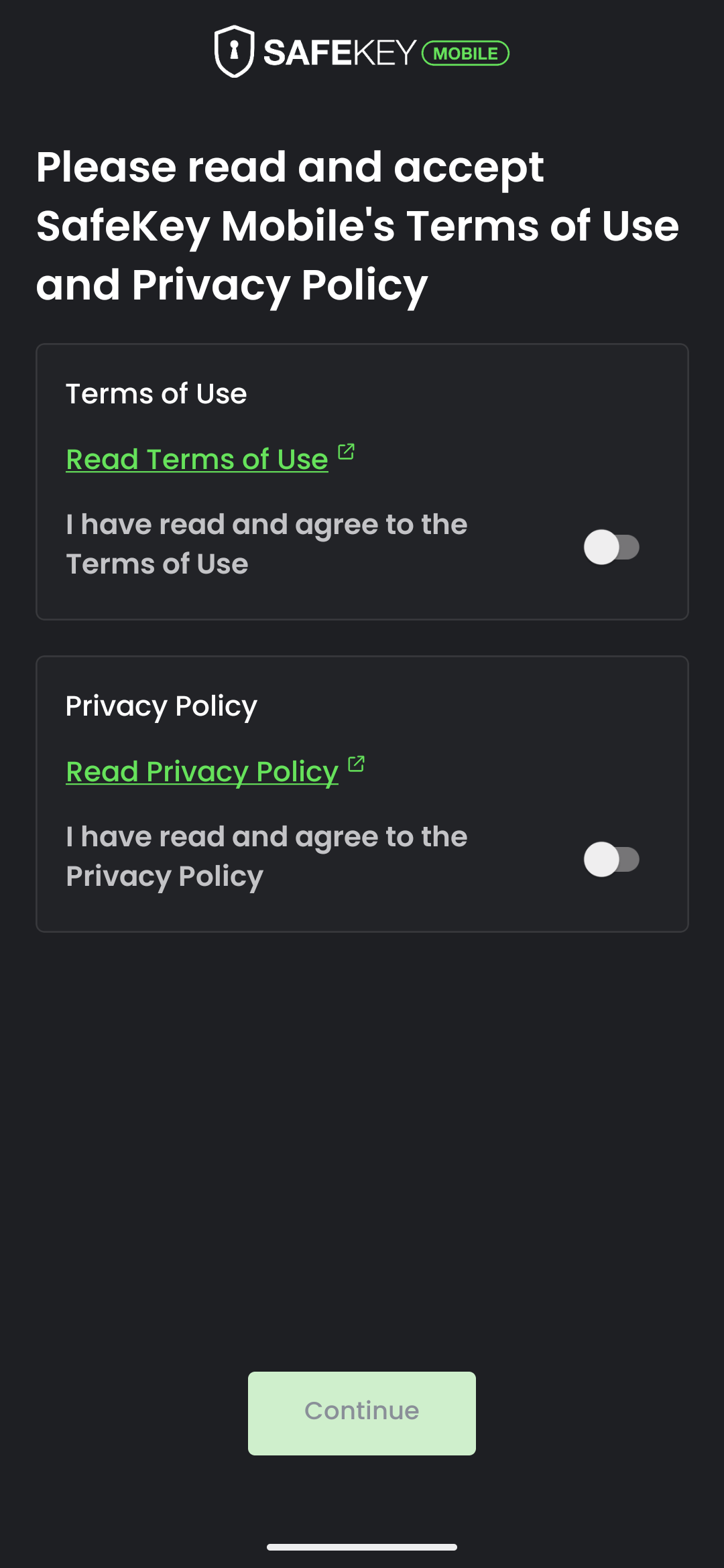
On first start the app asks you to read and accept the Terms of Use and the Privacy Policy. Open each one with its Read link, then switch on I have read and agree for both. Continue becomes active when both are on.
Step 3: look through the introduction
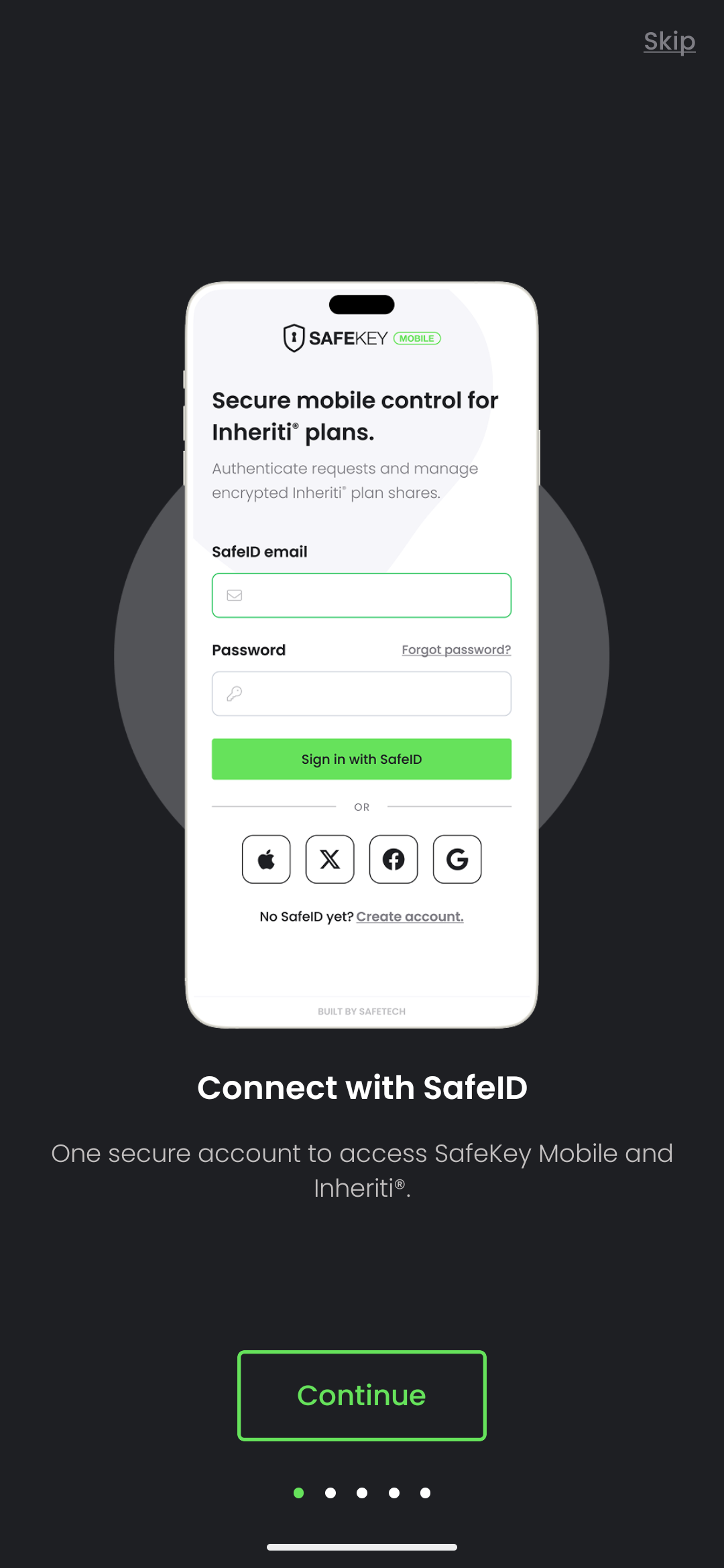
A short introduction follows, one page at a time, starting with Connect with SafeID: "One secure account to access SafeKey Mobile and Inheriti®." Select Continue through the pages, or Skip.
Step 4: sign in with your SafeID
Your browser opens on the SafeID sign-in page. Sign in with the same account you use for Inheriti® Business. When you return to the app, you are signed in.
The first time, the app generates a key pair on your phone. The private part never leaves the phone. This is what lets your organisation seal the Organisation Key to you.
Step 5: set your PIN
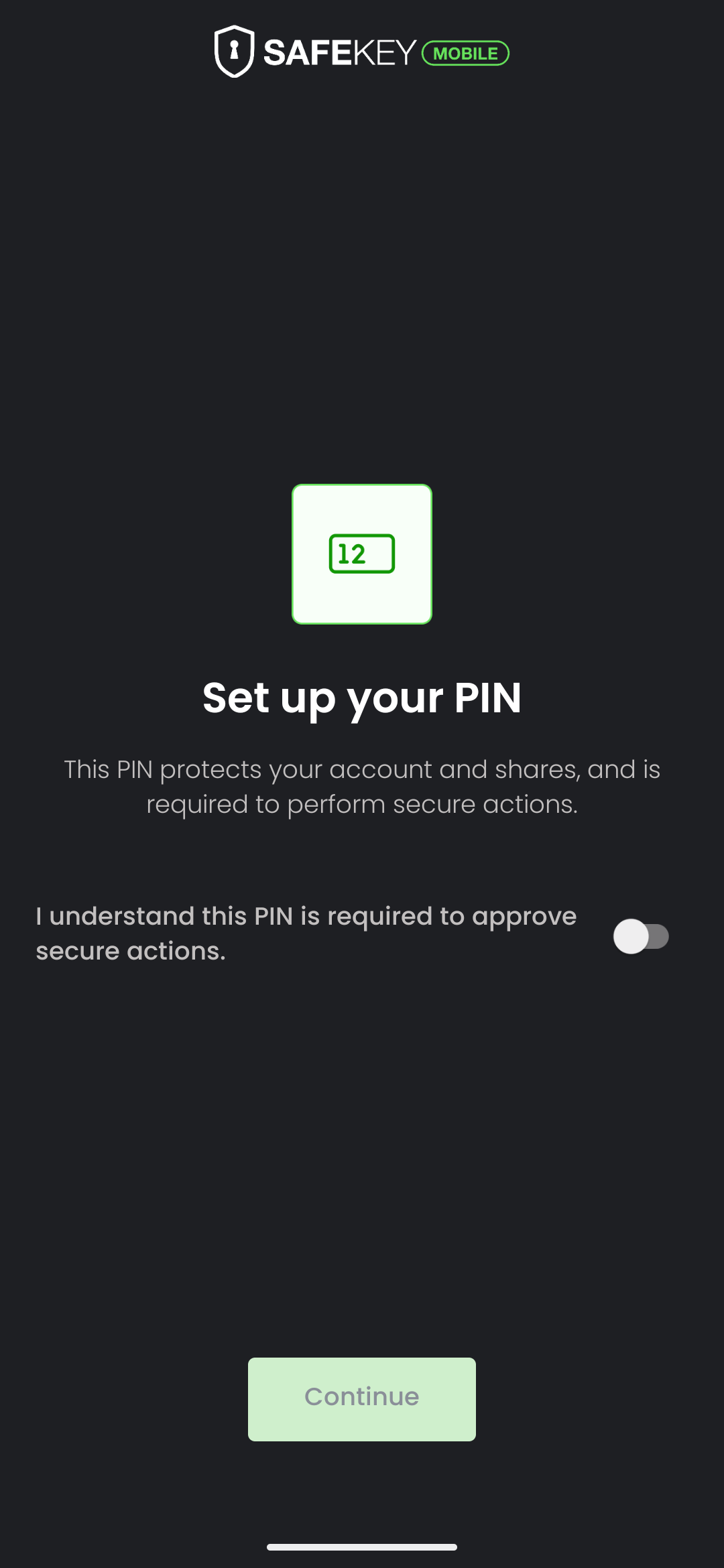
The app explains first: "This PIN protects your account and shares, and is required to perform secure actions." Switch on I understand this PIN is required to approve secure actions and select Continue.
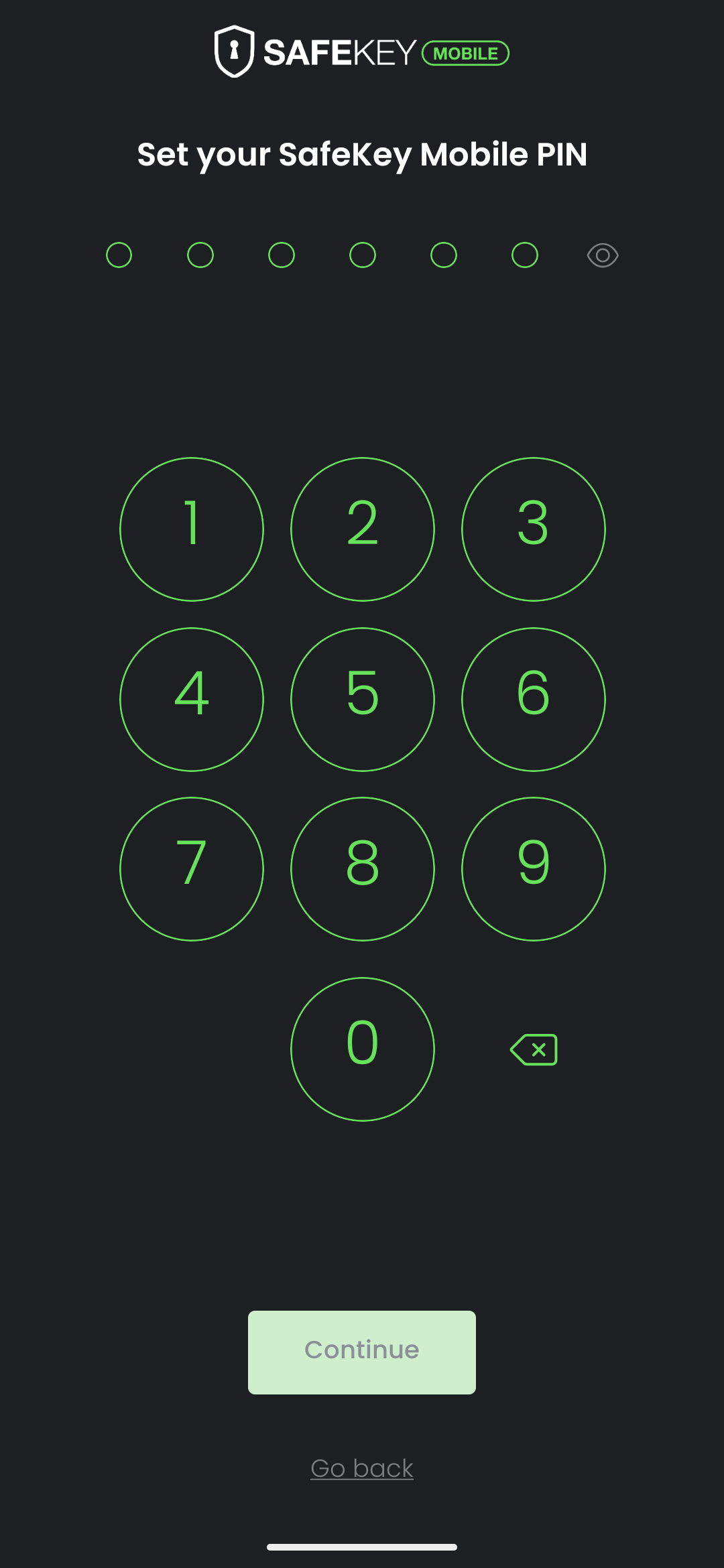
Then enter a PIN of six digits and confirm it on the next screen with Set PIN. Choose one you will remember: you need it for every approval. You can show the digits with the eye icon.
Step 6: cloud restore (optional)
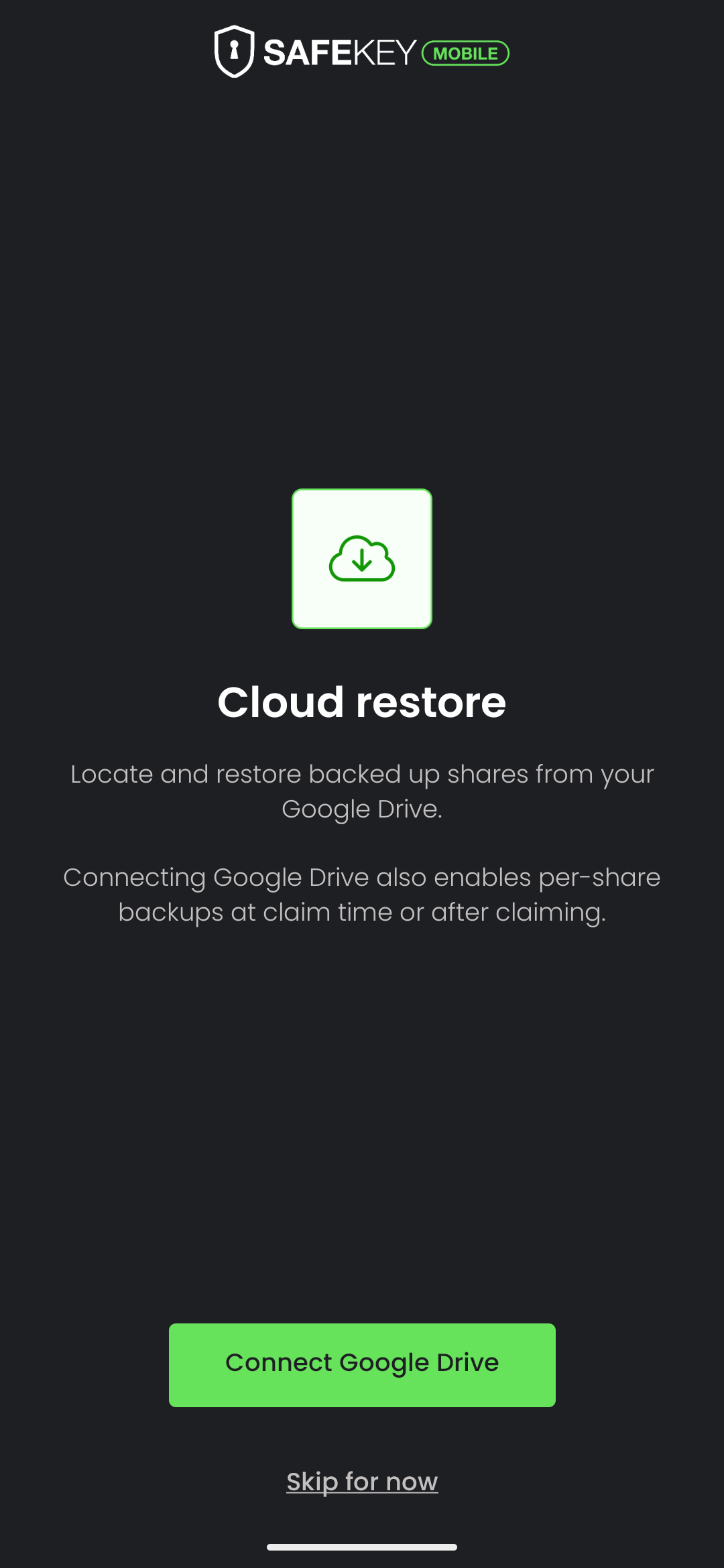
The app offers Cloud restore: "Locate and restore backed up shares from your Google Drive." Connecting Google Drive also enables backups of each share, at claim time or after claiming. Select Connect Google Drive, or Skip for now. You can decide later.
You are ready
You land on the Main screen. Along the bottom you find Main (your pending actions and recent activity), Shares, Keys and Activity. As soon as your organisation sends you the Organisation Key, a Claim key action appears: claim it.
How often the app asks for your PIN
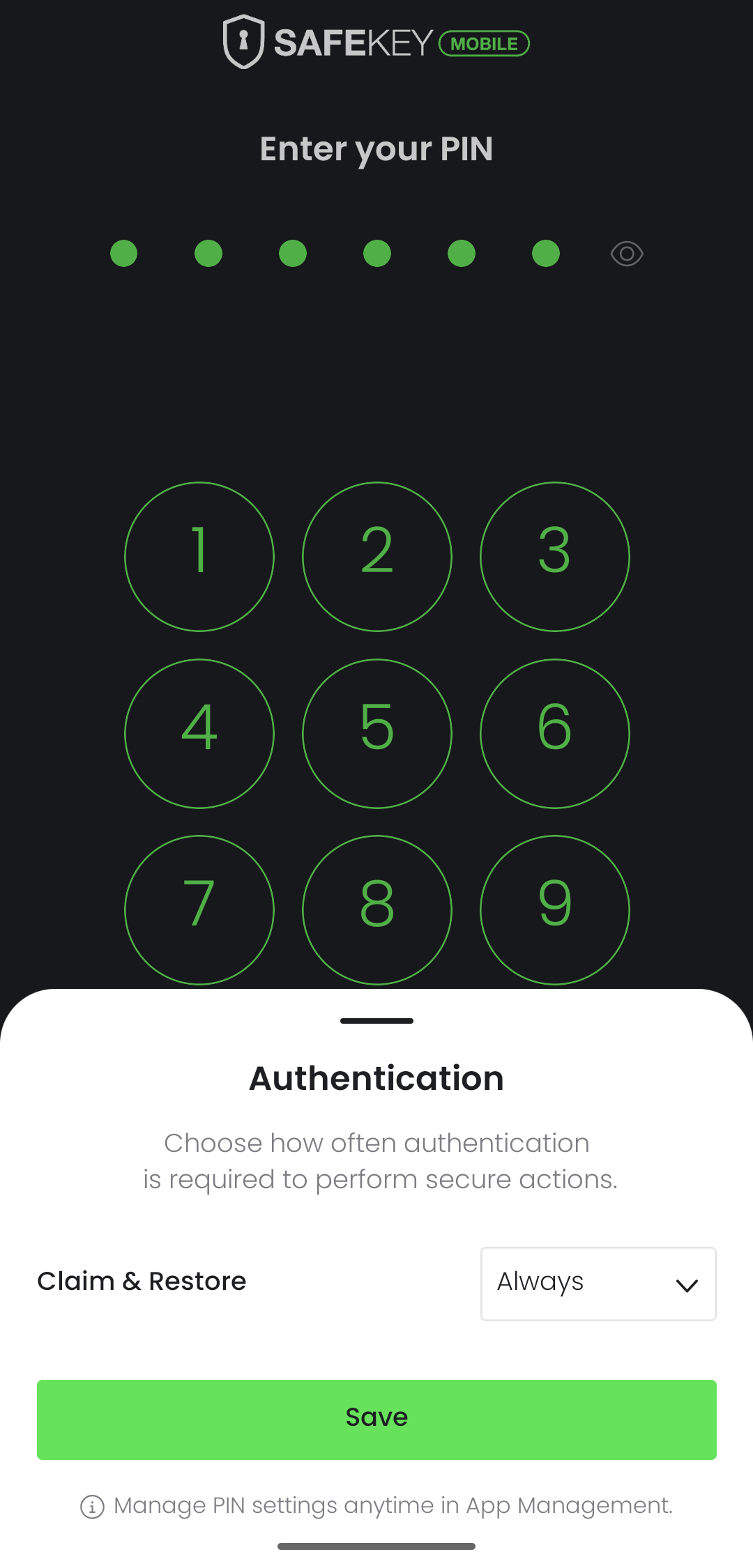
The first time you approve something, the app asks how often it should ask for your PIN. A sheet called Authentication shows a setting such as Authorisations (it covers Authenticate, Dead Man Switch & Moderate) or Claim & Restore. The default is Always. Select Save to keep it. The sheet says you can manage it anytime in App Management.
If something goes wrong
- "Sign in to continue" with Try again: the sign-in did not finish. Select Try again and sign in once more.
- You changed phones: see recover the Organisation Key.