🔌 Enable cloud connectors
Who can do this: The Organisation Owner.
Add your own Dropbox, Google Drive or OneDrive as an extra storage layer for encrypted shares. Connectors are paid add-ons (not available during a free trial), enabled by the Organisation Owner; this guide uses Google Drive, the flow is the same for the others.
Start from the storage layer card
Go to My Organisation → Storage Layers and find the connector under Organisation Managed Layers. Details explains the layer first; Enable starts the connection.
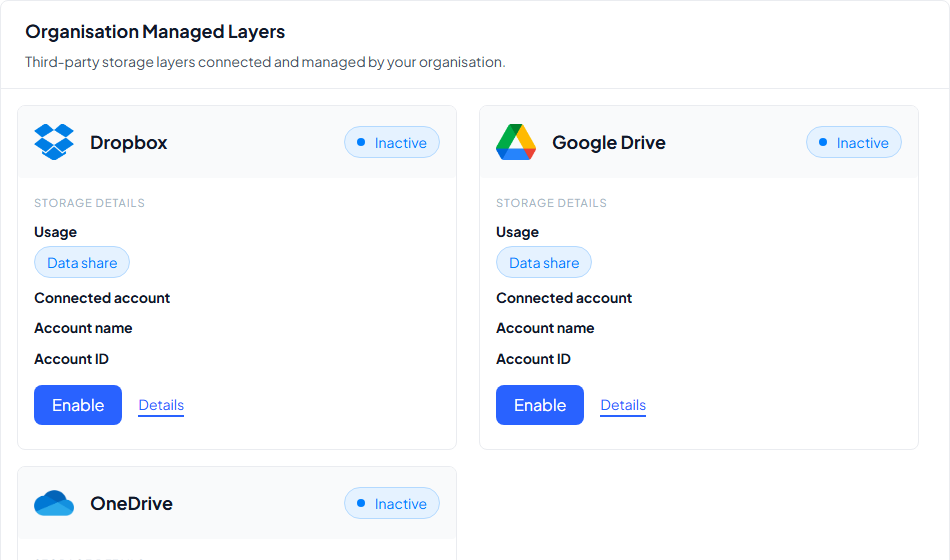
The Enable button stays disabled while your organisation is on a free trial or while its subscription is not active. The page then points you to Manage subscription.
Step 1: review the add-on
The first dialog, Add Google Drive, shows what the layer means for your subscription:
- If it is a new add-on, the price of the slot, plus a Billed on your next invoice notice: the prorated amount appears on your next invoice, your recurring total updates from then on, and you can disable the layer at any time.
- If you already bought a slot, it says Already added to your subscription and invites you to configure it now.
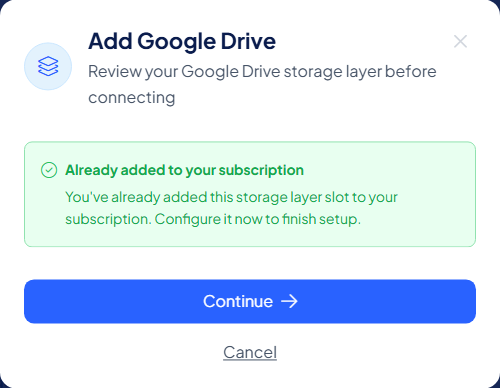
Select Continue.
Step 2: connect your account
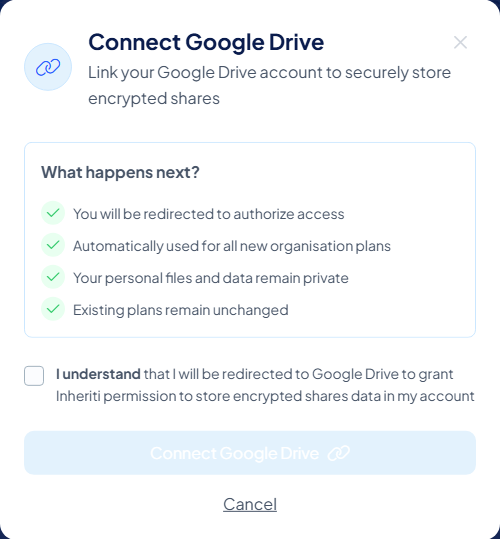
The second dialog, Connect Google Drive, spells out what happens next:
- You will be redirected to authorise access with your cloud provider
- The layer is automatically used for all new organisation plans
- Your personal files and data remain private
- Existing plans remain unchanged
Tick the confirmation that you understand you will be redirected to Google Drive to grant Inheriti® permission to store encrypted share data in your account, then select Connect Google Drive and sign in with the account that should hold the shares.
After connecting
The layer's card turns Active and shows the connected account (account name and ID). From that moment, every new plan gains an extra share position: an additional data share stored in your cloud.
Worth repeating what your cloud provider actually receives: encrypted shares, nothing readable. A compromised cloud account exposes pieces of ciphertext that are useless without the shares held on the other layers.
The share files in your cloud are part of your plans, not a backup. Deleting Inheriti®'s share files from the connected account means plans using this layer can no longer be reconstructed. Keep the account safe and leave its share files alone.
Disabling later
A connector can be disabled from the same page. The Disable Google Drive dialog is blunt about the consequences: existing plans that depend on the layer may become inaccessible until it is re-enabled, and monthly billing changes may apply on your next invoice. You confirm that you understand before the layer is disabled.
Disable only when you are certain nothing depends on the layer, or after rotating the affected plans onto other storage.